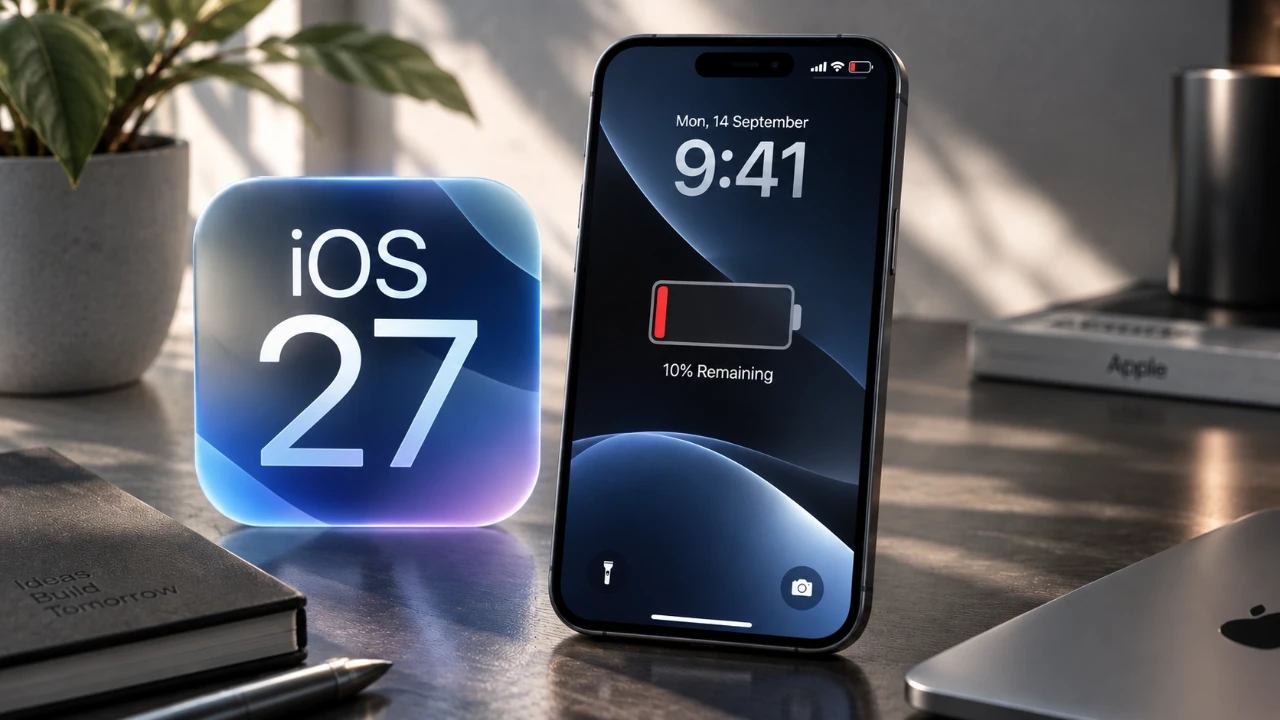
If you’ve recently upgraded to iOS 27 and noticed rapid battery drain, overheating, or sluggish performance, you’re not alone. These issues are common after major software updates and often arise due to background processes, app incompatibilities, or system bugs. The positive news is that there are practical solutions to address these problems and restore your device’s performance. The video below from Daniel About Tech gives us more details on these solutions.

Understanding Post-Update Performance Issues
When a new iOS version is installed, your device initiates several background tasks, such as file indexing, data syncing and app optimization. These processes can temporarily increase battery consumption and even cause overheating. While this is a normal part of the update process, it’s essential to give your device time to adjust. In most cases, performance stabilizes within 24 to 48 hours after the update.
However, if the issues persist beyond this period, they may be linked to other factors, such as outdated apps, system bugs, or improper settings. Identifying the root cause is key to resolving these problems effectively.
Steps to Address Battery Drain and Overheating
To resolve battery drain and overheating, follow these actionable steps:
- Check Battery Usage: Navigate to Settings > Battery to identify which apps are consuming the most power. If certain apps are using excessive battery, consider closing them, disabling background activity, or uninstalling them if they are non-essential.
- Disable Background App Refresh: Go to Settings > General > Background App Refresh and turn off this feature for apps that don’t need to update in the background. This can significantly reduce battery usage.
- Adjust Display Settings: Lowering your screen brightness or allowing Auto-Brightness in Settings > Display & Brightness can help conserve battery life. Additionally, allowing Dark Mode can reduce power consumption on devices with OLED screens.
- Force Quit Background Apps: Double-tap the Home button (or swipe up from the bottom on Face ID devices) to view recently used apps. Swipe up on apps you’re not actively using to close them and free up system resources.
Ensure App Compatibility with iOS 27
Outdated apps can conflict with iOS 27, leading to performance issues such as crashes, lag, or overheating. Developers frequently release updates to ensure their apps work seamlessly with the latest iOS version. To avoid compatibility problems:
- Open the App Store and tap on your profile icon.
- Scroll down to view available updates and select Update All.
Regularly updating your apps ensures they are optimized for iOS 27, reducing the likelihood of performance-related issues.
Restarting Your Device for Quick Fixes
A simple restart can often resolve minor glitches and improve overall performance. Restarting clears temporary system files and refreshes the operating system. To restart your device:
- Press and hold the power button (or the power and volume buttons on newer models) until the power-off slider appears.
- Slide to power off, wait a few seconds and then press the power button again to turn your device back on.
If restarting doesn’t resolve the issue, additional troubleshooting steps may be necessary.
Allow Time for System Stabilization
After applying fixes, monitor your device over the next 24 to 48 hours. During this period, observe its battery life, temperature and overall performance. Many post-update issues resolve themselves as background processes complete and the system stabilizes. If problems persist beyond this adjustment period, consider exploring advanced troubleshooting options.
Advanced Solutions for Persistent Problems
If basic troubleshooting steps fail to resolve the issues, more advanced measures may be required:
- Perform a Factory Reset: Resetting your device to factory settings reinstalls iOS 27 and eliminates persistent software glitches. Before proceeding, back up your data using iCloud or iTunes to avoid losing important information. To reset, go to Settings > General > Reset > Erase All Content and Settings.
- Downgrade to iOS 26: If iOS 27 continues to cause significant problems, you may have the option to revert to iOS 26. However, this is a time-sensitive solution, as Apple typically stops signing older iOS versions shortly after a new release. Use iTunes or Finder on your computer to perform the downgrade, making sure you have a backup of your data beforehand.
- Contact Apple Support: If none of the above solutions work, reach out to Apple Support for professional assistance. Persistent issues may indicate a hardware problem or a deeper software bug that requires expert intervention.
Optimizing Your iOS 27 Experience
While iOS 27 introduces new features and enhancements, it may also bring temporary challenges like battery drain, overheating, or performance hiccups. By addressing background processes, updating apps and adjusting settings, you can resolve many of these issues. For more persistent problems, advanced solutions such as a factory reset or downgrading to a previous iOS version may be necessary. With a methodical approach and a bit of patience, you can restore your device’s performance and enjoy the full benefits of iOS 27.
Advance your skills in iOS 27 by reading more of our detailed content.
- Apple Delaying iOS 27 Beta 5? Here’s When to Expect the Next Update
- New iOS 27 Beta 5 Release Arrives with a Big Shift Coming
- iOS 27 Beta 5 Is Late: What’s Holding Up Apple’s Next Release?
- The iOS 27 Beta 5 Release Imminent with More New Features
- Apple’s iOS 27 Beta 3 Is Just Days Away: Here’s When It Drops
- Apple iOS 27 Beta 5 Preview: a Look at the Next Release
Source: Daniel About Tech
Disclosure: Some of our articles include affiliate links. If you buy something through one of these links, Geeky Gadgets may earn an affiliate commission. Learn about our Disclosure Policy.
