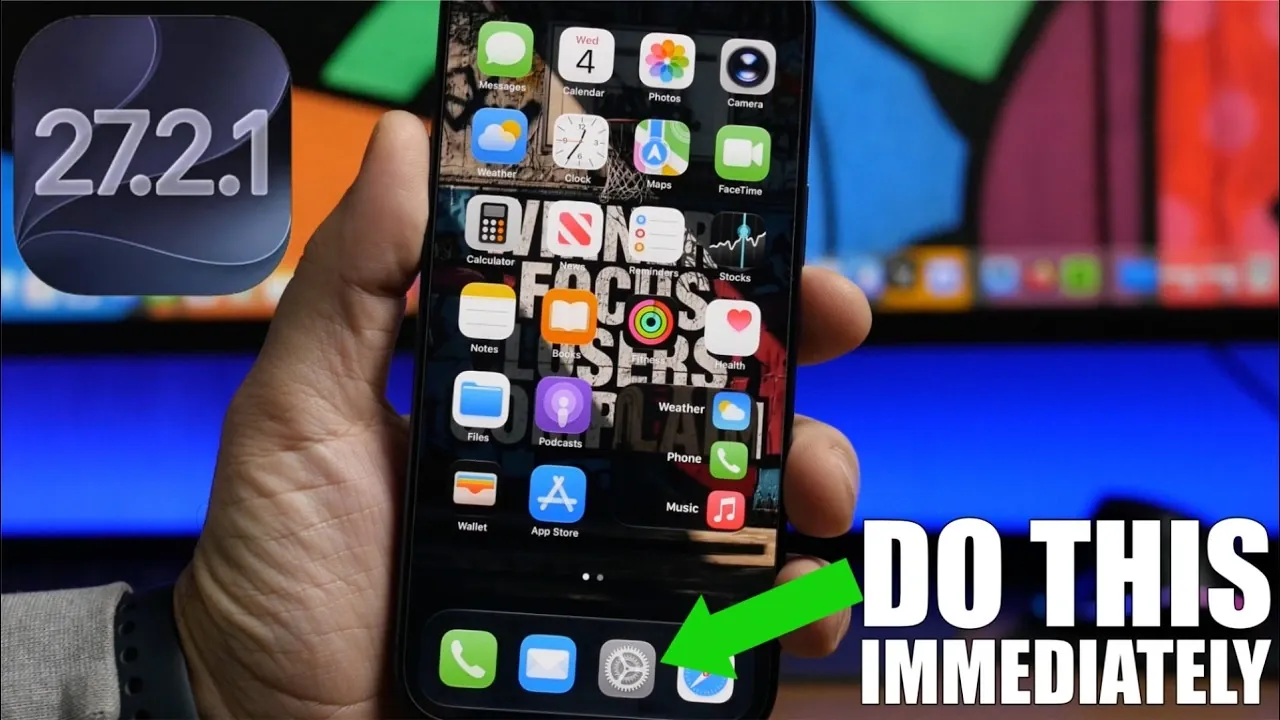
The release of iOS 27.2.1 is more than a routine update; it’s a critical enhancement designed to address security vulnerabilities, improve system performance, and ensure your device operates at its best. While installing the update is an essential first step, it’s equally important to take additional actions to fully optimize your device. These steps will help enhance security, improve functionality, and extend the overall lifespan of your iPhone or iPad. The video below from iReviews gives us more details on the update.
- Post-Update Audit: Immediate steps to take after installing iOS 27.2.1 to lock down privacy and maximize hardware efficiency.
- Background Security Toggles: Enable automatic rapid security responses to stay protected between full system builds.
- Battery & Thermal Care: Monitor maximum capacity thresholds and enable Optimized Battery Charging to prolong cell longevity.
- Carrier & App Hygiene: Refresh background network bundles and update App Store software to prevent unexpected crash loops.

Why the iOS 27.2.1 Update is Essential
The iOS 27.2.1 update focuses on resolving critical security flaws that could expose your device to cyber threats. By installing this update, you’re taking a proactive step to protect your sensitive personal data from potential breaches. Furthermore, the update includes vital bug fixes and system optimizations that improve your device’s responsiveness and stability.
To ensure ongoing protection, consider allowing the automatic updates feature in your settings. This ensures that your device installs future maintenance patches as soon as they become available, minimizing the risks associated with outdated software. Staying up to date is a simple yet effective way to maintain your device’s security and performance.
Steps to Strengthen Security and Privacy
After updating to iOS 27.2.1, it’s important to review and adjust your device’s security and privacy settings. These adjustments will help you maintain control over your personal information and protect your device from potential threats. Focus on the following actions:
- Enable Background Security Improvements: This feature allows your device to automatically install critical security patches without requiring a full system update. Activating it ensures continuous protection against emerging vulnerabilities.
- Review App Permissions: Navigate to your settings and evaluate the permissions granted to each app. Revoking unnecessary location or tracking permissions can help safeguard your data.
- Activate Two-Factor Authentication: If you haven’t already, ensure two-factor authentication is active for your Apple ID to add an extra layer of account defense.
By taking these steps, you can significantly enhance your device’s defenses and ensure your personal data remains secure.
Monitor Battery Health and Optimize Performance
Major and minor software installations can sometimes recalibrate your device’s power indexing, providing a more accurate reading of its health. To check your battery status, go to Settings > Battery > Battery Health & Charging. This section will display your maximum capacity percentage and peak performance capability.
If your battery health has dropped significantly below standard operating thresholds, it may be time to evaluate a replacement. Additionally, keeping Optimized Battery Charging active reduces long-term cell aging by learning your daily routine and delaying a full 100% charge until you actually need it.
Ensure App Compatibility and Update Regularly
Outdated third-party apps can cause unexpected crashes, interface glitches, or battery drain after a system update. To prevent this, open the App Store and update all installed applications. Keeping your software ecosystem synchronized ensures complete compatibility with the latest iOS architectural changes.
For added convenience, enable automatic app updates in your App Store preferences so your tools remain optimized without requiring manual checks.
Check for Carrier Updates
Carrier settings bundles are frequently updated behind the scenes to maintain cellular stability, improve 5G/LTE data routing, and optimize call quality. After installing iOS 27.2.1, check for any pending provider updates by navigating to Settings > General > About. If a prompt appears, install it immediately to ensure seamless network handoffs.
Proactive Measures for Long-Term Device Performance
Taking the right steps after updating to iOS 27.2.1 ensures your device remains secure, efficient and reliable. To summarize, here are the key actions you should prioritize:
- Enable automatic system and app updates to stay protected against newly disclosed exploits.
- Audit application tracking and permission levels to protect personal privacy.
- Check battery health metrics and keep optimized charging protocols active.
- Verify your carrier settings bundle is fully up to date for optimal connectivity.
By following these proactive measures, you can maximize the stability benefits of iOS 27.2.1 and keep your hardware performing smoothly for the long haul.
Uncover more insights about iOS 27 in previous articles we have written.
- iOS 27 is Finally Coming: Apple to Confirm Release Date Today
- iOS 27 Launch Date Revealed: When Apple Will Roll Out Its Next Major iPhone Update
- iOS 27 Release Date and Features: When Will Your iPhone Get the Big Upgrade?
- iOS 27 RC Released: the Final Update Brings One Big Surprise
- Apple Releases iOS 27 Beta 8 Featuring the Final Changes
- What’s Coming Next? Inside the New Tweaks Hitting iOS 27.2 Beta 3
Source & Image Credit: iReviews
Disclosure: Some of our articles include affiliate links. If you buy something through one of these links, Geeky Gadgets may earn an affiliate commission. Learn about our Disclosure Policy.
