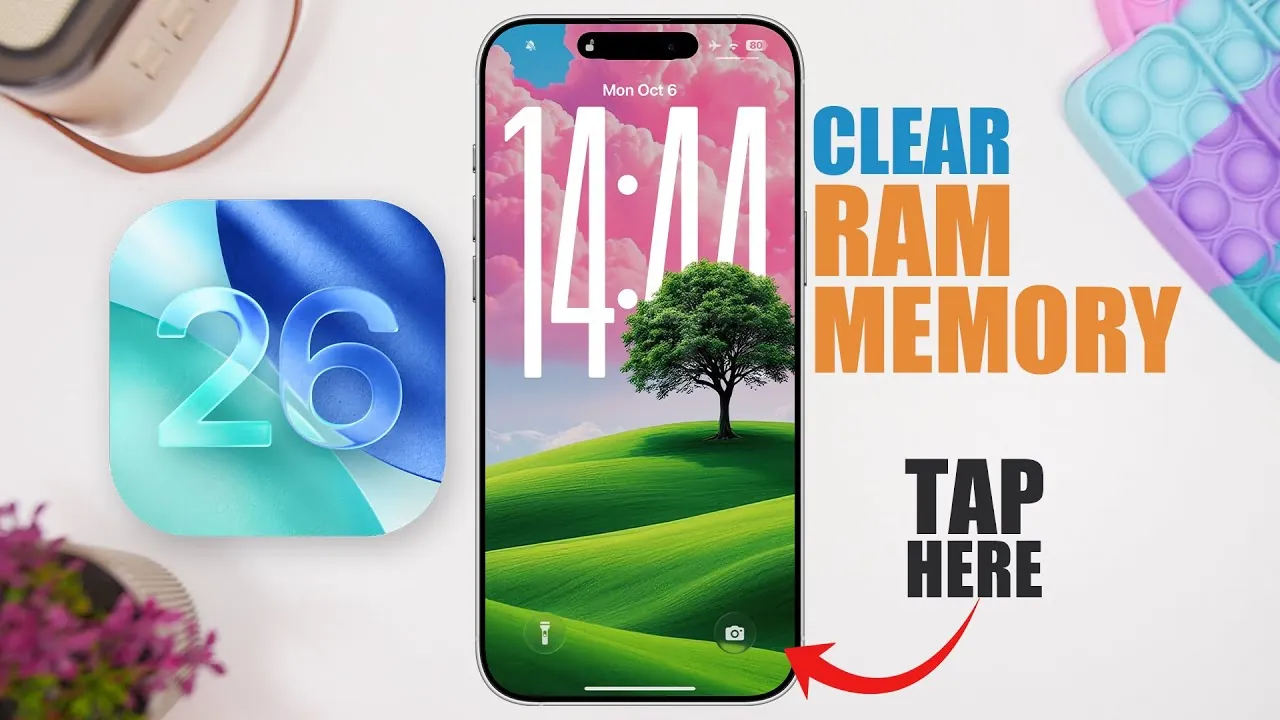
Effectively managing your iPhone’s RAM memory is a practical way to enhance its performance, resolve app-related issues, and maintain smooth functionality. If your device feels sluggish or apps frequently freeze, clearing RAM can provide noticeable improvements. The video below from iReviews explores three reliable methods to clear RAM on an iPhone running iOS 26, making sure your device operates at its best.

Why Clearing RAM Matters
RAM, or Random Access Memory, plays a vital role in your iPhone’s performance. It temporarily stores data for active apps and processes, allowing seamless multitasking and faster access to frequently used functions. However, when RAM becomes overloaded, your device may slow down, apps might freeze, and overall responsiveness can decline. By clearing RAM, you free up valuable memory, allowing your iPhone to function more efficiently and reducing the likelihood of performance bottlenecks.
Method 1: Use the CPU X App
The CPU X app is a powerful third-party tool designed to help you monitor and manage your iPhone’s RAM usage. It provides real-time insights into your device’s performance and offers a straightforward way to clear memory with minimal effort.
- Key Features: Displays detailed metrics such as RAM usage, CPU performance, and system health.
- How It Works: Open the app, navigate to the RAM section, and tap the “Clear RAM” button to instantly free up memory.
This method is particularly useful for users who want a comprehensive overview of their device’s performance while addressing RAM-related issues. The app’s intuitive interface ensures that even less tech-savvy users can optimize their device with ease.
Method 2: Use the Device Monitor 2 App
Device Monitor 2 is another effective third-party app for managing your iPhone’s RAM. It provides a detailed breakdown of your device’s memory, including total, active, inactive, and free RAM. Its user-friendly design makes it an excellent choice for users seeking both insights and functionality.
- Key Features: Offers in-depth memory statistics, including a one-tap RAM clearing function for quick optimization.
- How It Works: Launch the app, review the RAM details, and use the “Clear RAM” option to free up memory and improve performance.
This app is ideal for users who prefer a deeper understanding of their device’s memory management while benefiting from an efficient and straightforward solution.
Method 3: Use the Built-in Camera App Trick
For those who prefer not to rely on third-party apps, the built-in Camera app provides a simple yet effective way to clear RAM. This method has been a reliable option since iOS 10 and continues to work seamlessly on iOS 26.
- How It Works: Open the Camera app, allow it to load fully, and then close it. This action forces the system to clear RAM, reallocating memory for active processes.
- Advantages: Quick, easy, and requires no additional software or downloads.
While this method does not offer detailed insights into RAM usage, it is a convenient solution for addressing minor performance issues and can be performed in seconds.
Benefits of Clearing RAM
Regularly clearing your iPhone’s RAM offers several tangible benefits that contribute to a smoother and more efficient user experience:
- Enhanced Speed: Freeing up memory allows your device to process tasks faster and operate more efficiently.
- Reduced App Freezing: Clearing RAM can resolve issues with unresponsive or crashing apps, making sure smoother operation.
- Improved Multitasking: By managing memory effectively, you can enjoy seamless multitasking and better overall functionality.
Incorporating RAM management into your routine can help extend your device’s lifespan and ensure consistent performance, even as you install new apps or update to newer versions of iOS.
Maintaining Optimal Performance
Managing your iPhone’s RAM is a straightforward yet essential practice for maintaining its performance, especially on devices running iOS 26. Whether you choose third-party apps like CPU X or Device Monitor 2 for detailed insights and control, or rely on the built-in Camera app trick for a quick fix, these methods provide practical solutions to common performance challenges. By regularly clearing RAM, you can ensure your iPhone remains responsive, efficient, and ready to handle your daily tasks with ease.
Unlock more potential in iPhone RAM management by reading the previous articles we have written.
- Boost Your iPhone’s Performance: Clear Memory on iOS 18
- iPhone 16 Pro vs. iPhone 14 Pro: Speed Compared
- The Fastest Phone Crown: Galaxy S25 Ultra vs iPhone 16 Pro Max
- iPhone 16 Pro Max vs Z Fold 6 Speed Comparison
- Digging Deeper: What’s Different in iOS 18.5 Beta 2
Source & Image Credit: iReviews
Disclosure: Some of our articles include affiliate links. If you buy something through one of these links, Geeky Gadgets may earn an affiliate commission. Learn about our Disclosure Policy.
