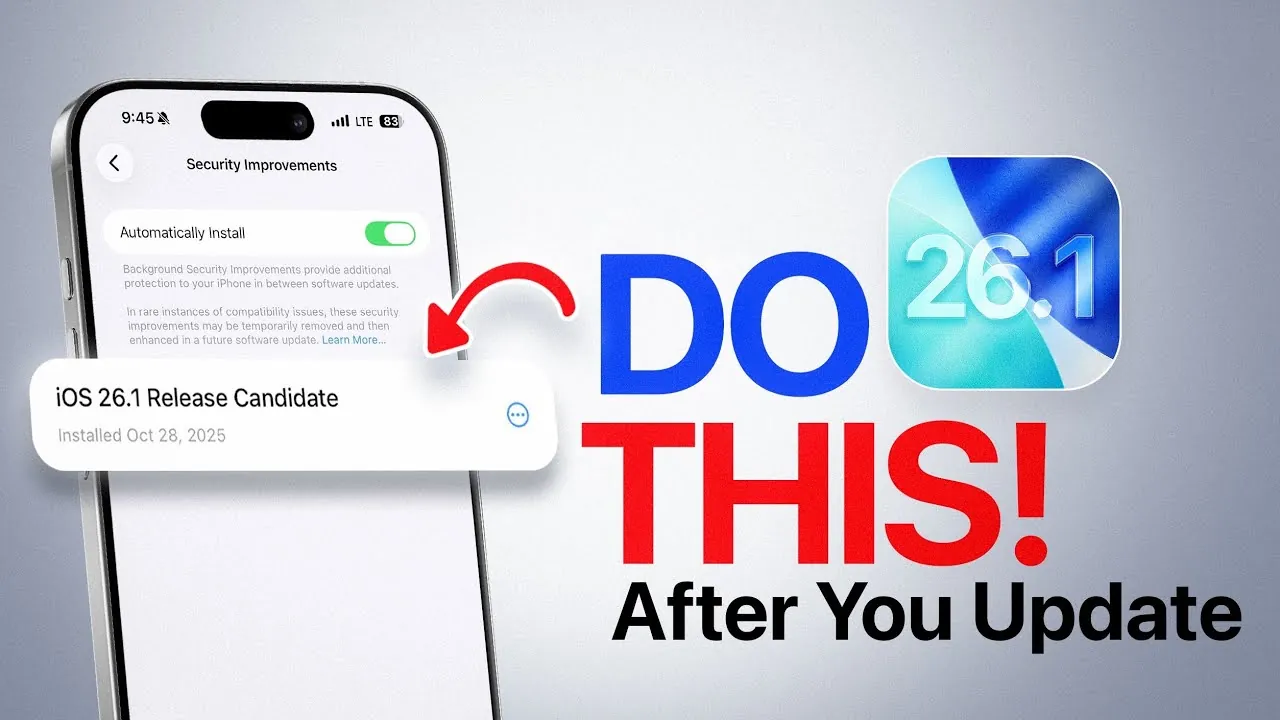
Apple has officially launched iOS 26.1, bringing a host of new features, enhanced security measures, and performance upgrades. To ensure your device operates at its best, there are several key actions you should take immediately after updating. These steps will help you optimize your experience, maintain security, and prevent potential issues. The video below from iDeviceHelp gives us more details on what to do after you update to iOS 26.1.

1. Update All Your Apple Devices
Once you’ve installed iOS 26.1 on your iPhone, it’s important to update all other Apple devices in your ecosystem. This includes your Apple Watch (watchOS 26.1), Apple TV (tvOS 26.1), and HomePod. Keeping all devices updated ensures compatibility, smooth performance, and access to the latest features across your Apple ecosystem.
To manually check for updates on each device:
- Apple Watch: Open the Watch app on your iPhone, then navigate to General > Software Update.
- Apple TV: Go to Settings > System > Software Updates.
- HomePod: Use the Home app on your iPhone or iPad, then check for updates under Home Settings.
Updating all devices ensures they work seamlessly together, reducing the risk of compatibility issues and unlocking the full potential of iOS 26.1.
2. Enable Background Security Improvements
iOS 26.1 introduces a powerful feature called “Background Security Improvements,” designed to keep your device protected from emerging threats by automatically installing critical security patches. This feature operates in the background, eliminating the need for full system updates to address vulnerabilities.
To enable this feature:
- Open Settings and navigate to Privacy & Security.
- Find “Background Security Improvements” and toggle it on.
By activating this feature, you ensure your device remains secure with minimal interruptions, allowing you to stay ahead of potential security risks.
3. Customize Liquid Glass Display Settings
The Liquid Glass display technology in iOS 26.1 has been enhanced with two new customization options: “Clear Liquid Glass” and “Tinted Liquid Glass.” These settings allow you to tailor your screen’s appearance for optimal visibility and usability in different lighting conditions.
To adjust these settings:
- Go to Settings > Display & Brightness.
- Select “Clear Liquid Glass” for a sharper, more vibrant display or “Tinted Liquid Glass” for improved readability of controls and notifications.
These display options provide greater flexibility, allowing you to adapt your screen to your environment and personal preferences.
4. Update Third-Party Apps
After upgrading to iOS 26.1, it’s essential to ensure all third-party apps are updated to their latest versions. Outdated apps may not be optimized for the new operating system, potentially causing crashes, performance issues, or excessive battery usage.
To update your apps:
- Open the App Store on your device.
- Navigate to the Updates tab.
- Tap “Update All” to install the latest versions of your apps.
Developers frequently release updates to align their apps with new iOS versions, so keeping your apps current is critical for maintaining stability and performance.
5. Check for Carrier Settings Updates
Carrier settings updates are often overlooked but play a vital role in optimizing your device’s network performance, call quality, and overall connectivity. These updates are especially important if you’ve experienced network-related issues in the past.
To check for carrier settings updates:
- Go to Settings > General > About.
- If an update is available, a prompt will appear to install it.
This quick step ensures your device is fully optimized for your carrier’s network, enhancing your overall connectivity experience.
Why These Steps Matter
Taking these actions after updating to iOS 26.1 is essential for maximizing your device’s performance, security, and usability. Here’s why each step is important:
- Updating all Apple devices: Ensures compatibility and a seamless experience across your Apple ecosystem.
- Allowing background security improvements: Protects your device from emerging threats with minimal disruption.
- Customizing display settings: Enhances screen visibility and usability in various environments.
- Updating third-party apps: Prevents crashes, improves performance, and ensures app stability.
- Checking carrier settings: Optimizes network performance and call quality.
By following these steps, you can fully use the benefits of iOS 26.1 while safeguarding your device’s functionality and security. This update offers valuable enhancements, and these proactive measures will help you make the most of them.
Find more information on iOS 26.1 update by browsing our extensive range of articles, guides and tutorials.
- iOS 26.1 and 26.0.2 Updates: Features, Fixes, and Release Dates
- iOS 26.1 Update: Key Features, Battery Fixes, and Performance
- How to Prepare Your iPhone for the iOS 26.1 Update
- Everything You Need to Know About iOS 26.1 Before Updating
- iOS 26.1 Beta Features, Updates, and More
Source & Image Credit: iDeviceHelp
Disclosure: Some of our articles include affiliate links. If you buy something through one of these links, Geeky Gadgets may earn an affiliate commission. Learn about our Disclosure Policy.
