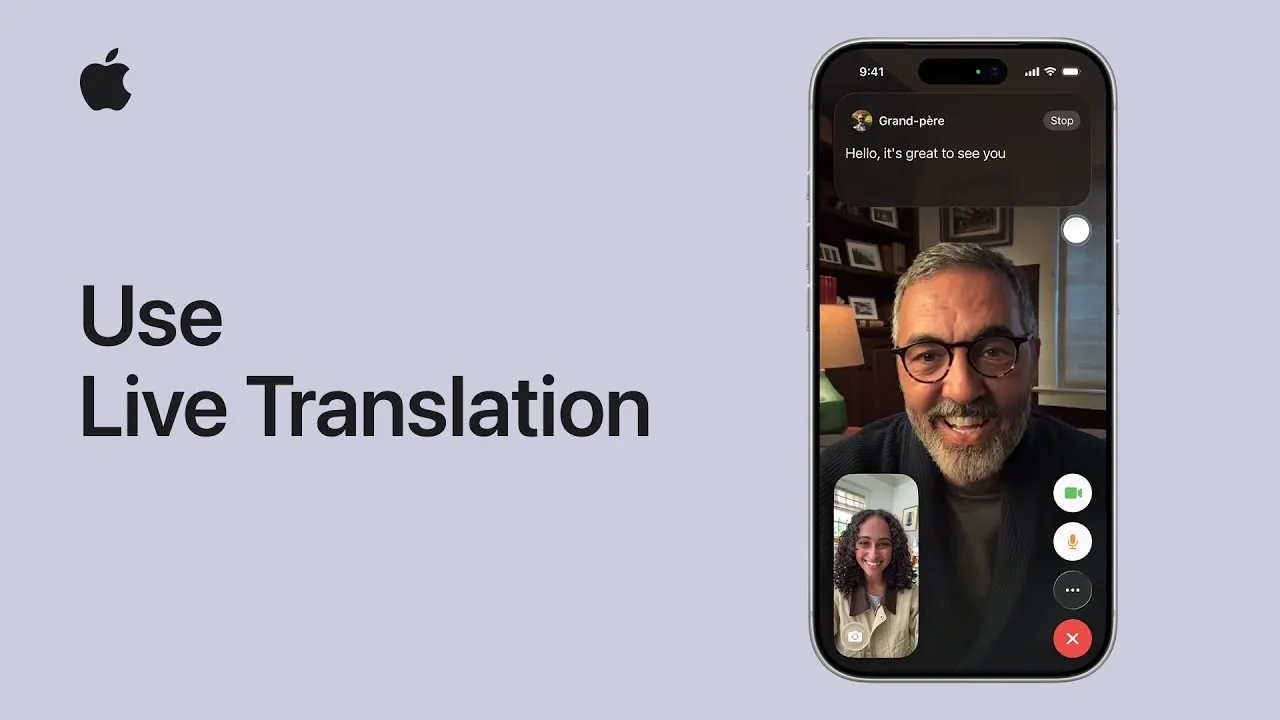
Live Translation, introduced with iOS 26, iPadOS 26, and macOS Tahoe, is a powerful tool designed to assist real-time communication across different languages. Whether you’re texting, making phone calls, using FaceTime, or engaging in face-to-face conversations, this feature eliminates language barriers. Powered by Apple Intelligence and advanced language processing models, it delivers both spoken and text-based translations with remarkable accuracy, making it an essential tool for global communication. The video below from Apple shows us how to use the Live Translation feature on the iPhone.
System Requirements
To take advantage of Live Translation, your device must meet specific criteria. Ensure you have the following:
- A device running iOS 26, iPadOS 26, or macOS Tahoe.
- Apple Intelligence is enabled on your device to support the feature’s advanced capabilities.
- For in-person conversations, AirPods Pro 2 or later, or AirPods 4, are required. These models include active noise cancellation, which enhances translation precision by minimizing background noise.
Meeting these requirements ensures optimal performance and a seamless translation experience.
How to Use Live Translation in Messages
Live Translation integrates directly into the Messages app, making multilingual texting effortless. This feature is particularly useful for maintaining clarity in conversations with individuals who speak different languages. Here’s how you can use it:
- Enable automatic translation within a conversation by accessing the settings in the Messages app.
- The system automatically detects the languages being used or allows you to manually select them for greater control.
- As messages are exchanged, translations appear in real-time, displaying both the original text and its translated version side by side.
This functionality ensures that both parties can communicate effectively, fostering understanding and eliminating confusion.
How to Use Live Translation on Phone Calls
Live Translation extends its capabilities to phone calls, allowing seamless communication with speakers of other languages. This feature is particularly valuable for professional or personal conversations where language differences might otherwise pose a challenge. Here’s what you need to know:
- Activate the feature during a call to enable spoken translations for both participants.
- If you’re not using headphones, the system automatically switches to speaker mode for enhanced accessibility and clarity.
- Onscreen transcriptions accompany the spoken translations, allowing you to follow the conversation visually while listening.
This combination of audio and visual translation ensures a smooth and efficient communication experience.
How to Use Live Translation in FaceTime
For video calls, Live Translation integrates seamlessly into FaceTime, offering a dynamic solution for multilingual communication. This feature is particularly effective in scenarios where visual cues and real-time interaction are essential. During a FaceTime call:
- Enable the feature to display live translated captions directly on your screen.
- The captions provide immediate and accurate translations, making sure that conversations remain fluid and natural, even in multilingual settings.
This functionality enhances the quality of interactions, making it easier to connect with people from diverse linguistic backgrounds.
How to Use Live Translation for In-Person Conversations
Live Translation is equally effective for face-to-face interactions, making it an invaluable tool for travel, business meetings, or casual conversations. To use this feature:
- Pair your updated AirPods with your device and open the Translate app.
- Engage in real-time spoken translations with those around you, allowing for natural and seamless communication.
- Receive audio translations through your AirPods while viewing onscreen transcriptions on your device for added clarity.
This feature offers versatility and convenience, adapting to a wide range of scenarios where language differences might otherwise create obstacles.
Additional Notes
There are a few important considerations to keep in mind when using Live Translation:
- The feature is currently in beta and may not be available in all regions or support all languages.
- To use the feature, you’ll need to download the necessary language models in advance. This ensures that translations are available even without an active internet connection.
- For the most up-to-date information on system requirements, supported languages, and availability, visit Apple’s official support page.
By meeting these requirements and exploring the various applications of Live Translation, you can unlock its full potential. This feature redefines how you communicate across languages, making global interactions more accessible, efficient, and meaningful.
Here is a selection of other guides from our extensive library of content you may find of interest on the Live Translation feature.
- iOS 26 Beta 7 & Public Beta 4 Release Date and Features
- AirPods Pro 3 Rumors: Live Translation and H3 Chipset
- iOS 26.1 Beta 1 Released: Full Breakdown of New Features
- Apple AirPods Pro 3: Enhanced Audio and Innovative Features
- iOS 26 Beta 4 Release: Everything You Need to Know
Source & Image Credit: Apple Support
Disclosure: Some of our articles include affiliate links. If you buy something through one of these links, Geeky Gadgets may earn an affiliate commission. Learn about our Disclosure Policy.
