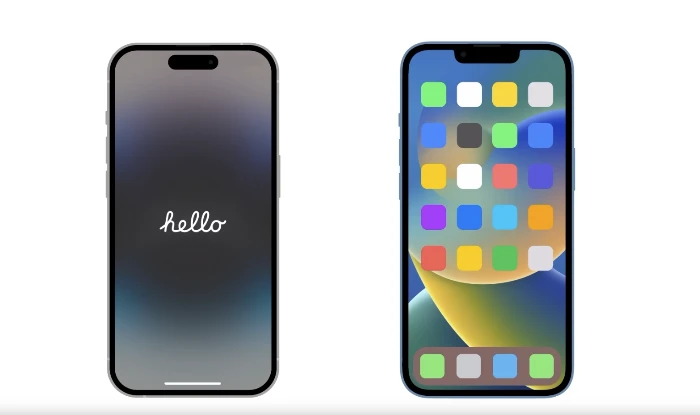
If you have got yourself a new iPhone, one of the first things you will want to do is transfer your data from your old iPhone to your new iPhone. This guide will show you everything you need to know about transferring all of your data to your new device.
If you’re transitioning to a new iPhone, the process of transferring your data should not be a source of stress. This article will outline the clear steps needed to successfully migrate your data from your old iPhone to your new one. With our guide, all your precious memories, critical apps, and important files will effortlessly find their place in your new device.
Have your iPhones side by side
The key to a smooth transfer is having both your old and new iPhones close to each other. This proximity facilitates a seamless transfer process courtesy of Apple’s intuitive Quick Start feature. This feature is engineered specifically for easy data transfer from iPhone to iPhone.
Begin the transfer process by swiping up from the bottom edge of the screen on your new iPhone. Diligently follow the on-screen instructions until you navigate to the Quick Start screen.
Meanwhile, on your old iPhone, a setup prompt for the new iPhone will appear. It’s crucial to ensure the Apple ID displayed matches your account. Once confirmed, tap ‘Continue’ to advance to the next stage.
In the next step, position the old iPhone over the new one. The goal is to have the animation from the new iPhone within the circle displayed. Once the circle turns green, you’ve received the green light to proceed with the Quick Start on the new iPhone.
You will then need to enter the passcode of your old iPhone on your new device. By following the subsequent prompts, you’ll activate your cellular service and set up Face ID, thus ensuring the transfer of your old iPhone’s security and connectivity settings to your new device.
Upon reaching the ‘Transfer Your Data’ screen, opt for ‘Download from iCloud’. It’s important to carefully review and agree to the terms and conditions, as this is a necessary step to proceed with the transfer.
Transfer all of the data you want
You will then be given a summary of the data that will be transferred to your new iPhone. Here, you have the option to either tap ‘Continue’ to proceed with the existing selection or tap ‘Customize’ to make alterations.
The backup process begins on your old iPhone, moving your apps and data to iCloud. An exciting aspect of this process is the provision of free temporary iCloud storage if your account is out of space. However, it’s important to keep your iPhone connected to Wi-Fi during this entire process to avoid any potential interruptions.
As soon as the progress bar on the ‘Restore from iCloud’ screen on your new iPhone completes, you can begin using your new device. All your apps, photos, music, and other data will continue to restore in the background, allowing you to delve into your new iPhone experience without waiting.
For those who appreciate the convenience of iCloud backups, Apple provides an iCloud Plus subscription. This service ensures that your data is always backed up in the cloud, adding an extra layer of convenience and security to your digital life. The video below from Apple gives you all of the information you need to know about getting all of the dsata over to your new iPhone.

In summary, learning how to transfer data to a new iPhone is an easy and straightforward process. By following these outlined steps, you can ensure that all your precious data is moved swiftly and safely to your new device. We hope that you find out guide on how to transfer your data to your new iPhone helpful. If you have any comments, suggestions or questions, please leave a comment below and let us know.
Image Credit: Apple / Youtube
Disclosure: Some of our articles include affiliate links. If you buy something through one of these links, Geeky Gadgets may earn an affiliate commission. Learn about our Disclosure Policy.
