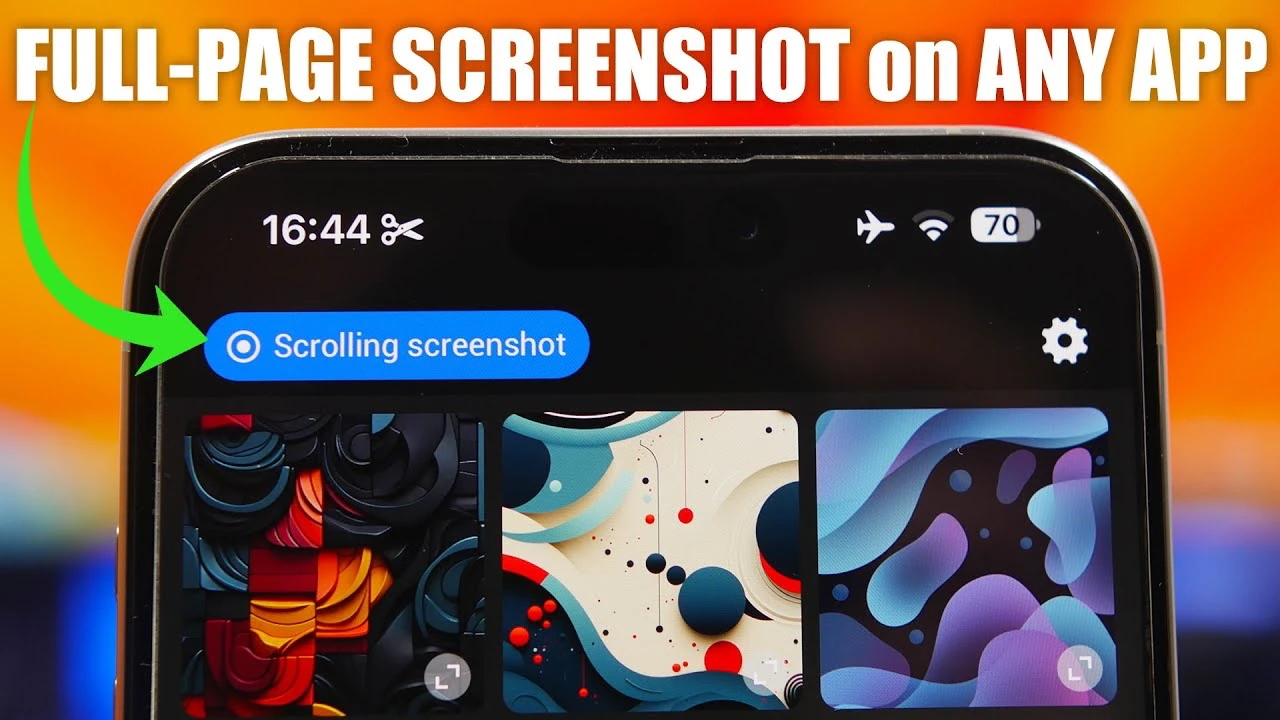
Taking full-page screenshots on an iPhone has traditionally been limited to the Safari browser. This restriction can be frustrating when you need to capture content from other apps. Fortunately, the “Stitch” app provides a solution, allowing you to take full page screenshots in any iPhone app. The video below from iReviews will walk us through the process of setting up and using “Stitch” to capture and save your screenshots.

Understanding the iPhone’s Screenshot Limitations
By default, iPhones only allow users to take full page screenshots within the Safari browser. While this feature is useful for capturing web pages, it falls short when you need to document content from other apps such as messaging platforms, social media, or productivity tools. This limitation can hinder your ability to effectively share information or keep records of important data.
Introducing the “Stitch” App: A Powerful Screenshot Solution
The “Stitch” app overcomes the iPhone’s screenshot limitations by enabling full page screenshots in any app. With its intuitive interface and robust features, “Stitch” empowers users to capture comprehensive screenshots beyond the confines of Safari. Here’s a step-by-step guide on how to use “Stitch” to take full page screenshots:
- Step 1: Download and Install “Stitch” – Begin by downloading the “Stitch” app from the App Store and installing it on your iPhone. The app is available for free and is compatible with most iPhone models running iOS 13 or later.
- Step 2: Open the Target App – Navigate to the app where you want to take the full page screenshot. This can be any app installed on your iPhone, such as WhatsApp, Twitter, or a document editor.
- Step 3: Access the Control Center – Swipe down from the top-right corner of your iPhone’s screen to open the Control Center. This is where you’ll find the “Stitch” app icon.
- Step 4: Select “Stitch” and Start Broadcast – In the Control Center, locate the “Stitch” app icon and tap on it. Then, start the broadcast by tapping the record button. This will enable the screen recording feature and allow “Stitch” to capture the content as you scroll.
- Step 5: Scroll Through the Content – While the broadcast is active, scroll through the content you wish to capture. Take your time to ensure that all relevant information is visible on the screen. “Stitch” will record the entire screen as you scroll, creating a seamless full page screenshot.
- Step 6: Stop the Broadcast – Once you have captured all the desired content, stop the broadcast by tapping the “Stitch” icon in the Control Center again. This will complete the screenshot process and save the captured content within the “Stitch” app.
Editing and Saving Your Full Page Screenshots
After capturing the full page screenshot, the “Stitch” app provides a range of editing and saving options to enhance and share your content:
- Editing Tools – “Stitch” offers a variety of editing tools to refine your screenshots. You can crop the image to focus on specific areas, annotate with text or drawings to highlight important points, and make other adjustments to improve the clarity and presentation of your content.
- Flexible Export Options – Once you have finished editing your screenshot, “Stitch” provides several convenient options for saving and sharing. You can save the screenshot as a PDF file for easy distribution, copy it to the clipboard for pasting into other apps, export it directly to your iPhone’s Files app for organized storage, or save it to the Photos app for quick access and sharing.
By following these steps and utilizing the “Stitch” app, you can effortlessly capture and save full page screenshots from any iPhone app. This powerful tool expands your iPhone’s functionality, allowing you to document, share, and preserve content that was previously inaccessible due to screenshot limitations.
Enhancing Productivity and Collaboration
The ability to take full page screenshots from any iPhone app opens up new possibilities for productivity and collaboration. Whether you’re working on a project, sharing information with colleagues, or documenting important conversations, “Stitch” ensures that you can capture comprehensive screenshots without the need for multiple images or manual stitching.
With “Stitch,” you can:
- Capture entire chat conversations or email threads for reference or record-keeping
- Document step-by-step instructions or tutorials from various apps
- Save complete articles or blog posts for offline reading or sharing
- Preserve social media posts or profiles for archival purposes
The possibilities are endless, and “Stitch” empowers you to make the most of your iPhone’s screenshot capabilities across all apps.
Conclusion
Taking full page screenshots on an iPhone is no longer limited to the Safari browser, thanks to the “Stitch” app. By following the simple steps outlined in this guide, you can capture, edit, and save comprehensive screenshots from any app on your iPhone. “Stitch” enhances your productivity, collaboration, and information sharing capabilities, making it an essential tool for iPhone users seeking to document and preserve content beyond the limitations of the default screenshot feature.
Embrace the power of “Stitch” and unlock the full potential of your iPhone’s screenshot functionality. Start capturing full page screenshots from any app today and experience the convenience and flexibility it brings to your digital life.
Source & Image Credit: iReviews
Disclosure: Some of our articles include affiliate links. If you buy something through one of these links, Geeky Gadgets may earn an affiliate commission. Learn about our Disclosure Policy.
