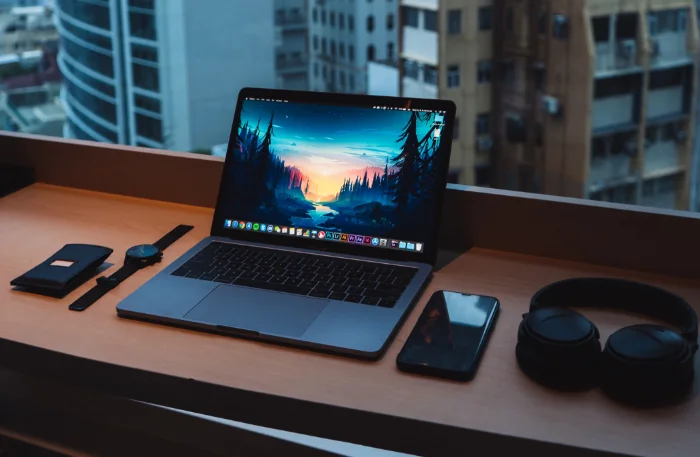
This guide will show you have to take a screenshot on the MacBook Pro. MacBooks are known for their sleek design and powerful performance, but these powerful laptops come with a host of handy features that are often overlooked. One such feature is the built-in tool to capture screenshots. This article will guide you step-by-step on how to take a screenshot on your MacBook Pro, regardless of whether you want to capture the whole screen or just a specific portion of it.
What is a Screenshot?
A screenshot, also known as a screen capture, is a digital image taken by a computer or mobile device to record the items visible on the screen. Screenshots are commonly used to create a record of an image or text that you cannot easily save as a file, share a view of your screen with others, or create guides and tutorials, as we’re doing here.
How to Take a Screenshot on a MacBook Pro
MacBook Pro users have several options for taking a screenshot, thanks to MacOS’s robust screenshot tool. Here are the most common methods:
1. Capture the Entire Screen
- Use keyboard shortcut: Press Command (⌘) + Shift + 3 on your keyboard.
- The screenshot will be automatically saved to your desktop. The file name will start with “Screen Shot” and the date and time it was taken.
2. Capture a Portion of the Screen
- Use keyboard shortcut: Press Command (⌘) + Shift + 4. Your cursor will change to a crosshair pointer.
- Click and drag to select the area you wish to capture, then release the mouse or trackpad button.
- If you want to adjust your selection, press and hold the Space bar while dragging.
- Once you’re happy with the selection, release the mouse or trackpad button to capture the screenshot. Like with full-screen captures, the image will be automatically saved to your desktop.
3. Capture a Window or Menu
-
- Use keyboard shortcut: Press Command (⌘) + Shift + 4. Your cursor will change to a crosshair pointer.
- Press the Space bar<. The cursor will change to a camera icon.
- Move the camera over a window to highlight it. Click your mouse or trackpad to capture the window (this will include a drop shadow).
- For menus, first open the menu and then follow steps 1-3. Note that the menu doesn’t need to be the active window to capture it.
Using the Screenshot App for More Options
If you need more functionality, MacOS Mojave (10.14) and later versions include a Screenshot app that offers additional capture options.
- Use keyboard shortcut: Press Command (⌘) + Shift + 5 to open the Screenshot app.
- A control bar will appear at the bottom of the screen. From here, you can choose to capture the entire screen, a window, or a selected portion. You can also record your screen.
- On the right of the control bar, click on “Options”. Here you can choose where to save your screenshot, set a timer, and decide whether or not to show the mouse cursor in your screenshot.
- Click on “Capture” or press
Returnafter you’ve made your choices.
Editing and Sharing Your Screenshots
After capturing a screenshot, a thumbnail of the screenshot will briefly appear in the corner of your screen. You can click on it to open a window where you can make simple edits, such as cropping the image or adding text and shapes. From this window, you can also share the screenshot via email, Messages, AirDrop, and more.
Conclusion
Taking a screenshot on a MacBook Pro is simple and flexible, with a variety of options for different situations. Whether you’re creating a tutorial, capturing a funny moment, or recording a software bug, the MacBook Pro’s built-in screenshot tools have you covered. This guide was written using macOS Ventura 13.4.1 which is the current version of macOS at the time of writing. We hope that you find this guide useful, if you have any comments or questions, please let us know in the comments section below.
Image Credit: Austin Poon
Disclosure: Some of our articles include affiliate links. If you buy something through one of these links, Geeky Gadgets may earn an affiliate commission. Learn about our Disclosure Policy.
