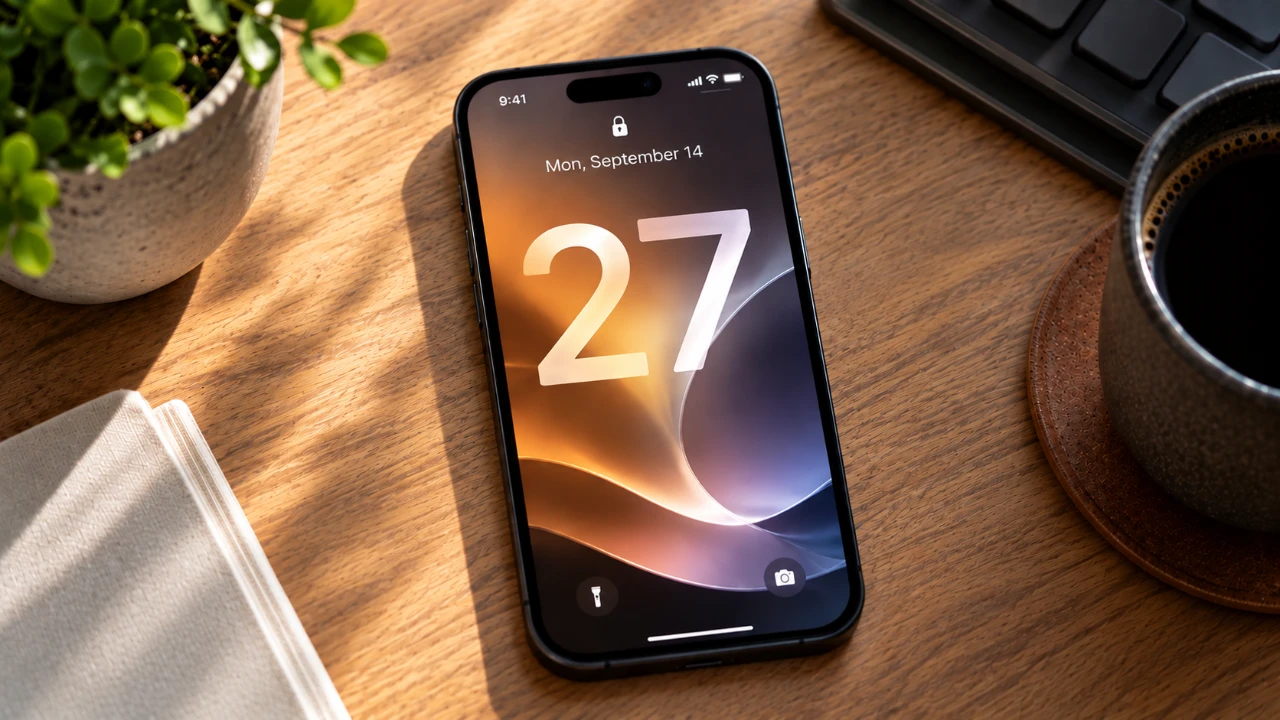
If you’re currently enrolled in the iOS beta program but want to prepare your iPhone for the official iOS 27 release, it’s essential to disable beta updates. This ensures your device will only receive stable, public versions of iOS moving forward. Whether you’re using the developer beta or the public beta, the process is straightforward and helps guarantee a smooth transition to the final release. Taking these steps ensures your iPhone remains reliable and ready for the official software update.

Steps to Disable Beta Updates
To prepare your iPhone for the official iOS 27 release, follow these steps to remove beta updates and switch to the stable release track:
1. Open Software Update Settings
– Begin by opening the Settings app on your iPhone.
– Navigate to General and select Software Update.
This section is where you manage your update preferences, including beta participation. It acts as the central hub for controlling how your iPhone handles software updates.
2. Turn Off Beta Updates
– Within the Software Update menu, locate the Beta Updates option.
– Tap on it to view your current beta enrollment status.
– If you’re enrolled in the developer beta or public beta, the corresponding beta version will be displayed.
– Switch the toggle to Off to disable beta updates.
By completing this step, your iPhone will no longer download or install beta versions of iOS, making sure it remains on the stable release track.
3. Confirm Any Prompts
– After disabling beta updates, a confirmation pop-up may appear.
– This message typically informs you about any beta versions already installed on your device.
– Follow the prompts to confirm your decision.
If a beta version is already installed, it will remain on your device until the next official update is released. This ensures no immediate changes to your current setup while preparing for the stable release.
4. Wait for the Official iOS 27 Release
Once beta updates are disabled, your iPhone will automatically prepare for the next official iOS release. When iOS 27 becomes available, you’ll receive a notification prompting you to install it. This ensures your device transitions seamlessly to the stable, public version without requiring additional steps.
5. Keep Beta Updates Disabled
To avoid accidentally re-enrolling in the beta program, ensure the Beta Updates option remains turned off. This is particularly important if you want to continue receiving only official iOS updates. By keeping this setting disabled, you minimize the risk of encountering bugs or performance issues that are often associated with beta software.
Understanding Public Beta vs Developer Beta
Knowing the distinction between the public beta and the developer beta can help clarify your participation in the beta program:
- The public beta is designed for general users who want early access to upcoming iOS features. It offers a preview of new functionalities but may still contain minor bugs or unfinished elements.
- The developer beta is intended for app developers to test their software with the latest iOS versions. It often includes more experimental features and is less stable than the public beta.
Regardless of which beta program you’re enrolled in, the steps to disable beta updates are identical. Following this guide ensures a smooth transition from either beta version to the official iOS 27 release.
Why Disabling Beta Updates Matters
Beta software is inherently experimental and often includes bugs, incomplete features, or performance issues. While it provides early access to new features, it can also lead to instability, which may disrupt your daily use. By switching to the stable, public release track, you ensure your iPhone operates reliably and efficiently. This is especially important if you depend on your device for critical tasks, work, or personal use. Disabling beta updates minimizes potential risks and enhances your overall user experience.
Preparing for the Official iOS 27 Release
Transitioning from the beta program to the official iOS 27 release is a simple yet crucial step for maintaining the stability and performance of your iPhone. By navigating to Settings > General > Software Update and disabling beta updates, you ensure your device is ready to receive only stable, public versions of iOS. Once the official release becomes available, your iPhone will automatically notify you, allowing you to install it without any additional effort. This proactive approach keeps your device optimized and ensures a seamless experience with the latest iOS features.
Enhance your knowledge of iOS 27 by exploring a selection of articles and guides on the subject.
- Apple Delaying iOS 27 Beta 5? Here’s When to Expect the Next Update
- New iOS 27 Beta 5 Release Arrives with a Big Shift Coming
- iOS 27 Beta 5 Is Late: What’s Holding Up Apple’s Next Release?
- The iOS 27 Beta 5 Release Imminent with More New Features
- Apple’s iOS 27 Beta 3 Is Just Days Away: Here’s When It Drops
Source: Daniel About Tech
Disclosure: Some of our articles include affiliate links. If you buy something through one of these links, Geeky Gadgets may earn an affiliate commission. Learn about our Disclosure Policy.
