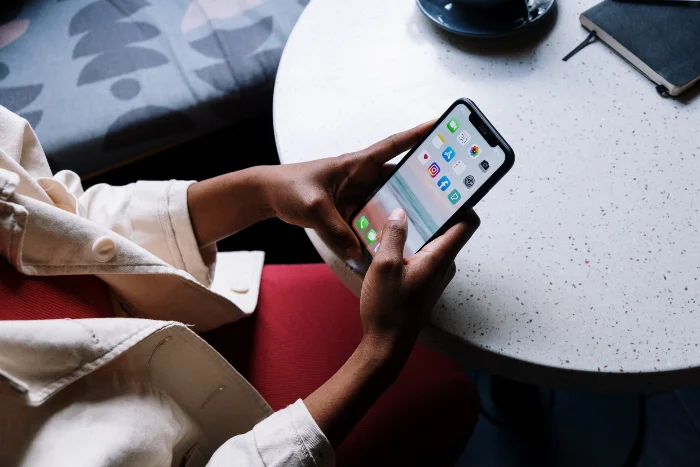
This guide will show you how to close iPhone apps on your iPhone. In today’s digital age, our smartphones are no longer just tools; they’ve morphed into indispensable companions that facilitate virtually every aspect of our daily lives. From keeping us interconnected through various communication platforms to serving as the primary source of entertainment via streaming services and gaming apps, from increasing productivity through task management and office apps to simplifying everyday chores with home automation tools — smartphones, particularly our iPhones, cater to every conceivable need. Given the multifaceted functionality of these devices, it’s quite natural to find ourselves juggling a plethora of apps throughout the day, leading to an overwhelming array of applications running concurrently on our devices.
While iOS — the operating system that powers iPhones — is intrinsically designed to manage apps proficiently, it must be noted that its efficiency does not negate the need for manual intervention at times. Whether an app becomes unresponsive, starts behaving erratically, or you simply want to preserve your device’s battery life, there will be occasions when you’ll need to take the helm and manually close some, if not all, of the apps on your iPhone.
In an attempt to streamline this process and assist you in efficiently managing your apps, this guide has been put together. Designed to be comprehensive and user-friendly, it will take you through the step-by-step procedure of closing apps on your iPhone, whether your device has a home button or not. So, without further ado, let’s delve into the details of maintaining a smoothly running iPhone by learning how to adeptly close apps when necessary.
Closing Apps on iPhones With a Home Button
If your iPhone model has a Home button – like the iPhone SE (2nd generation) and older models, follow these steps:
- Access the App Switcher: Press the home button twice in quick succession. This action will activate the app switcher, showing you all the apps currently open in the background.
- Swipe to Navigate: Swipe left or right to navigate through the list of open applications.
- Close the App: To close an app, simply swipe up on the app’s preview. This will remove it from the app switcher, effectively closing the application.
- Return to the Home Screen: Once you’re done closing the apps you no longer need, press the Home button once to return to the Home screen.
Closing Apps on iPhones Without a Home Button
For newer iPhone models without a Home button, such as the iPhone X and later models, the process is slightly different.
- Access the App Switcher: Swipe up from the bottom of the screen and pause in the middle of the screen. This will open the app switcher, revealing all your currently open apps.
- Swipe to Navigate: Swipe left or right to navigate through your open applications.
- Close the App: To close an app, swipe up on the app’s preview. This will remove the app from the switcher, effectively closing it.
- Return to the Home Screen: To return to the Home screen, simply swipe up from the bottom of the screen.
Additional Tips
- If an app isn’t responding, you can force close it. This is done in the same way as closing an app, but if the app still doesn’t respond or function correctly after being closed, you might need to restart your device.
- iOS is designed to manage apps efficiently, so regularly closing all your apps isn’t necessary and may actually lead to decreased performance and battery life. This is because closing and reopening apps require more CPU power than simply leaving them in the background.
- To improve battery life, consider adjusting your screen brightness, turning off dynamic wallpapers and motion effects, and enabling the Low Power Mode.
Conclusion
Learning how to close apps on your iPhone is a simple but useful skill. It can help you troubleshoot malfunctioning apps and keep your device running smoothly. However, remember that the iOS operating system is designed to manage your apps efficiently, so you typically don’t need to close apps unless they are causing problems. This guide was written using iOS 16.5.1 which is the current version of Apple’s iOS at the time of writing. We hope that you find this guide helpful and informative, if you have any comments or questions, please let us know in the comments section below.
Image Credit:
Disclosure: Some of our articles include affiliate links. If you buy something through one of these links, Geeky Gadgets may earn an affiliate commission. Learn about our Disclosure Policy.
