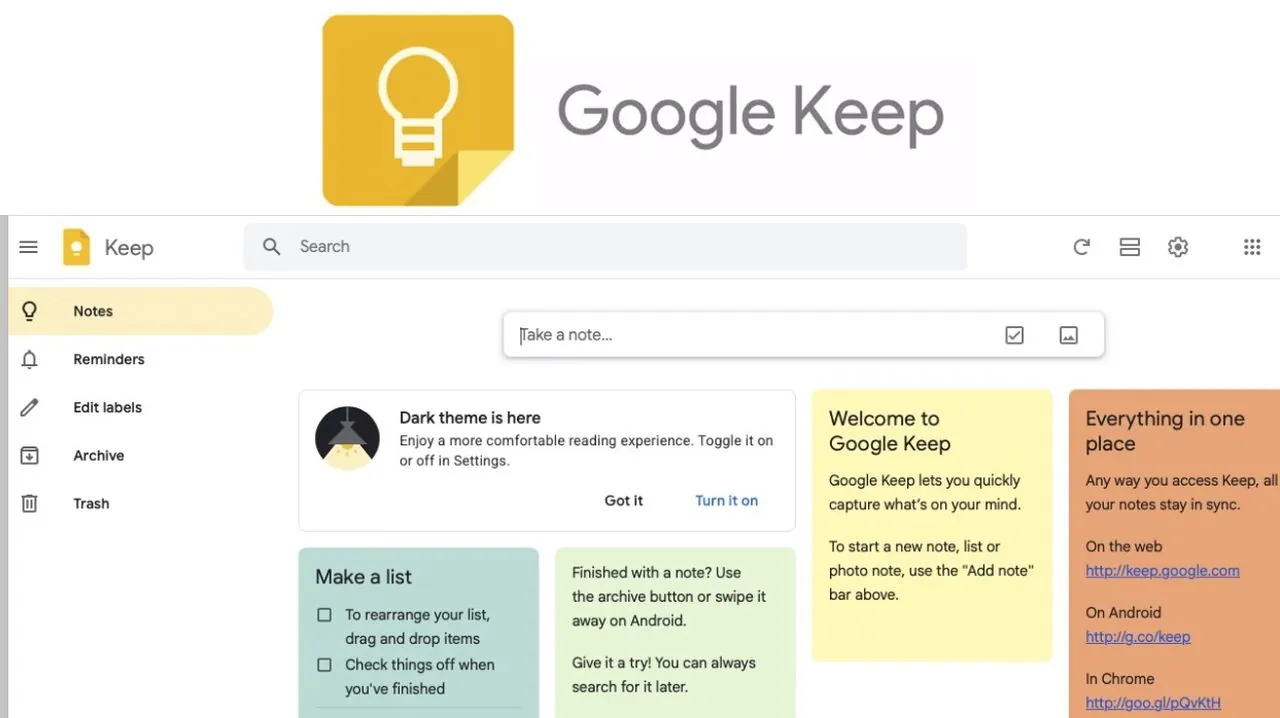
Have you ever felt like your to-do list is scattered across sticky notes, apps, and mental reminders, leaving you overwhelmed and unproductive? In 2025, Google Keep continues to be the antidote to chaos, offering a sleek, intuitive way to manage your notes, tasks, and collaborations—all in one place. Whether you’re juggling work deadlines, planning a family event, or simply trying to remember where you saved that brilliant idea, Google Keep ensures your thoughts are organized and accessible across all your devices. With its seamless integration into Gmail and advanced features like reminders and labels, this tool has become an indispensable ally for anyone looking to streamline their life.
In this step-by-step walkthrough, Howfinity explore how to unlock the full potential of Google Keep in 2025. From mastering its time-saving organizational tools to using its collaboration features for group projects, you’ll discover practical ways to make this app work for you. Curious about how to use color-coding to prioritize tasks or how to set reminders that actually keep you on track? We’ve got you covered. By the end, you’ll not only feel confident navigating Google Keep but also inspired to rethink how you manage your digital life. After all, staying organized isn’t just a skill—it’s a superpower.
Google Keep Overview
TL;DR Key Takeaways :
- Google Keep is a versatile tool for managing notes, tasks, and collaborations, offering cross-platform accessibility and real-time syncing across devices.
- Users can create various types of notes, including text, checklists, web links, and image attachments, tailored to their specific needs.
- Organizational features like pinning, labels, and color-coding help streamline workflows and prioritize tasks effectively.
- Reminders and notifications ensure users stay on track with deadlines and important tasks, enhancing productivity.
- Seamless integration with Gmail and collaboration tools allows for efficient teamwork and multitasking, making it ideal for both personal and professional use.
How to Access Google Keep
Google Keep is designed for convenience, allowing you to access your notes from virtually anywhere. Here’s how you can get started:
- Web Interface: Visit keep.google.com on any browser to access your notes directly from your desktop or laptop.
- Mobile App: Download the Google Keep app for Android or iOS to manage your notes on the go.
- Gmail Integration: Use the side panel in Gmail to access your notes without leaving your inbox, making multitasking seamless.
By logging into the same Google account across devices, your notes automatically sync, allowing smooth transitions between your phone, tablet, and computer. This ensures that your information is always up-to-date and accessible, no matter where you are.
Creating Notes: Tailored to Your Needs
Google Keep offers a variety of flexible options for note-taking, making sure it adapts to your specific requirements. You can:
- Write Text Notes: Quickly jot down ideas, reminders, or important information.
- Create Checklists: Ideal for to-do lists, shopping lists, or step-by-step plans.
- Save Web Links: Bookmark articles, resources, or websites for later reference.
- Attach Images: Upload photos, such as whiteboard snapshots, receipts, or visual reminders.
All notes are saved in real time, making sure that your work is never lost. Whether you’re brainstorming ideas or organizing your day, Google Keep provides the tools to capture and store your thoughts efficiently.
Guide to Using Google Keep in 2025

Below are more guides on organizing from our extensive range of articles.
- How to Organize Notes with Apple Notes Collections
- How to Use Apple Reminders to Organize Your Life Effectively
- How to Organize Apple Notes for Maximum Productivity in 2025
- How to Organize and Manage Contacts on Your iPhone Effectively
- 25 NotebookLM Pro Hacks for Research, Organization and Creative
- Using Apple Calendar, Notes and Reminders to Organize Your Life
- How to Organize Your Digital Life With Google Gemini
- How iOS 18 Apple Mail Categories Simplify Email Organization
- 11 Essential Google Keep Tips for Better Digital Organization
- 5 Google AI tools to help you organize your digital life
Organizing Notes for Efficiency
Keeping your notes organized is effortless with Google Keep’s built-in tools. These features allow you to structure your workspace for maximum productivity:
- Pin Notes: Highlight important notes by pinning them to the top of your list for easy access.
- Labels: Categorize notes into groups such as “Work,” “Personal,” or “Ideas” to streamline your workflow.
- Color-Coding: Assign colors to notes for quick visual prioritization. For instance, use red for urgent tasks, yellow for ongoing projects, and green for completed ones.
These organizational tools ensure that you can quickly locate and prioritize your notes, saving time and reducing stress.
Staying on Track with Reminders
Google Keep’s reminder functionality is a powerful tool for staying organized and meeting deadlines. You can:
- Attach Reminders: Link reminders to specific notes to keep tasks contextually relevant.
- Set Dates and Times: Schedule reminders for specific moments to ensure timely notifications.
- Receive Notifications: Get alerts when a task or deadline is approaching.
For example, you can set a reminder for an important meeting or a bill payment, and Google Keep will notify you at the right time. This feature helps you stay on top of your responsibilities without the need for additional apps.
Collaborating Made Easy
Collaboration is seamless with Google Keep’s sharing features, making it an excellent tool for teamwork and group projects. You can:
- Share Notes: Invite others to view and edit notes in real time.
- Work on Shared Tasks: Collaborate on grocery lists, project plans, or event schedules.
- Track Changes: See updates instantly, making sure everyone stays on the same page.
Whether you’re coordinating with colleagues, organizing family tasks, or planning an event, Google Keep simplifies collaboration and keeps everyone aligned.
Managing Notes to Reduce Clutter
Google Keep provides tools to maintain a tidy and organized workspace, making sure that your notes remain accessible without overwhelming your main view. You can:
- Archive Notes: Move notes you no longer need into the archive for future reference, keeping your active workspace clean.
- Trash Bin: Deleted notes are stored in the trash for seven days, allowing you to recover them if needed.
These features help you focus on what matters most while keeping less relevant information out of sight but not out of reach.
Finding Notes with Advanced Search
Locating specific notes is quick and efficient with Google Keep’s advanced search functionality. You can:
- Search by Keywords: Enter relevant terms to find notes instantly.
- Filter by Labels or Collaborators: Narrow your search results by categories or shared users.
- Include Archived Notes: Expand your search to include archived content for comprehensive results.
For instance, typing “meeting notes” in the search bar will display all related entries, saving you time and effort when retrieving important information.
Integrating Google Keep with Gmail
Google Keep integrates seamlessly with Gmail, enhancing your productivity and streamlining your workflow. From Gmail’s side panel, you can:
- Access Notes: View and edit notes while composing emails.
- Copy Information: Transfer details directly into messages without switching apps.
- Insert Checklists: Add to-do lists or meeting details directly into your emails.
This integration allows you to manage tasks and communication simultaneously, making it easier to stay organized and efficient.
Maximizing Productivity with Google Keep
Google Keep remains a dependable and versatile tool for digital organization in 2025. Its cross-platform accessibility, intuitive interface, and robust features make it ideal for managing notes, tasks, and collaborations. Whether you’re organizing personal to-dos, planning projects, or working on shared tasks, Google Keep ensures your information is always at your fingertips. By using its powerful tools and integrations, you can stay productive, focused, and in control of your responsibilities.
Media Credit: Howfinity
Disclosure: Some of our articles include affiliate links. If you buy something through one of these links, Geeky Gadgets may earn an affiliate commission. Learn about our Disclosure Policy.
