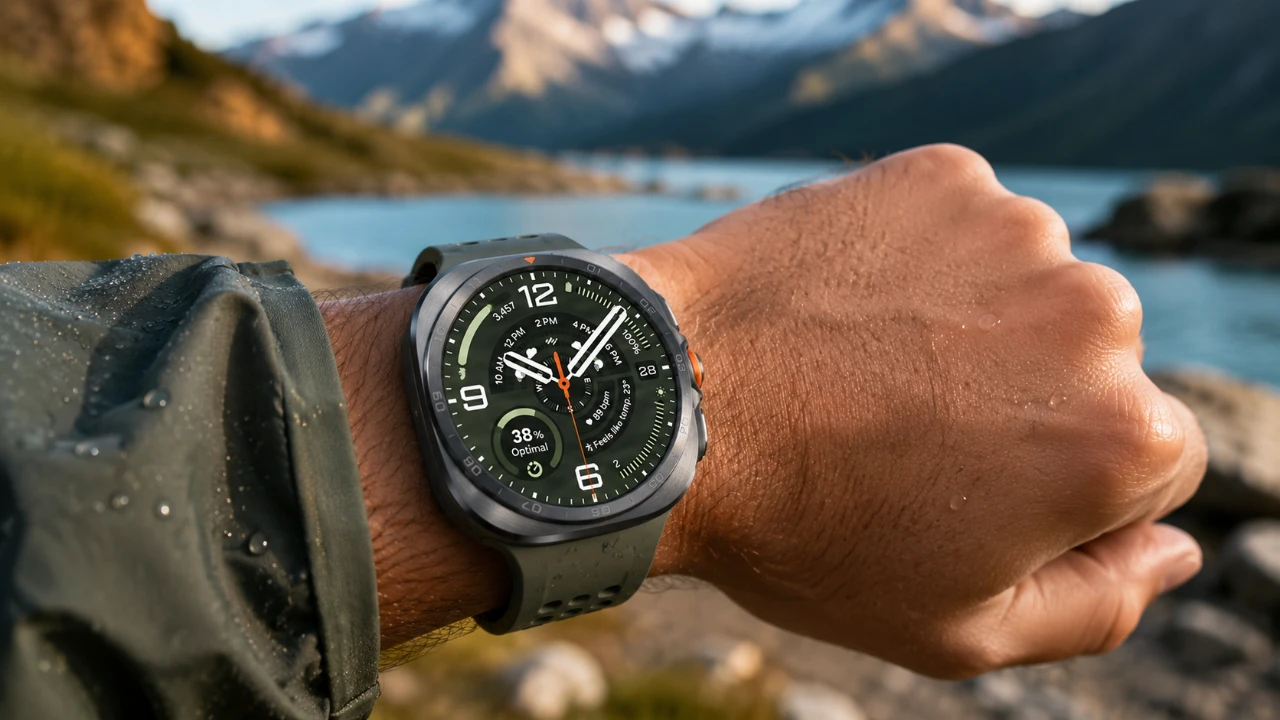
The Samsung Galaxy Watch Ultra 2 is a sophisticated smartwatch designed to seamlessly integrate into your daily life. With its advanced health tracking, customizable features, and smart tools, it offers a wide range of possibilities. To maximize its potential, it’s essential to set it up effectively and explore its capabilities. The video below from WhatGear outlines the first 15 essential steps to personalize your watch, optimize its functionality, and unlock its full range of features.

1. Set Up Health Tracking Features
The Galaxy Watch Ultra 2 is equipped with advanced health monitoring tools to help you stay informed about your well-being. Start by adding health-related tiles to your watch face, such as:
- Vitals: Track key metrics like heart rate, oxygen saturation and stress levels.
- Heart Health: Monitor your heart’s performance over time for better insights.
- Daily Cardio Load: Evaluate your activity levels and recovery to maintain balance.
Additionally, use the “Antioxidant Index” feature via the thumb sensor to assess your nutrition and oxidative stress levels. The “Hearing” widget is another valuable tool, helping you monitor sound exposure and protect your hearing in noisy environments. These features ensure your health data is always accessible and actionable.
2. Personalize Your Watch Face
Customizing your watch face is a simple yet impactful way to make the Galaxy Watch Ultra 2 uniquely yours. You can:
- Modify pre-installed watch faces by adjusting colors, styles and complications (shortcuts to apps or data).
- Create custom watch faces using personal photos, wallpapers, or themes that reflect your personality.
- Set activity-specific watch faces, such as workout-focused designs that display metrics like heart rate and calories burned.
This level of personalization ensures your watch aligns with both your style and functional needs, making it a perfect companion for any occasion.
3. Optimize Workout and Activity Tracking
Fitness enthusiasts will appreciate the Galaxy Watch Ultra 2’s comprehensive activity tracking capabilities. To enhance your workout experience:
- Customize the “Quick Button” to instantly launch specific exercises or gym tracking modes.
- Organize your preferred workouts in the Samsung Health app for quick and easy access.
- Enable Bixby voice commands for hands-free workout control, such as starting or stopping exercises.
These tools allow you to focus on achieving your fitness goals without unnecessary distractions, making your workouts more efficient and enjoyable.
4. Manage Apps Efficiently
Expand your watch’s functionality by installing compatible apps from the Google Play Store’s “Watch Apps” section. To keep your apps organized and easy to navigate:
- Group similar apps into folders for streamlined access.
- Explore the camera app, which doubles as a remote control and viewfinder for your phone, ideal for group photos or creative shots.
Efficient app management ensures your watch remains clutter-free and optimized for daily use.
5. Create Custom Modes and Routines
Tailor your Galaxy Watch Ultra 2 to your lifestyle by setting up custom modes and routines. For example:
- Activate a “Gym Mode” that enables Do Not Disturb and displays a workout-focused watch face.
- Automate modes based on location or manual triggers, such as allowing “Sleep Mode” when you go to bed.
These features allow your watch to adapt seamlessly to your daily activities, enhancing its practicality and convenience.
6. Enable Safety and Emergency Features
Your safety is a priority, and the Galaxy Watch Ultra 2 includes features designed to provide peace of mind:
- Enable “Hard Fall Detection” to alert emergency contacts if a fall is detected.
- Set up emergency contact settings for quick access in case of an emergency.
- Activate connection alerts to notify you if you leave your phone behind.
These tools ensure you’re prepared for unexpected situations, offering an added layer of security.
7. Set Up Contactless Payments
Transform your Galaxy Watch Ultra 2 into a convenient payment tool by configuring Samsung Wallet or Google Wallet. Assign wallet access to specific button gestures for quick and secure transactions. This feature eliminates the need for physical cards, streamlining your daily errands and enhancing convenience.
8. Download Music and Offline Content
Enjoy entertainment on the go by downloading playlists from apps like Spotify or YouTube Music directly to your watch. You can also transfer local music files from your phone. To enhance your experience:
- Add “Bluetooth Audio” to your quick settings for seamless pairing with wireless earbuds.
These options ensure you have access to your favorite content, even when your phone isn’t nearby.
9. Explore Advanced Features and Gestures
The Galaxy Watch Ultra 2 offers intuitive gestures to simplify interactions and enhance usability:
- Enable “Raise to Talk” for instant voice assistant activation.
- Customize gestures like double pinch or shake to perform actions such as answering calls or launching apps.
- For divers, activate “Auto Launch on Dive” to enable diving mode with depth settings automatically.
These advanced features make your smartwatch more intuitive and user-friendly.
10. Customize Quick Settings
Reorganize your quick settings menu to prioritize frequently used features. Add shortcuts like “Bluetooth Audio” or “Dive Mode” for instant access. This customization ensures your watch remains intuitive and efficient, saving you time and effort.
11. Explore Sleep Tracking Features
The Galaxy Watch Ultra 2 offers detailed sleep tracking to help you understand and improve your rest patterns. Enable “Sleep Mode” to automatically track your sleep stages, including REM, light and deep sleep. Use the insights provided to adjust your habits and enhance your overall well-being.
12. Enable Notifications and Alerts
Stay connected by customizing your notification settings. Choose which apps can send alerts to your watch and enable vibration patterns for discreet notifications. This ensures you never miss important updates while minimizing distractions.
13. Pair with Smart Home Devices
Integrate your Galaxy Watch Ultra 2 with smart home devices for added convenience. Use apps like SmartThings to control lights, thermostats and other connected devices directly from your wrist. This feature simplifies your daily routines and enhances your smart home experience.
14. Update Software Regularly
Keep your Galaxy Watch Ultra 2 up to date by installing the latest software updates. Regular updates ensure your watch benefits from new features, improved performance, and enhanced security.
15. Explore Third-Party Accessories
Enhance your Galaxy Watch Ultra 2 experience with third-party accessories such as protective cases, stylish bands, or charging docks. These additions allow you to personalize your watch further while making sure its durability and functionality.
By following these 15 essential steps, you can unlock the full potential of your Galaxy Watch Ultra 2. From health tracking and workout optimization to advanced gestures and smart home integration, these tips enable you to tailor the watch to your lifestyle. With proper setup and exploration, your smartwatch becomes a powerful tool that enhances your daily life, keeping you connected, informed and entertained.
Browse through more resources below from our in-depth content covering more areas on Galaxy Watch Ultra 2.
- Why Samsung’s Galaxy Watch Ultra 2 is a Massive Leap Forward
- Why Samsung’s Rumored Galaxy Watch 9 and Ultra 2 Are Turning Heads
- What We Know About the Galaxy Watch Ultra 2 Release Date
- Why the Galaxy Watch Ultra 2 Just Solved Android’s Biggest Smartwatch Issue
- A major leak just exposed Samsung’s launch plans for Galaxy Watch 9 and Ultra 2
- Samsung Galaxy Watch 9 & Ultra 2 Leak Reveals a Game-Changing Hardware Upgrade
Source & Image Credit: WhatGear
Disclosure: Some of our articles include affiliate links. If you buy something through one of these links, Geeky Gadgets may earn an affiliate commission. Learn about our Disclosure Policy.
