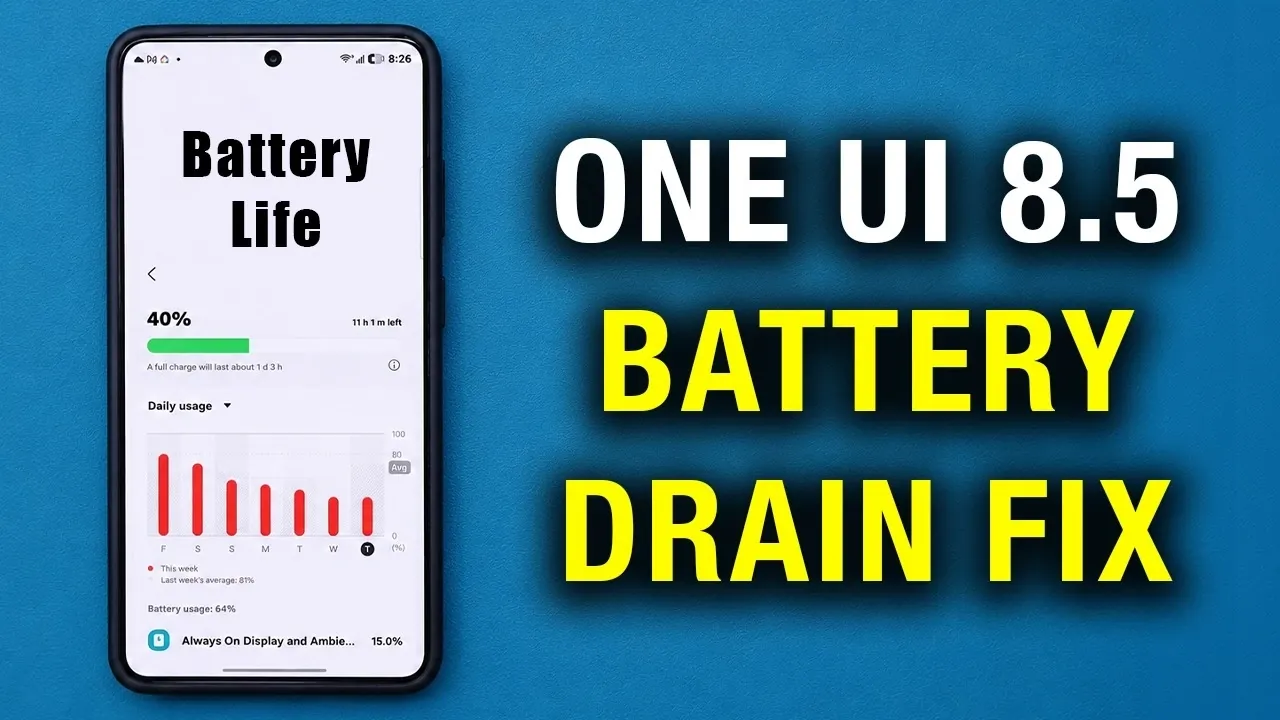
If your Samsung Galaxy device is experiencing battery drain after updating to One UI 8.5, you’re not alone. Many users have reported increased power consumption following this update. This guide outlines practical and effective solutions to help you optimize your device’s battery performance. By following these steps, you can regain control over your phone’s power usage and ensure a smoother, more efficient experience. The video below from Sakitech gives us more details.

Clear Cache for One UI Home
The One UI Home launcher can accumulate temporary files over time, potentially leading to performance issues, including excessive battery drain. Clearing its cache is a simple yet effective way to address this problem. Follow these steps:
- Open Settings on your Samsung device.
- Navigate to Apps and search for One UI Home.
- Tap Storage and select Clear Cache.
This process removes unnecessary temporary files without affecting your personal data. It can improve the launcher’s efficiency and reduce power consumption.
Disable Nearby Device Scanning
The Nearby Device Scanning feature continuously searches for nearby Samsung devices, such as Galaxy Buds or Galaxy Watches. While useful, it can drain your battery if you’re not actively using these accessories. Disabling this feature can help conserve power:
- Go to Settings and select Connections.
- Tap More Connection Settings.
- Turn off the toggle for Nearby Device Scanning.
This change won’t interfere with manual Bluetooth connections but will significantly reduce background power usage.
Enable Auto Optimization and Scheduled Restarts
Samsung’s One UI includes built-in tools designed to maintain your device’s performance and battery health. Auto Optimization and Scheduled Restarts are particularly useful for managing background processes and making sure smooth operation. Here’s how to enable them:
- Open Settings and navigate to Device Care.
- Tap Auto Optimization and enable it to automatically close unnecessary background apps and free up memory.
- Under Auto Restart, schedule a restart during a time when you’re not using the device, such as overnight.
These features help your device stay optimized without requiring constant manual intervention, improving both performance and battery life.
Use the Good Guardians App for System Optimization
Samsung’s Good Guardians app offers advanced tools to enhance system performance and manage battery usage. This app includes features like Galaxy App Booster and Battery Guardian, which are specifically designed to optimize apps and reduce power consumption. To use this app:
- Download Good Guardians from the Galaxy Store.
- Open the app and select Galaxy App Booster to optimize installed applications for better performance.
- Use Battery Guardian to enable bedtime power-saving schedules and monitor app power usage.
These tools provide detailed control over your device’s performance, allowing you to address specific issues that may be contributing to battery drain.
Manage Background Usage Limits
Apps running in the background can consume significant power, even when you’re not actively using them. Managing background usage limits can help prevent unnecessary CPU activity and extend your device’s battery life. Here’s how to do it:
- Go to Settings and select Device Care.
- Tap Battery and choose Background Usage Limits.
- Enable Put Unused Apps to Sleep to automatically limit the activity of infrequently used apps.
- Manually add rarely used apps to the Deep Sleeping Applications list for stricter power management.
This ensures that only essential apps run in the background, reducing overall power consumption and improving battery efficiency.
Monitor Battery Usage
Regularly reviewing your device’s battery usage can help you identify apps or processes that consume excessive power. By taking corrective actions, you can further optimize your device’s performance. Follow these steps:
- Go to Settings and tap Battery.
- Review the list of apps and their power consumption levels.
- Uninstall or restrict apps that are draining your battery unnecessarily.
Keep in mind that it may take a few days for these changes to show noticeable improvements, as the system adjusts to the new settings.
Optimize Your Device for Long-Term Battery Health
By implementing these strategies, you can effectively address battery drain issues on your Samsung Galaxy device running One UI 8.5. These solutions not only resolve immediate concerns but also promote long-term battery health. Regular maintenance, such as monitoring battery usage and managing background processes, will help you get the most out of your device. With these steps, you can enjoy a more efficient and reliable smartphone experience.
Source & Image Credit: sakitech
Disclosure: Some of our articles include affiliate links. If you buy something through one of these links, Geeky Gadgets may earn an affiliate commission. Learn about our Disclosure Policy.
