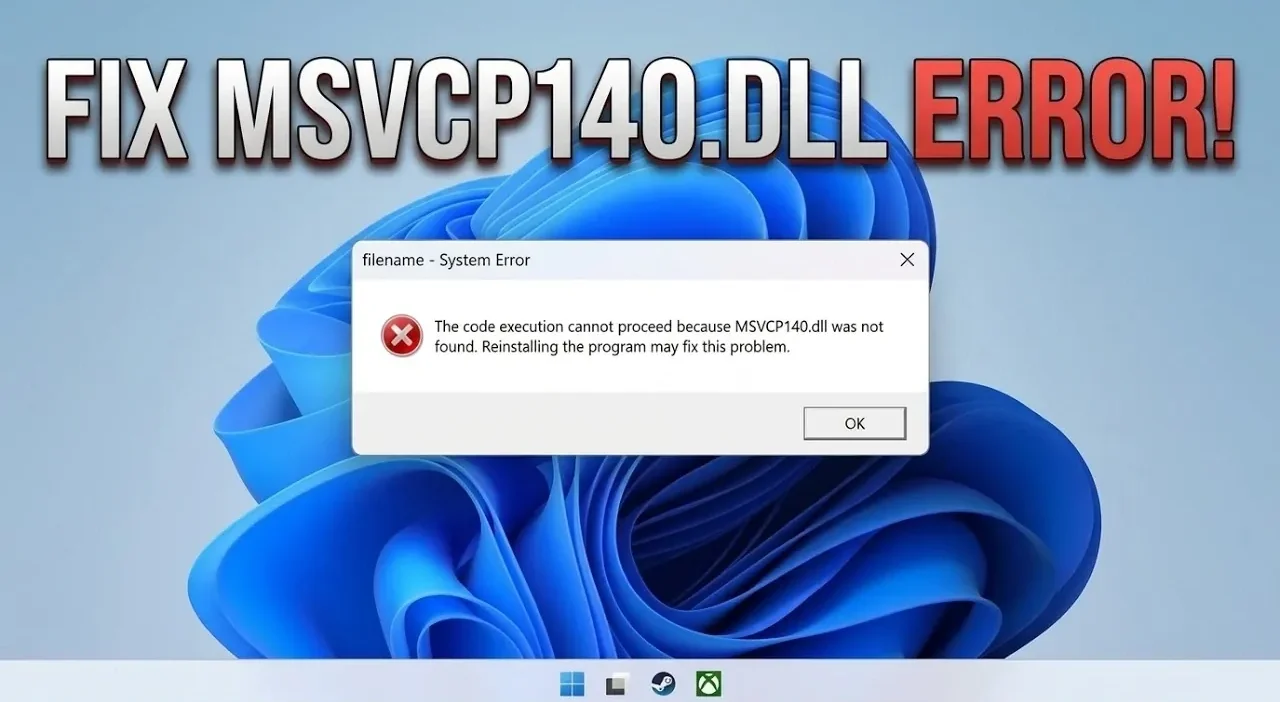
The MSVCP140.dll missing or not found error is a common issue that can prevent applications and games from running on Windows 10 and 11. This error typically arises when the MSVCP140.dll file, a key component of the Microsoft Visual C++ Redistributable package, is missing or corrupted. In a detailed walkthrough by Sid The Geek, you’ll find practical solutions to address this problem, starting with reinstalling the redistributable package directly from Microsoft’s official site. This straightforward step often resolves the issue by restoring the necessary DLL files.
From repairing system files using the System File Checker (SFC) command to reinstalling the problematic application, this guide covers multiple approaches to tackle the error effectively. You’ll also explore how automated repair programs can simplify the process and learn preventive measures to avoid similar issues in the future. Whether you’re troubleshooting a specific program or making sure your system’s long-term stability, these steps will help you regain full functionality on your Windows device.
Fix MSVCP140.dll Error
TL;DR Key Takeaways :
- The MSVCP140.dll error occurs due to a missing or corrupted DLL file, often disrupting applications or games on Windows 10/11 systems.
- Reinstalling the Microsoft Visual C++ Redistributable package is the most effective initial solution to restore the missing DLL file.
- Using the System File Checker (SFC) tool via Command Prompt can repair corrupted or missing system files causing the error.
- Automated repair tools, such as FixBuff, can diagnose and fix DLL-related issues with minimal user effort.
- Reinstalling the affected application or game can resolve persistent errors caused by corrupted installation files or incomplete updates.
1: Install the Microsoft Visual C++ Redistributable Package
The MSVCP140.dll file is part of the Microsoft Visual C++ Redistributable package, which is essential for running many Windows applications. If this file is missing, reinstalling the redistributable package is often the most straightforward solution.
- Visit the official Microsoft website and download the latest version of the Microsoft Visual C++ Redistributable package.
- Ensure you download both the x86 (32-bit) and x64 (64-bit) versions, as different applications may require one or both.
- Run the downloaded installer files and follow the on-screen instructions to complete the installation.
- Restart your computer to apply the changes and verify if the error is resolved.
This step is highly effective because the installation process restores any missing or corrupted DLL files, including MSVCP140.dll.
2: Repair System Files Using Command Prompt
Corrupted or missing system files can also trigger the MSVCP140.dll error. Windows provides a built-in tool called System File Checker (SFC) to scan and repair these files. This method is particularly useful if the issue extends beyond a single missing DLL file.
- Open Command Prompt with administrative privileges. To do this, type “Command Prompt” in the Start menu search bar, right-click the result and select “Run as administrator.”
- In the Command Prompt window, type
sfc /scannowand press Enter. This command initiates a system-wide scan to detect and repair corrupted or missing files. - Allow the scan to complete. Depending on your system, this process may take several minutes.
- Once the scan finishes, restart your computer to apply the repairs.
Using the SFC tool is a reliable way to address system-level issues that may be causing the error, making sure your operating system is functioning optimally.

Below are more guides on Windows 11 from our extensive range of articles.
- Affordable Lenovo 2026 LOQ 15 Laptop Scores 9,461 in 3DMark Time Spy
- Steam Machine Benchmarks: Windows 11 Wins at 4K vs Steam OS
- New Windows 11 demo takes you through all its new features
- Microsoft Official Releases Windows Lite an Unbloated Windows 11 for Pros
- Why SteamOS is Quietly Beating Windows 11 on Integrated Graphics
- Intel Panther Lake Powers the MSI Prestige 16 AI+ Laptop
- Minimalist Windows 11 Setup in 7 mins: Boost Your Productivity Instantly
- Remove Windows 11 Bloatware & Tracking For a Faster, Private and More Efficient PC
- Upgrade Your Windows 11 Experience with These 10 Free Alternatives to thew Standard Apps
- Best Free Video Editing Software of 2025 (With No Watermarks)
3: Use Automated Repair Tools
For users who prefer a simpler, more automated approach, specialized repair tools can quickly diagnose and fix DLL-related issues. These tools are designed to identify missing or corrupted files and restore them with minimal user input.
- Download a reputable repair tool, such as FixBuff or a similar program, from its official website.
- Install the software and launch it. Most tools will prompt you to perform a system scan immediately after installation.
- Run the scan to detect missing or corrupted DLL files, including MSVCP140.dll.
- Follow the tool’s instructions to repair or replace the affected files automatically.
Many automated repair tools also offer additional features, such as system optimization and performance monitoring, which can be beneficial if you experience frequent system errors or slowdowns.
4: Reinstall the Affected Game or Application
If the previous methods fail to resolve the issue, the problem may lie with the specific application or game that is generating the error. Reinstalling the affected software ensures that all necessary files, including MSVCP140.dll, are replaced with fresh copies.
- Uninstall the problematic application or game. You can do this via the Control Panel or the Settings menu by navigating to “Apps” and selecting the program to remove.
- Visit the official website of the software to download the latest version. Avoid using third-party sources to ensure the download is safe and free from malware.
- Reinstall the application by following the on-screen instructions provided by the installer.
- Restart your computer after the installation is complete to ensure all changes take effect.
This method is particularly effective if the error is caused by corrupted installation files or incomplete updates.
Preventing Future DLL Errors
To minimize the likelihood of encountering similar errors in the future, consider implementing the following best practices:
- Keep your system and applications up to date by regularly installing Windows updates and software patches.
- Use reliable antivirus software to protect your system from malware, which can corrupt or delete essential files like MSVCP140.dll.
- Perform routine system maintenance, such as disk cleanup and defragmentation, to ensure optimal performance.
- Back up important system files and create restore points to safeguard against unexpected issues.
By adopting these measures, you can maintain a stable and error-free computing environment, reducing the chances of encountering DLL-related problems.
Final Thoughts
The MSVCP140.dll missing or not found error can be disruptive, but it is a manageable issue with the right approach. Start by reinstalling the Microsoft Visual C++ Redistributable package, as this is often the quickest and most effective solution. If the problem persists, use the System File Checker tool to repair system files or rely on automated repair tools for a more streamlined fix. As a last resort, reinstalling the affected application can resolve stubborn errors. By following these steps and adopting preventive measures, you can restore your system’s functionality and enjoy uninterrupted use of your applications and games.
Media Credit: Sid The Geek
Disclosure: Some of our articles include affiliate links. If you buy something through one of these links, Geeky Gadgets may earn an affiliate commission. Learn about our Disclosure Policy.
