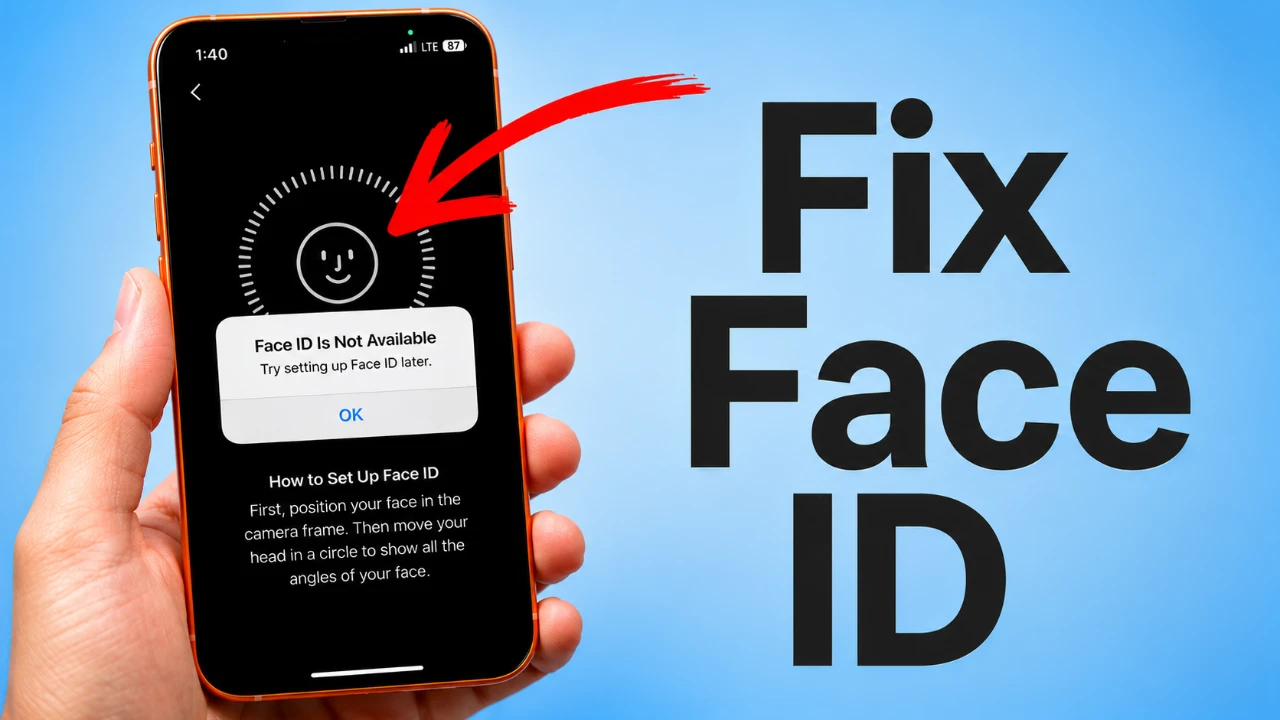
When your iPhone’s Face ID stops functioning, it can disrupt your daily activities, especially if you rely on it for unlocking your device or accessing apps. This guide provides a detailed, step-by-step approach to help you troubleshoot and resolve the issue. Whether it’s a minor obstruction or a more serious hardware problem, these solutions will assist you in restoring Face ID functionality or determining when professional help is required. The video below from Daniel About Tech gives us more details on how to fix the issue.

1. Inspect and Clean the TrueDepth Camera
Face ID depends on the TrueDepth camera system to accurately map your face. Any dirt, smudges, or obstructions can interfere with its performance. To ensure the camera is functioning properly:
- Examine the TrueDepth camera area for dust, fingerprints, or debris.
- Use a soft, lint-free cloth to gently clean the sensors and surrounding area.
- Remove any screen protectors, cases, or accessories that might block the camera.
A cracked screen can also misalign the sensors, causing Face ID to fail. If your screen is damaged, consider having it repaired to restore proper functionality.
2. Optimize Your Position and Remove Obstructions
Face ID requires a clear view of your face to work effectively. Proper alignment and visibility are essential. Follow these tips to ensure optimal performance:
- Hold your iPhone at a natural angle, similar to how you would take a selfie.
- Ensure your entire face is visible to the camera, avoiding extreme angles or partial views.
- Remove accessories like sunglasses, hats, or masks that may obscure key facial features.
If you frequently wear a mask, enable the “Face ID with a Mask” feature in the Face ID & Passcode settings. This option enhances recognition accuracy for users who wear masks regularly.
3. Update Your iPhone and Reset Face ID
Software glitches or outdated iOS versions can sometimes disrupt Face ID functionality. To address potential software-related issues:
- Check for and install the latest iOS updates. These updates often include fixes for Face ID-related bugs.
- Restart your iPhone to resolve any temporary software glitches.
- If the issue persists, navigate to Settings > Face ID & Passcode and reset Face ID. Follow the on-screen instructions to reconfigure it.
For users whose facial appearance changes frequently due to accessories or environmental factors, setting up an alternate appearance can improve Face ID’s recognition accuracy.
4. Advanced Troubleshooting Steps
If basic troubleshooting does not resolve the issue, more advanced steps may be necessary. These measures can help identify whether the problem is software-related or hardware-based:
- Perform a factory reset to eliminate potential software conflicts. Before proceeding, back up your data using iCloud or iTunes, as this process will erase all data on your device.
- After resetting, set up your iPhone as a new device and reconfigure Face ID. This step can help determine if the issue is related to software or hardware.
While these steps can resolve many issues, they should be approached with caution, as a factory reset will remove all personal data from your device.
5. Address Potential Hardware Issues
If none of the above solutions work, the problem may be hardware-related. The TrueDepth camera system, which powers Face ID, is a sophisticated component that can malfunction due to physical damage or internal faults. In such cases:
- Contact Apple Support or visit an authorized service provider for a professional diagnosis.
- Technicians can identify and repair faulty components or recommend a replacement if necessary.
Attempting to repair hardware issues on your own is not recommended, as it may void your warranty or cause further damage.
Restoring Face ID Functionality
Face ID issues can arise from a variety of causes, including dirty sensors, improper alignment, outdated software, or hardware damage. By systematically following the steps outlined in this guide, you can identify and resolve most problems. If the issue persists despite your efforts, seeking professional assistance ensures your iPhone receives the necessary repairs to restore Face ID functionality. Taking prompt action will help you regain the convenience and security that Face ID provides.
Source & Image Credit: Daniel About Tech
Disclosure: Some of our articles include affiliate links. If you buy something through one of these links, Geeky Gadgets may earn an affiliate commission. Learn about our Disclosure Policy.
