
What if we told you that the secret to making your data unforgettable lies not in the numbers themselves, but in how you present them? Imagine transforming a dull spreadsheet into a vibrant, engaging visual story that captivates your audience at first glance. Too often, Excel is dismissed as a dry, utilitarian tool for crunching numbers, but with the right techniques, it can become a canvas for creativity and clarity. Whether you’re crafting a financial report or a sales dashboard, the way you design your visuals can mean the difference between glazed-over eyes and genuine interest. The good news? You don’t need to be a graphic designer to make it happen, just a few strategic tweaks can make your Excel work truly stunning.
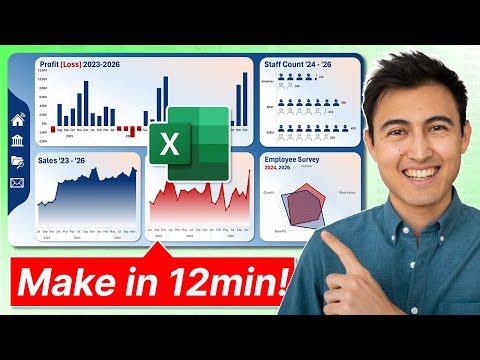
In this guide Kenji takes you through quick and practical ways to elevate your Excel visuals from basic to brilliant. From creating polished gradient line charts to designing interactive navigation bars, these techniques will help you communicate data with both clarity and flair. You’ll learn how to use features like custom icons, transparent radar charts, and background shapes to not only improve aesthetics but also enhance usability. Whether you’re looking to impress your boss, engage stakeholders, or simply take pride in your work, these methods will inspire you to see Excel in a whole new light. After all, when your visuals look this good, your data speaks louder than ever.
Excel Data Visualization Tips
TL;DR Key Takeaways :
- Enhance column charts by adjusting column width and using color inversion to improve clarity and highlight trends, especially in financial reports.
- Create gradient line charts by overlaying chart types and customizing markers for a polished, modern look ideal for tracking trends over time.
- Transform bar charts with custom icons, optimized spacing, and data labels to make visuals more engaging and easier to interpret.
- Improve radar charts by applying transparency, defining boundaries, and adding descriptive titles for clearer comparisons of multiple datasets.
- Incorporate navigation bars and background shapes to enhance usability and aesthetics, creating professional and user-friendly Excel dashboards.
Enhance Column Charts with Customization
Column charts are a cornerstone of data visualization, but small adjustments can significantly improve their impact. To make your column charts more effective:
- Adjust Column Width: Ensure proper spacing between columns to make individual data points more distinct and easier to interpret.
- Use Color Inversion: Highlight positive and negative values with contrasting colors, such as green for profits and red for losses, to enable quick trend analysis.
These enhancements are particularly valuable in financial reports, where clear and intuitive visuals help audiences grasp key insights quickly.
Gradient Line Charts with Markers
Adding gradient effects to line charts can create a polished and modern appearance while improving engagement. To design a gradient line chart:
- Overlay Chart Types: Combine a line chart with an area chart and apply gradient fills to the area chart for added depth.
- Customize Markers: Use distinct markers and line colors to ensure clarity and consistency across your data points.
This technique is ideal for visualizing trends over time, such as tracking sales growth or monitoring temperature changes, while maintaining a professional and visually appealing design.
The Secret to Stunning Excel, Smart Charts & Sleek Navigation in Minutes
Unlock more potential in Excel Data Visualization by reading previous articles we have written.
- How to create Excel heatmaps to easily visualize data
- 5 Excel Conditional Formatting Hacks to Improve Data Analysis
- How to Use Conditional Formatting in Excel 365 to Improve Data
- Master Excel’s ‘Show Details’ Checkbox for Interactive Data
- Excel data analysis made easy using Pretzel AI
- Master the Art of WSJ Style Charts in Excel with These Easy Steps
- How to create Excel dashboards with Claude 3 AI in minutes
- How to Use Excel’s Copilot() for Smarter Data Analysis
- How to Use Excel for Data Analysis: Tips for Beginners and Experts
- Microsoft Copilot setup process for Excel’s advanced AI tools
Bar Charts with Custom Icons
Standard bar charts can be transformed into more engaging visuals by incorporating custom icons. To achieve this:
- Use Stacked Icons: Replace traditional bars with icons like stars, checkmarks, or other symbols to represent quantities visually.
- Optimize Spacing: Adjust the gap width between icons to improve readability and visual balance.
- Add Data Labels: Include labels to provide context and ensure the audience can interpret the data accurately.
This approach works particularly well for scenarios such as customer satisfaction surveys or employee performance metrics, where visual representation enhances comprehension and engagement.
Transparent Radar Charts for Clear Comparisons
Radar charts are effective for comparing multiple datasets, but they can become visually overwhelming without proper customization. To make them more user-friendly:
- Apply Transparency: Add transparency to overlapping datasets to reduce clutter and improve readability.
- Define Boundaries: Use borders and distinct colors to clearly differentiate between datasets.
- Include Descriptive Titles: Add titles to guide interpretation and provide context for the data being compared.
This method is particularly useful for comparing metrics such as product performance, skill assessments, or market trends, making sure the data remains accessible and easy to analyze.
Navigation Bars and Background Shapes
Incorporating navigation bars and background shapes can significantly enhance both the usability and aesthetics of your Excel dashboards. To implement these features:
- Design Navigation Bars: Use shapes and icons to create sleek navigation bars. Add hyperlinks to enable seamless movement between different sheets or sections.
- Incorporate Background Shapes: Use gradient fills, curved shapes, or subtle patterns to create a cohesive and professional design that complements your data.
These elements not only improve the functionality of your dashboards but also contribute to a polished and user-friendly experience, making your work more engaging and accessible.
Elevate Your Excel Designs
By applying these techniques, you can transform Excel charts and dashboards into visually stunning and highly functional tools. From customized column charts to gradient-enhanced line charts, icon-based bar charts, and interactive navigation bars, each method enhances both the aesthetics and usability of your visuals. Whether you are presenting data in a corporate environment or creating dashboards for personal projects, these strategies ensure your designs are professional, engaging, and effective.
Media Credit: Kenji Explains
Disclosure: Some of our articles include affiliate links. If you buy something through one of these links, Geeky Gadgets may earn an affiliate commission. Learn about our Disclosure Policy.
