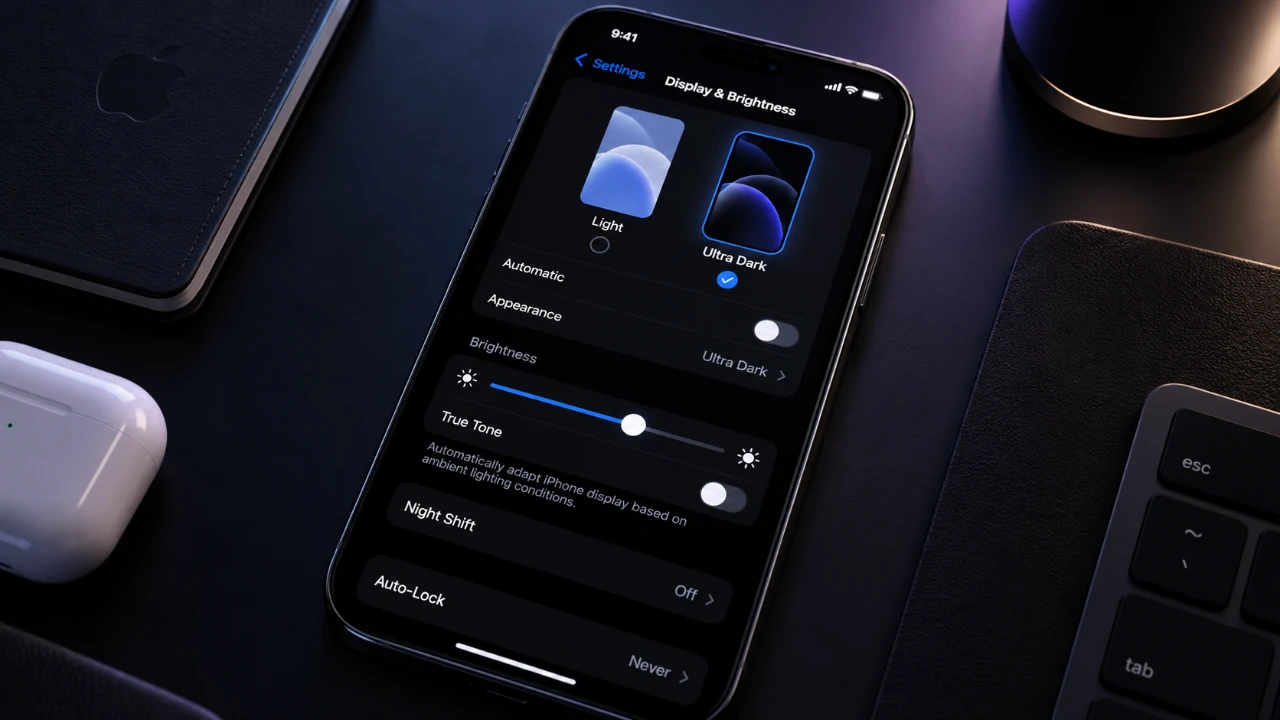
Ultra dark mode on your iPhone is more than just a visual upgrade; it offers practical benefits like improved energy efficiency, reduced eye strain, and a sleek, modern interface. By using the capabilities of OLED displays and iOS customization options, you can create a personalized dark mode experience that is both functional and visually appealing. The video below from HotshotTek shows us how to enable ultra dark mode in iOS 27.
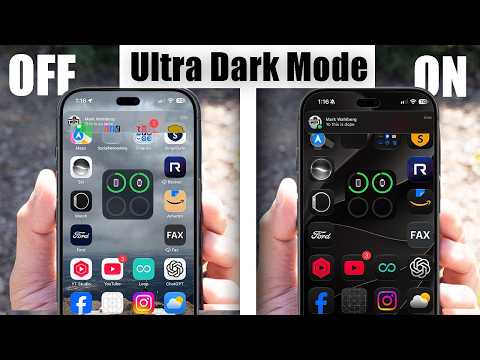
1: Activate System-Wide Dark Mode
The first step in achieving ultra dark mode is enabling the system-wide dark theme. This feature applies a dark aesthetic across the system and compatible apps, creating a cohesive look. Follow these steps:
- Open Settings > Display & Brightness.
- Select the “Dark” option to activate the system-wide dark theme.
To enhance the effect, customize your wallpaper:
- Go to Settings > Wallpaper.
- Choose or upload a solid black image as your background.
Using a black wallpaper not only complements the dark mode aesthetic but also maximizes the energy-saving potential of OLED screens, as black pixels consume significantly less power.
2: Customize App Icons for a Cohesive Look
Take your home screen design to the next level by customizing app icons to match the ultra dark theme. The Shortcuts app allows you to create custom black, clear, or tinted icons for a minimalist and polished appearance. Here’s how to refine your home screen:
- Use the Shortcuts app to design and apply custom icons that align with the dark theme.
- Disable text labels beneath icons by navigating to Settings > Accessibility > Display & Text Size.
- Enable “Reduce Motion” to simplify animations and create a cleaner, more streamlined interface.
These adjustments result in a visually cohesive home screen that enhances the overall dark mode experience.
3: Optimize Notifications and Widgets
To maintain consistency throughout your device, darken notifications and widgets. This ensures that all interface elements align with the ultra dark theme. Follow these steps:
- Go to Settings > Accessibility > Display & Text Size.
- Enable the “Reduce Transparency” option to darken elements such as folders, widgets and notification backgrounds.
For added convenience, customize the Control Center by including the “Accessibility Shortcuts” option. This allows you to quickly toggle transparency settings, making sure a seamless and adaptable dark mode experience.
4: Enhance Accessibility for Better Usability
Dark mode should not only look good but also improve usability. Accessibility features can help make your device more user-friendly, especially in low-light environments. Consider these adjustments:
- Enable bold text via Settings > Accessibility > Display & Text Size to improve text visibility against dark backgrounds.
- Increase contrast or add borders around buttons to make interface elements more distinguishable.
These enhancements ensure that your device remains functional and easy to navigate, even in challenging lighting conditions.
5: Extend Dark Mode to CarPlay
If you use CarPlay, you can extend the ultra dark mode aesthetic to your vehicle’s display for a unified look. Here’s how to customize CarPlay settings:
- Open Settings > General > CarPlay on your iPhone.
- Select a black wallpaper for the CarPlay interface.
This adjustment reduces distractions while driving and maintains a sleek, cohesive appearance between your iPhone and CarPlay.
6: Fine-Tune Motion and Visual Settings
For a smoother and more refined experience, adjust motion effects and other visual settings. These tweaks can enhance the overall usability of ultra dark mode:
- Navigate to Settings > Accessibility > Motion.
- Enable “Reduce Motion” to minimize motion effects and create a more subtle, fluid user interface.
By fine-tuning these settings, you can achieve a fully personalized dark mode experience that balances functionality with aesthetics.
Why Ultra Dark Mode Matters
Allowing and customizing ultra dark mode on your iPhone offers a range of benefits beyond its striking appearance. It enhances usability, reduces eye strain, and optimizes battery life, especially on devices with OLED screens. From activating system-wide dark mode to customizing app icons, notifications and accessibility settings, these steps allow you to tailor your device to your preferences. Whether you’re working in low light or simply prefer a modern, minimalist design, ultra dark mode provides a functional and visually appealing solution.
Below are more guides on iPhone from our extensive range of articles.
- iPhone 18 Pro Leaks Reveal Apple’s Move to an Ultra-Efficient 2Nm Chip
- iPhone Ultra Fold Launch Date Reportedly Confirmed by Leak
- See the First Hands-on Video of the iPhone Fold Ultra
- Apple May Keep the iPhone 18’S Best New Feature Exclusive to the Pro Max
- Why the iPhone Air 2 Might Actually Be Worth Buying This Time
- Early iPhone 18 Reports Point to Major Unconfirmed Shifts
Source: HotshotTek
Disclosure: Some of our articles include affiliate links. If you buy something through one of these links, Geeky Gadgets may earn an affiliate commission. Learn about our Disclosure Policy.
