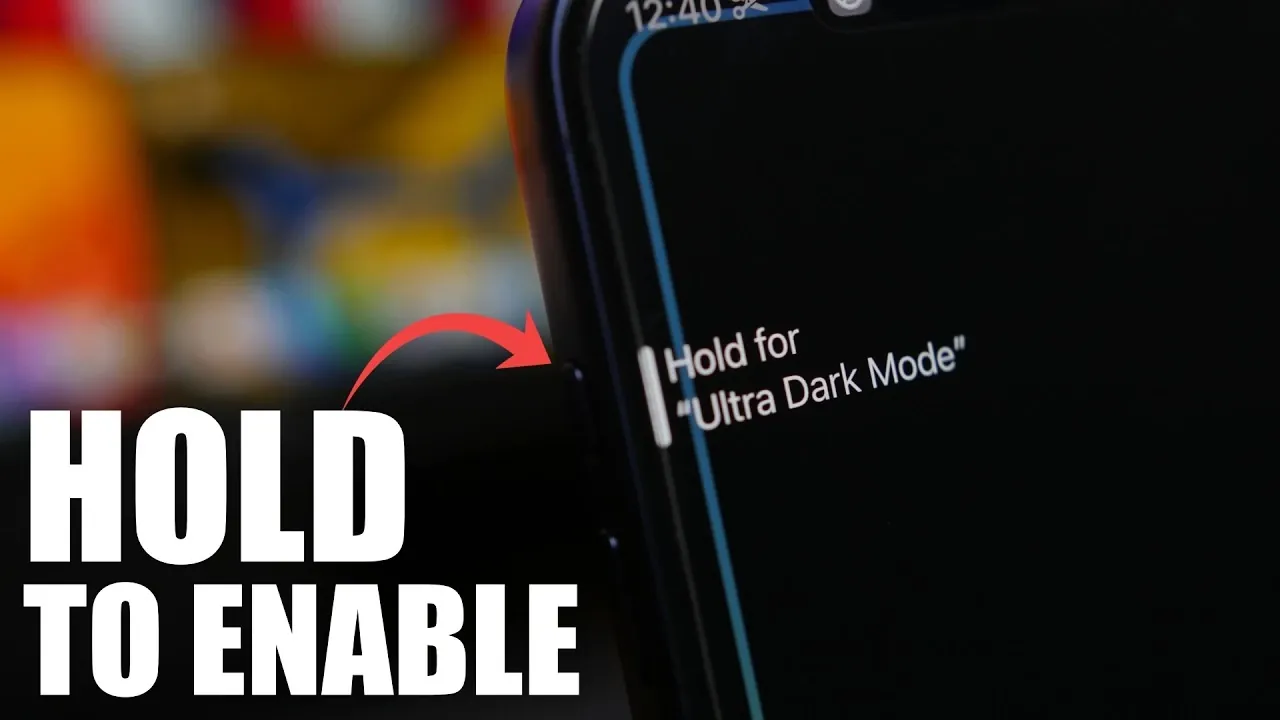
If you’re looking to enhance your iPhone’s usability in low-light environments while conserving battery life, allowing ultra dark mode is a practical solution. This guide provides a step-by-step approach to achieving a darker screen appearance on iPhones running iOS 26 or the iOS 27 beta. By adjusting settings, creating shortcuts, and using automation, you can improve your device’s functionality and overall user experience. The video below from iReviews gives us more details.

Why Ultra Dark Mode is Worth Considering
Ultra dark mode offers several advantages, particularly for iPhones equipped with OLED displays. These screens can turn off individual pixels, significantly reducing power consumption when darker colors dominate the display. Beyond battery savings, ultra dark mode minimizes eye strain in dimly lit environments, making nighttime usage more comfortable and less fatiguing. Whether you’re reading, browsing, or navigating your phone in the dark, this feature enhances usability while maintaining a sleek and efficient interface.
Steps to Enable Ultra Dark Mode
Activating ultra dark mode involves fine-tuning various settings on your iPhone. Follow these steps to optimize your display for low-light conditions:
- Set a Dark Wallpaper: Select a black or dark-colored wallpaper to reduce the number of active pixels on OLED screens, which helps conserve battery life.
- Adjust Accessibility Settings: Navigate to Settings > Accessibility and enable the following options:
- Reduce Transparency: Simplifies the interface by removing translucent effects, creating a cleaner look.
- Increase Contrast: Enhances the visibility of user interface elements by boosting contrast levels.
- Reduce White Point: Lowers the intensity of bright colors. Adjust this setting to around 60-65% for a softer and more comfortable display.
- Reduce Bright Effects: Dims overly bright visuals, contributing to a more subdued and eye-friendly appearance.
These adjustments collectively create a darker, more comfortable screen that is ideal for low-light environments.
Streamlining Access with Shortcuts
To make ultra dark mode more accessible, you can create a shortcut that activates all relevant settings with a single tap. Alternatively, consider downloading pre-made shortcuts specifically designed for dark mode optimization. For added flexibility, customize the shortcut to toggle between ultra dark mode and normal mode, allowing you to switch seamlessly based on your preferences or lighting conditions.
Automating Ultra Dark Mode for Convenience
Automation takes ultra dark mode to the next level by allowing it under specific conditions without manual intervention. Using the Shortcuts app, you can set up triggers to automatically activate dark mode. For instance, you can configure your iPhone to enable ultra dark mode when:
- It connects to a specific Wi-Fi network, such as your home or workplace.
- The device starts charging, making sure optimal battery usage during nighttime charging sessions.
- A particular time of day is reached, such as sunset or a custom schedule that aligns with your routine.
These automated triggers ensure your iPhone adapts to your environment, offering a seamless and hassle-free experience.
Enhancing Browsing with Safari Dark Mode
While system-wide dark mode covers most apps, some websites may still display bright content, disrupting the dark theme. To address this, install a Safari browser extension that enforces dark mode on all web pages. This ensures a consistent dark theme across your browsing experience, reducing eye strain and maintaining visual harmony, especially during extended browsing sessions.
Customizing the Side Button for Instant Activation
For even quicker access to ultra dark mode, you can assign the shortcut you created to your iPhone’s side button. This allows you to activate or deactivate dark mode with a simple press, eliminating the need to navigate through menus. This feature is particularly useful when transitioning between different lighting conditions, such as moving from a bright outdoor setting to a dimly lit room.
Maximizing Your iPhone’s Potential
By implementing these steps, you can fully optimize your iPhone for ultra dark mode. From adjusting accessibility settings to automating activation and enhancing your browsing experience, these techniques provide a comprehensive approach to improving usability and battery performance. Whether you’re using iOS 26 or exploring the iOS 27 beta, ultra dark mode is a valuable feature for anyone seeking a darker, more efficient display tailored to their needs.
Below are more guides on Ultra dark mode iPhone from our extensive range of articles.
- iOS 26.2: How to Customize Liquid Glass and Enable Ultra Dark Mode
- What Ultra Dark Mode Actually Does in iOS 26.5
- How to Enable Ultra Dark Mode on iOS 26: The Secret Setting for More Battery
- Hidden Setting: How to Enable the Secret “Ultra Dark Mode” in iOS 26.1
- iPhone Ultra Dark Mode & Liquid Glass : How to Turn It On
Source & Image Credit: iReviews
Disclosure: Some of our articles include affiliate links. If you buy something through one of these links, Geeky Gadgets may earn an affiliate commission. Learn about our Disclosure Policy.
