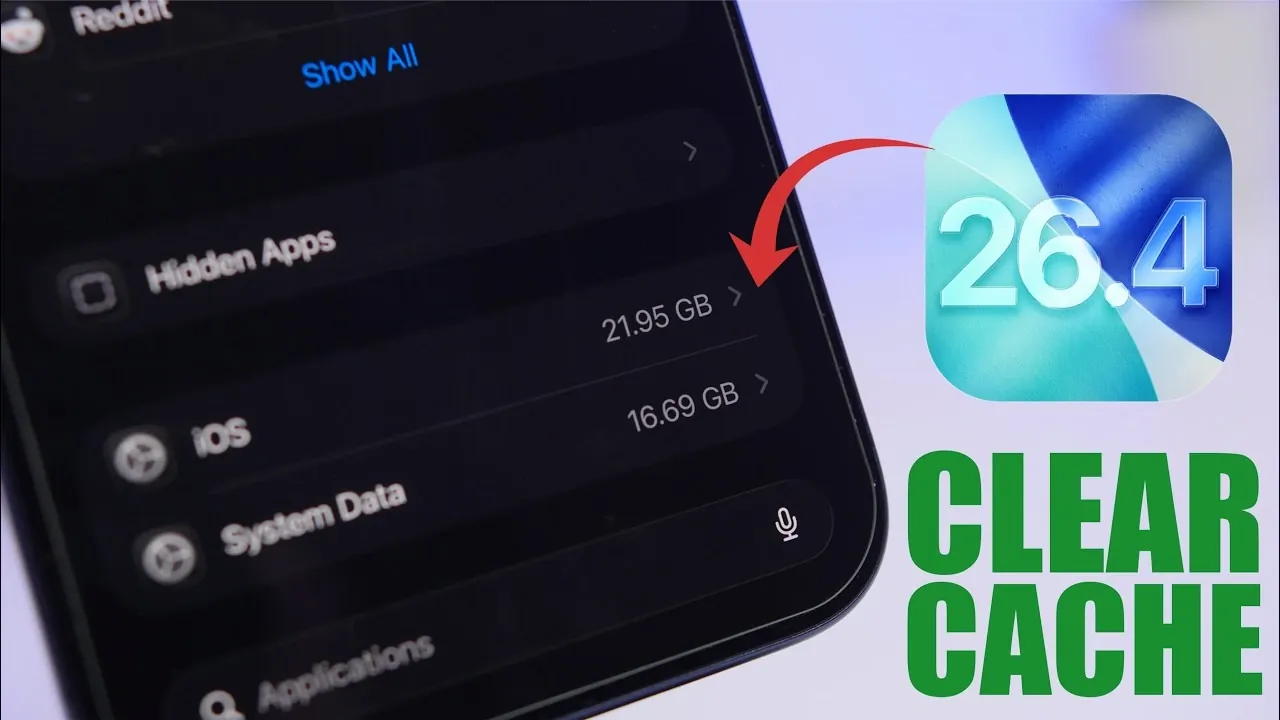
Is your iPhone feeling sluggish or running out of storage space? Clearing cached files is a practical way to optimize your device’s performance and free up valuable storage. The video below from iReviews provides detailed steps to manage cache on iPhones running iOS 26.4, making sure a smoother and more efficient user experience.

Restart Your iPhone
Restarting your iPhone is one of the simplest and most effective ways to manage system data. A reboot clears temporary files and reduces the size of accumulated system data. Depending on your usage, a single restart can free up 1–2 GB of storage. Regularly rebooting your device not only reclaims space but also helps maintain optimal performance by refreshing system processes. To restart your iPhone:
- Press and hold the Power button and either Volume button (on newer models) or just the Power button (on older models).
- Slide to power off your device.
- Wait a few seconds, then press and hold the Power button again to turn it back on.
This simple step can make a noticeable difference in your device’s responsiveness.
Clear Safari Browsing Data
Safari, the default browser on iPhones, stores cached files, cookies and browsing history to enhance your web experience. Over time, these files can accumulate and consume significant storage space. Clearing Safari’s browsing data not only frees up storage but also improves browser responsiveness. To clear Safari’s cache:
- Open Settings on your iPhone.
- Scroll down and select Safari.
- Tap Clear History and Website Data.
- Confirm your choice when prompted.
This process removes outdated or unnecessary files, making sure a faster and more efficient browsing experience.
Manage App Caches
Many apps, such as Spotify, TikTok and Snapchat, store cached data to improve functionality and speed. However, these caches can grow over time and take up substantial storage space. Managing app caches is essential for preventing storage bloat and maintaining app performance. Here’s how you can manage app caches effectively:
- Check the app’s settings for cache-clearing options. For instance, Spotify allows you to delete downloaded cache files without affecting your saved music or playlists.
- Regularly review apps that consume significant storage by navigating to Settings > General > iPhone Storage. This section provides a breakdown of storage usage by app.
- Clear cache within individual apps where possible, or delete unnecessary files like offline downloads.
By staying proactive, you can ensure apps run smoothly while keeping your storage under control.
Delete and Reinstall Apps
Some apps, particularly social media platforms, accumulate large caches that cannot be cleared manually. In such cases, deleting and reinstalling the app is an effective solution. This method temporarily frees up storage while preserving your account data. For example:
- To delete an app, press and hold its icon on the home screen, then tap Remove App followed by Delete App.
- Reinstall the app from the App Store and log back into your account.
This approach is especially useful for apps like Instagram or Facebook, which often lack built-in cache management tools.
Enable “Offload Unused Apps”
iOS includes a feature called Offload Unused Apps, which automatically removes apps you rarely use while retaining their data. This feature is particularly helpful for devices with limited storage, as it allows you to reclaim space without losing important app data. To enable this feature:
- Open Settings on your iPhone.
- Go to General > iPhone Storage.
- Toggle on Offload Unused Apps.
When you reinstall an offloaded app, its data is restored seamlessly, making this an efficient way to manage storage without compromising functionality.
Why Clearing Cache Matters
Regularly clearing your iPhone’s cache offers several tangible benefits:
- It frees up valuable storage space, especially on devices with limited capacity.
- It improves overall device speed and responsiveness by removing unnecessary files.
- It enhances browser performance by eliminating outdated cached files.
- It helps apps run more efficiently by reducing the load of accumulated data.
These benefits contribute to a smoother and more enjoyable user experience, making sure your iPhone operates at its best.
Tips for Maintaining Optimal Performance
To keep your iPhone running smoothly and efficiently, consider adopting these best practices:
- Restart your device periodically to clear temporary files and refresh system processes.
- Enable Offload Unused Apps to automatically manage storage for apps you rarely use.
- Regularly review and clear app-specific caches to prevent unnecessary storage consumption.
- Monitor your device’s storage usage through Settings > General > iPhone Storage to identify and address potential issues early.
By incorporating these habits into your routine, you can ensure your iPhone remains fast, responsive and clutter-free, providing a seamless user experience for years to come.
Source & Image Credit: iReviews
Disclosure: Some of our articles include affiliate links. If you buy something through one of these links, Geeky Gadgets may earn an affiliate commission. Learn about our Disclosure Policy.
