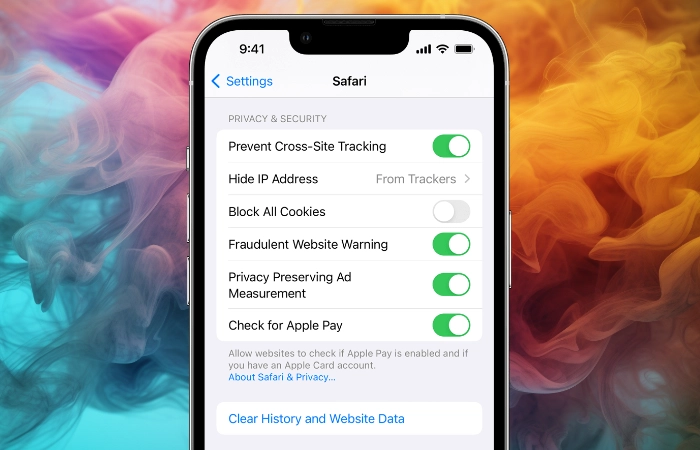
Navigating the technological landscape can occasionally prove to be a challenging task, especially when it comes to managing device settings and features. One such function, often asked about by iPhone users, is how to clear cookies from their device. If you’ve found yourself in this bracket, you’ll be pleased to know that the process is simple and straightforward once understood. Here, we present a detailed guide to managing cookies on your iPhone, inspired by Apple’s official guidance.
Understanding cookies and why to clear them
As a starting point, it’s important to understand what exactly cookies are. These small data files are stored on your device by websites that you visit. They keep track of your activity and preferences, contributing to a tailored browsing experience. However, an excess of cookies can sometimes slow down your browser and affect its efficiency. That’s where knowing how to clear cookies on iPhone comes in handy, helping maintain an optimal browsing experience.
How to clear cookies and history on iPhone
Apple provides a clear path to erase your history, cookies, and other browsing data from Safari:
- Open Settings: Kick off the process by tapping on the ‘Settings’ icon on your iPhone.
- Select Safari: Within the Settings menu, scroll until you find ‘Safari’ and tap on it.
- Clear History and Website Data: Look for ‘Clear History and Website Data’ within the Safari menu. By tapping on this option, you will erase your browsing history, cookies, and other saved data.
Bear in mind that this action will not affect your AutoFill information, ensuring your convenience is undisturbed.
Clearing cookies but preserving history on iPhone
If you are eager to improve the performance of your browser but want to retain your browsing history, there is an alternative route to clear cookies on iPhone. Follow these steps:
- Open Settings: Once again, initiate the process by tapping on ‘Settings’.
- Go to Safari: Scroll down to locate ‘Safari’, and tap to proceed.
- Access Advanced Settings: Scroll to the bottom of the Safari menu and tap on ‘Advanced’.
- Enter Website Data: Within the Advanced settings, tap on ‘Website Data’.
- Remove All Website Data: You can now tap ‘Remove All Website Data’, which will delete cookies while preserving your browsing history.
Browsing privately on iPhone
To browse without leaving a history, you have the option of private browsing:
- Open Safari: Begin by launching Safari, the default browser on your iPhone.
- Activate Private Browsing: Tap the ‘Tabs’ icon (depicted as two squares) at the bottom right of your screen, and then tap ‘Private’ to initiate private browsing.
Please note that the ‘Clear History and Website Data’ option becomes grayed out when there’s no history or website data to clear. The same holds true if you have web content restrictions set up under Content & Privacy Restrictions in Screen Time.
Block all cookies

If you would like to block all cookies simply slide the button in the image above to the right and any website trying to put a cookie on your iPhone will be blocked indefinitely.
Why does your iPhone have cookies?
Cookies are a ubiquitous feature of the internet, and your iPhone is no exception. They’re employed to enhance your web browsing experience. But what exactly are cookies, and why does your iPhone have them?
When you visit a website, it sends a small file to your device called a “cookie.” This cookie serves a variety of purposes, but its primary function is to remember you. When you revisit the website, your device sends the cookie back to the website, allowing it to recall information about your last visit. There are numerous reasons your iPhone has cookies:
- Personalization: Cookies help in personalizing the content you see on a website based on your previous behavior. For example, if you visit a shopping site and look at a specific type of product, the site may use cookies to show you similar items during your next visit.
- Authentication: If you’ve ever wondered how a website keeps you signed in even after you’ve closed the browser or rebooted your iPhone, the answer is cookies. They store your login information (in an encrypted format for security), saving you from the hassle of logging in every time you visit the site.
- Session Management: For websites that have a lot of different pages, cookies help keep track of your activity from page to page. This is crucial for things like online shopping, where a cookie can keep track of the items in your cart as you continue to shop.
- Tracking and Analytics: Cookies help websites understand how visitors interact with their site. They provide insights about which pages are most popular, how long visitors stay, what kind of content they prefer, and more. These analytics help the website owners make decisions about how to improve their site.
While cookies offer many benefits, they can also raise privacy concerns since they track your activity. That’s why knowing how to manage them, like understanding how to clear cookies on iPhone, is essential.
Understanding how to clear cookies on iPhone may have appeared daunting initially, but hopefully, with this guide, you are now well-equipped to manage your browsing data effectively. It’s crucial to remember that while technology can be complex, it is designed to serve us. With clear instructions and a little patience, we can navigate even the most intricate aspects of our devices. When technology hurdles arise, rest assured, solutions are always within reach.
Disclosure: Some of our articles include affiliate links. If you buy something through one of these links, Geeky Gadgets may earn an affiliate commission. Learn about our Disclosure Policy.
