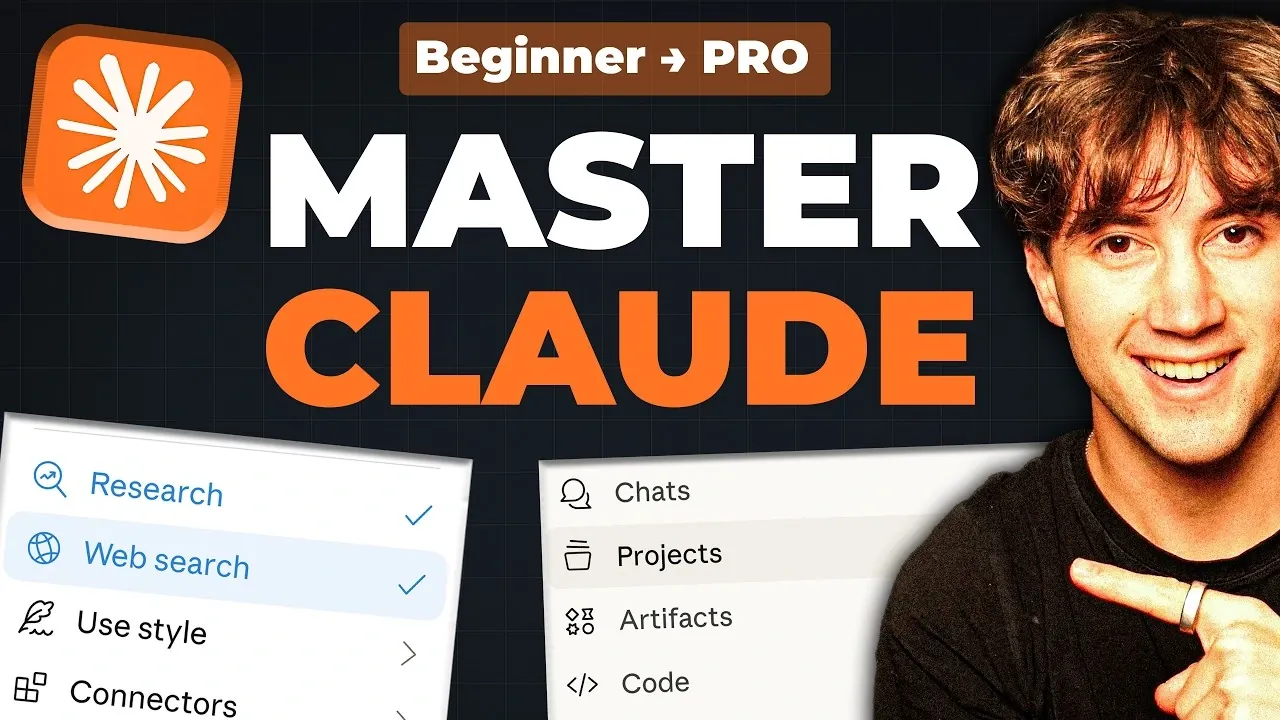
Claude is an AI assistant designed to help users manage tasks and workflows more effectively in 2026. According to AI Foundations, one of the key starting points for beginners is understanding its interface, which includes the Prompt Bar for entering instructions, the Model Selector for choosing the appropriate AI version and the Sidebar Navigation for accessing projects and integrations. For example, the sidebar enables users to switch between tasks while maintaining context, which is particularly useful for handling multiple workflows efficiently.
Discover how to use frameworks like the GCAO framework to craft detailed prompts, set up integrations with platforms such as Google Calendar or Slack and create reusable templates for recurring tasks. This explainer also covers how to automate routine operations and make the most of Claude’s advanced features to align with your specific goals.
Getting Started with Claude AI in 2026
TL;DR Key Takeaways :
- Claude’s foundational features include the Prompt Bar, Model Selector and Sidebar Navigation, which streamline task management and enhance user experience.
- Crafting effective prompts using the GCAO framework (Goal, Context, Action, Output) ensures precise and actionable responses from Claude.
- Core features like Web Search, Vision, Artifacts and Custom Instructions make Claude a versatile tool for research, analysis and document creation.
- Advanced functionalities such as Projects, Skills and Connectors enable seamless integration with tools like Google Calendar, Gmail and Slack for efficient workflow automation.
- Practical applications of Claude include content creation, client proposals and workflow automation, making it a valuable asset across various industries and professions.
The first step in mastering Claude is setting up your account. Select a plan that aligns with your specific needs, whether you’re an individual user or part of a business team. Once logged in, take the time to familiarize yourself with the interface. Key components include:
- Prompt Bar: The primary space for entering instructions and interacting with Claude.
- Model Selector: Choose the AI version best suited for your specific task, making sure optimal performance.
- Sidebar Navigation: Access essential features such as projects, skills and connectors for seamless task management.
Understanding these elements is critical for efficient navigation. For example, the sidebar allows you to switch between tasks effortlessly, allowing you to manage multiple workflows without losing context. This intuitive design ensures that even first-time users can quickly adapt and begin using Claude’s capabilities.
Crafting Effective Prompts
The quality of Claude’s responses is directly influenced by the clarity and structure of your prompts. To achieve the best results, use the GCAO framework:
- Goal: Clearly define the objective of your task.
- Context: Provide relevant background information to guide Claude’s understanding.
- Action: Specify the exact task you want Claude to perform.
- Output: Describe the desired result in detail.
For instance, instead of a vague prompt like, “Summarize this document,” opt for a more specific instruction: “Summarize this 10-page overview into a 200-word executive summary, focusing on key financial metrics.” This level of detail ensures that Claude delivers precise, actionable and contextually relevant results. By refining your prompts, you can unlock the full potential of Claude’s capabilities.
Expand your understanding of Claude AI with additional resources from our extensive library of articles.
- Claude Cowork Features, Google Drive and Gmail Integrations
- ChatGPT vs Claude vs Gemini vs Perplexity: Best Uses
- Claude Opus 4.6 vs GPT 5.2 : Professional Tasks Results
- Claude Code Marketing Guide 2026 : Landing Pages, Emails & Paid Ads
- Claude Cowork : AI Desktop Automation Assistant for macOS
- New Claude Code Remote Control Feature Released By Anthropic
- Claude Cowork AI Automation Tool for Files, Sheets, Docs & Browser Tasks
- Gemini vs ChatGPT vs Claude : Which Al Suits Your Workflow
- Which Claude 3 AI model is best? All three compared and tested
- Inception Labs Mercury 2 Performance Versus Claude & Gemini
Exploring Core Features
Claude offers a robust suite of tools designed to enhance productivity and simplify complex tasks. Some of its most impactful features include:
- Web Search: Conduct real-time internet research to access up-to-date information and insights, making it invaluable for decision-making and content creation.
- Vision: Analyze images, screenshots, or documents to extract actionable data, such as identifying trends in charts or summarizing scanned overviews.
- Artifacts: Create interactive tools like calculators, dashboards, or formatted documents without requiring coding expertise.
- Custom Instructions: Set permanent preferences to tailor Claude’s responses to your unique style and requirements.
These features make Claude a versatile assistant capable of handling a wide range of tasks, from research and analysis to document creation and beyond. By using these tools, you can significantly reduce manual effort and focus on high-priority activities.
Advanced Functionalities for Complex Workflows
For users managing intricate workflows, Claude offers advanced tools that can streamline processes and improve efficiency:
- Projects: Create dedicated workspaces for specific tasks or teams. Upload documents, set tailored instructions and maintain context for ongoing projects.
- Skills: Use predefined templates for repeatable tasks, such as drafting proposals or generating overviews. These templates save time and ensure consistency across outputs.
- Connectors: Integrate Claude with external tools like Google Calendar, Gmail, Slack and Google Drive to centralize task management and communication.
By combining these functionalities, you can build a dynamic system that adapts to your needs and scales with your workload. For example, using connectors to integrate Claude with your email and calendar can automate scheduling and communication, freeing up time for strategic initiatives.
Creating a Personalized AI Operating System
To fully use Claude’s capabilities, consider building a personalized AI operating system tailored to your specific goals and workflows. Start by defining your objectives, communication style and preferences. Use templates to standardize responses and align Claude with your unique requirements. For instance, if you frequently draft client proposals, create a template that includes sections for objectives, deliverables and timelines.
This approach transforms Claude into an extension of your workflow, reducing manual effort and improving overall efficiency. By customizing its functionalities, you can ensure that Claude operates seamlessly within your existing processes, enhancing both productivity and output quality.
Practical Applications of Claude
Claude excels in a variety of real-world scenarios, making it a valuable tool across industries and professions. Here are a few examples of its practical applications:
- Content Creation: Generate high-quality blog posts, marketing copy, or social media content with iterative refinement to match your brand voice and objectives.
- Client Proposals: Use skills and templates to draft professional proposals quickly, incorporating client-specific details for a personalized touch.
- Workflow Automation: Automate repetitive tasks, such as scheduling meetings or organizing project updates, by integrating connectors with tools like Slack or Google Calendar.
These applications demonstrate how Claude can save time, improve the quality of your work and enable you to focus on strategic priorities. By exploring its diverse use cases, you can identify new ways to integrate Claude into your daily operations.
Integrating and Automating with Claude
One of Claude’s standout features is its ability to integrate with other tools, creating a cohesive system for managing tasks, tools and communication. By combining projects, skills and connectors, you can automate routine operations and focus on high-value activities. For example:
- Link Claude to your Google Calendar to schedule meetings automatically, making sure seamless time management.
- Use Slack integration to streamline team communication and collaboration, keeping everyone aligned and informed.
This level of integration allows you to centralize your workflows, reduce manual effort and enhance overall productivity. By automating repetitive tasks, you can allocate more time to strategic initiatives and creative problem-solving.
Maximizing Claude’s Potential
To fully unlock Claude’s potential, consistency and iterative use are essential. Gradually explore its advanced features as you become more comfortable with its capabilities. Treat Claude as a collaborative partner rather than a simple tool, engaging in back-and-forth communication to refine its outputs and align them with your expectations.
For example, when drafting a overview, provide feedback on each version to guide Claude toward the final product. This iterative process not only improves the quality of the results but also helps you build a more effective working relationship with the AI. Over time, you will develop a deeper understanding of how to use Claude’s strengths to achieve your goals.
By mastering its features and integrating it into your workflows, Claude can become an indispensable part of your toolkit, allowing you to work smarter, not harder.
Media Credit: AI Foundations
Disclosure: Some of our articles include affiliate links. If you buy something through one of these links, Geeky Gadgets may earn an affiliate commission. Learn about our Disclosure Policy.
