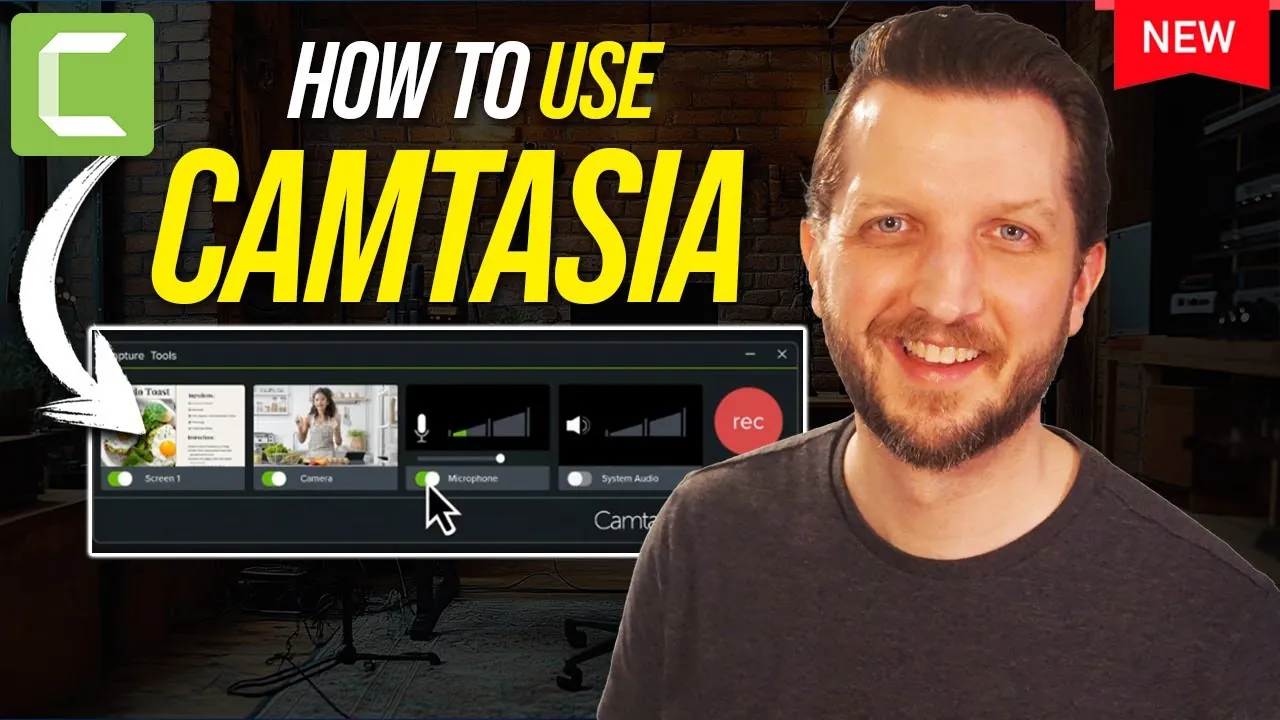
Have you ever found yourself wishing for a simple yet powerful tool to create polished video tutorials, presentations, or content that truly stands out? Whether you’re a teacher looking to engage students, a content creator aiming to grow your audience, or a professional needing to deliver clear, impactful messages, the struggle to find the right software can feel overwhelming. Enter Camtasia—a user-friendly, all-in-one screen recording and video editing tool designed to make your creative process seamless. If you’ve been searching for a way to bring your ideas to life without the steep learning curve of complex editing software, you’re in the right place.
In this guide, we’ll explore how Camtasia can transform the way you create video content. From capturing your screen with precision to adding professional touches like transitions, annotations, and effects, Camtasia offers everything you need to craft engaging videos that leave a lasting impression. Whether you’re a total beginner or someone with a bit of editing experience, this step-by-step walkthrough will help you unlock the full potential of the software.
Getting Started with Screen Recording
Camtasia is a versatile software that combines screen recording and video editing into a single, seamless platform. Whether you’re creating tutorials, presentations, or promotional content, it provides a robust set of tools to help you produce professional-quality videos efficiently.
TL;DR Key Takeaways :
- Versatile Screen Recording: Camtasia allows full-screen, custom region, and webcam integration, along with system and microphone audio capture for comprehensive recording options.
- Advanced Editing Tools: Features like layered editing, background removal, and color adjustments enable precise customization for professional-quality videos.
- Engaging Effects: Add annotations, transitions, cursor effects, and audio enhancements to make your videos more dynamic and visually appealing.
- Easy Export and Sharing: Export videos in multiple formats, upload directly to platforms like YouTube, or generate shareable web links for collaboration and distribution.
- User-Friendly Workflow: Camtasia’s customizable interface and preview mode streamline the editing process, catering to both beginners and experienced users.
Camtasia offers a range of recording options tailored to your specific needs. You can capture your entire screen, focus on a custom region, or use preset dimensions optimized for platforms like social media. Additionally, the software supports external devices such as webcams and microphones, allowing you to enhance your recordings with personal touches. Camtasia also includes system audio recording, making sure that all sounds from your computer are captured with clarity.
- Full-Screen or Custom Region: Choose to record your entire screen or focus on specific areas for targeted content.
- Webcam Integration: Add a personal element by incorporating webcam footage alongside your screen recording.
- Audio Options: Record system audio, microphone input, or both for comprehensive sound coverage.
For example, if you’re creating a tutorial, you can narrate your actions using a microphone while recording your screen. Camtasia’s intuitive configuration tools allow you to adjust audio levels and video quality before starting, making sure a polished result from the outset.
Editing Your Video Recordings
After capturing your footage, Camtasia’s timeline-based editing interface allows you to refine it with precision. The timeline supports multiple layers, allowing you to combine screen recordings, webcam footage, and other media elements seamlessly. You can resize, reposition, and customize these elements with options such as opacity adjustments, rotation, and more.
- Layered Editing: Combine multiple media elements to create a dynamic, professional look.
- Background Removal: Replace or modify video backgrounds for a polished appearance.
- Color Adjustments: Fine-tune brightness, contrast, and saturation to achieve a cohesive visual style.
For instance, if your video includes webcam footage, you can remove the background to focus solely on the subject. Camtasia also provides tools for feathering edges and applying color corrections, making sure a smooth and professional finish.
How to Use Camtasia Free Screen Recorder and Editor
Take a look at other insightful guides from our broad collection that might capture your interest in screen recording.
- How to screen record on Android
- How to screen record on the iPhone
- Screen Grabber Pro: Lifetime License | StackSocial
- How to record your screen on Microsoft Windows
- How to Record Your iPhone Screen Like a Pro
- Meta Quest 3: How to Screen Record (with Mic)
- How to screen record on Mac with sound
- iOS 18.3 RC: 15+ Hidden Features You WON’T Believe This
- Snipping tool on Mac, how to use it
- How to use CapCut video overlay feature
Enhancing Your Video with Effects
Camtasia includes a variety of tools to make your videos more engaging and visually appealing. You can add annotations such as text, shapes, and arrows to emphasize key points or guide viewers through complex processes. Visual effects, like blurring sensitive information or applying color grading, help maintain focus and enhance the overall aesthetic of your video.
- Annotations: Use text, arrows, or shapes to highlight important details and guide viewers.
- Transitions: Create a smooth flow between clips with customizable transitions.
- Cursor Effects: Draw attention to specific actions during screen recordings.
- Audio Enhancements: Synchronize tracks, adjust volume levels, and add background music or sound effects.
For example, cursor highlighting can direct attention to specific clicks or actions during a tutorial. Adding transitions between clips ensures your video flows naturally, keeping viewers engaged from start to finish.
Exporting and Sharing Your Work
Once your video is complete, Camtasia simplifies the process of exporting and sharing your content. You can save your project in various formats, such as MP4, or upload it directly to platforms like YouTube or Screencast. For collaborative projects or web-based sharing, Camtasia also generates shareable links, allowing viewers to access your video without needing to download it.
- Multiple Formats: Export your video in formats compatible with different devices and platforms.
- Direct Upload: Share your content instantly on platforms like YouTube or Screencast.
- Web Links: Generate shareable links for easy distribution and collaboration.
These features make it easy to distribute your content to a wide audience. Whether you’re sharing tutorials with students, collaborating with colleagues, or publishing promotional material, Camtasia ensures your videos are accessible and professional.
Streamlining Your Workflow
Camtasia’s user-friendly interface is designed to accommodate both beginners and experienced users. You can customize the layout of windows and tools to suit your workflow, making sure efficiency and precision during editing. The software also includes a preview mode, allowing you to review your video and make adjustments before finalizing it.
- Customizable Interface: Arrange tools and windows to match your editing style and preferences.
- Preview Mode: Test transitions, check audio synchronization, and refine effects before exporting.
For example, you can test how transitions appear between clips or ensure that audio tracks are perfectly synchronized. This attention to detail helps you deliver a polished, professional video that meets your goals.
Maximizing Camtasia’s Potential
Camtasia is a comprehensive solution for creating high-quality video content. From flexible screen recording options to advanced editing tools and seamless exporting, it provides everything you need to produce engaging and professional videos. Whether you’re an educator, content creator, or business professional, Camtasia enables you to communicate effectively and leave a lasting impression. By following this guide, you can unlock the full potential of Camtasia and create videos that captivate your audience.
Media Credit: Howfinity
Disclosure: Some of our articles include affiliate links. If you buy something through one of these links, Geeky Gadgets may earn an affiliate commission. Learn about our Disclosure Policy.
