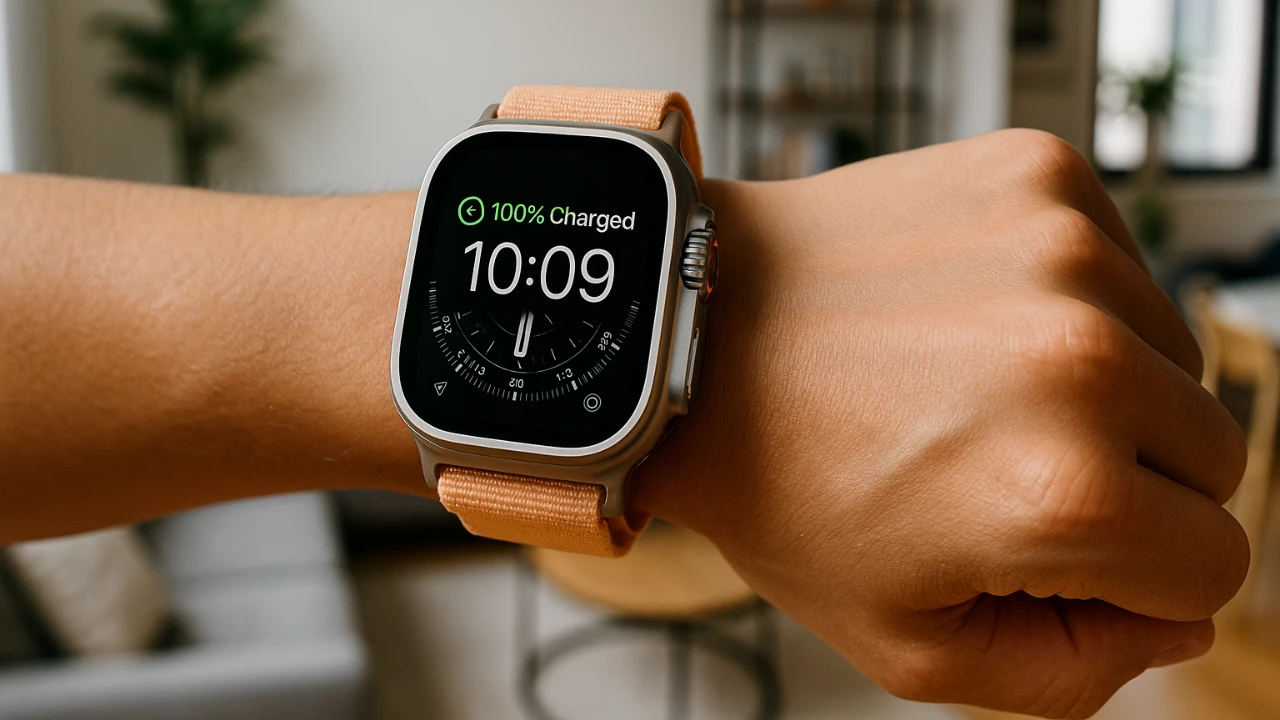
If your Apple Watch stops charging at 80%, it is not a malfunction but a deliberate feature designed to protect your battery. Known as optimized battery charging, this functionality helps extend the lifespan of your device by reducing battery wear. By understanding how this feature works and learning how to manage it, you can maximize your Apple Watch’s performance while preserving its long-term reliability. The video below gives us more details on what to do to get you device to charge to 100%.

What Is Optimized Battery Charging?
Optimized battery charging is a built-in feature designed to pause charging at 80% to minimize battery degradation. Lithium-ion batteries, like the one in your Apple Watch, are particularly sensitive to high charge levels when maintained for extended periods. By delaying the final 20% of charging, this feature reduces stress on the battery, helping to maintain its capacity over time.
For example, if you typically charge your watch overnight, the system learns this habit and completes the charge to 100% just before you wake up. This ensures your watch is fully charged when you need it, without subjecting the battery to unnecessary strain. This intelligent charging process is part of Apple’s broader effort to enhance device longevity and user satisfaction.
How Your Charging Habits Affect Optimization
The effectiveness of optimized battery charging largely depends on the consistency of your charging routine. If you charge your Apple Watch at predictable times—such as every night before going to bed—the feature adapts to this schedule and works seamlessly. It learns your habits and ensures the battery reaches 100% only when you are likely to use the device.
However, irregular charging habits can disrupt this optimization process. If your charging schedule is unpredictable, the system may pause at 80% without completing the charge, which can be inconvenient. This inconsistency might prompt some users to consider disabling the feature, especially if they frequently need a fully charged device at unpredictable times.
How to Disable Optimized Battery Charging
If you prefer your Apple Watch to charge fully to 100% without interruptions, you can disable the optimized battery charging feature. Follow these steps to turn it off:
- Open the Settings app on your Apple Watch.
- Scroll down and tap Battery.
- Select Battery Health.
- Locate the Optimized Battery Charging toggle and switch it off.
Once disabled, your Apple Watch will charge to 100% without pausing at 80%. However, it is important to note that this may accelerate battery wear over time, potentially reducing the overall lifespan of your device. Consider your charging habits and needs carefully before making this change.
Tips for Maintaining Battery Health
Whether or not you choose to use optimized battery charging, there are several practices you can adopt to preserve your Apple Watch’s battery health:
- Avoid exposing your watch to extreme temperatures, as both excessive heat and cold can degrade the battery.
- Charge your device in a cool, well-ventilated area to prevent overheating during the charging process.
- Use official Apple charging accessories to ensure safe and efficient charging.
- Try to avoid letting the battery drain completely to 0% frequently, as this can strain the battery over time.
By following these guidelines, you can help extend the lifespan of your Apple Watch battery, making sure it remains reliable and efficient for as long as possible.
Troubleshooting Charging Problems
If your Apple Watch is not charging properly, even with optimized battery charging turned off, there are a few steps you can take to resolve the issue:
- Inspect the charging cable and adapter for any visible damage or faults. Replace them if necessary.
- Clean the back of the watch and the charging puck to remove any dust, dirt, or debris that might interfere with the connection.
- Restart your Apple Watch to resolve minor software glitches that could be affecting the charging process.
- Check for software updates on your Apple Watch, as updates often include fixes for charging-related bugs or performance issues.
If none of these steps resolve the problem, it may be necessary to contact Apple Support for further assistance. Persistent charging issues could indicate a hardware problem that requires professional attention.
Maximizing the Benefits of Optimized Battery Charging
The optimized battery charging feature on your Apple Watch is a thoughtful design aimed at protecting your battery and extending its lifespan. By learning your charging habits, it ensures your device is ready when you need it while minimizing unnecessary wear on the battery. If your usage patterns make this feature less convenient, you have the option to disable it, but doing so may come at the cost of long-term battery health.
Understanding how this feature works and adopting good charging practices can help you strike the right balance between convenience and longevity. Whether you rely on optimized battery charging or prefer to manage your charging manually, these strategies will help you get the most out of your Apple Watch for years to come.
Check out more relevant guides from our extensive collection on Apple Watch battery optimization that you might find useful.
- Apple Watch Battery and Privacy Tips: Settings You Should Change
- Personalize Your Apple Watch with These Essential Tips
- Apple Watch Hacks: Extend Battery Life and Boost Efficiency
- Apple Watch Settings You Need To Change
- How to Fix iOS 18.3.2 Battery Drain on Your iPhone
Source & Image Credit: Pixel & Bracket
Disclosure: Some of our articles include affiliate links. If you buy something through one of these links, Geeky Gadgets may earn an affiliate commission. Learn about our Disclosure Policy.
