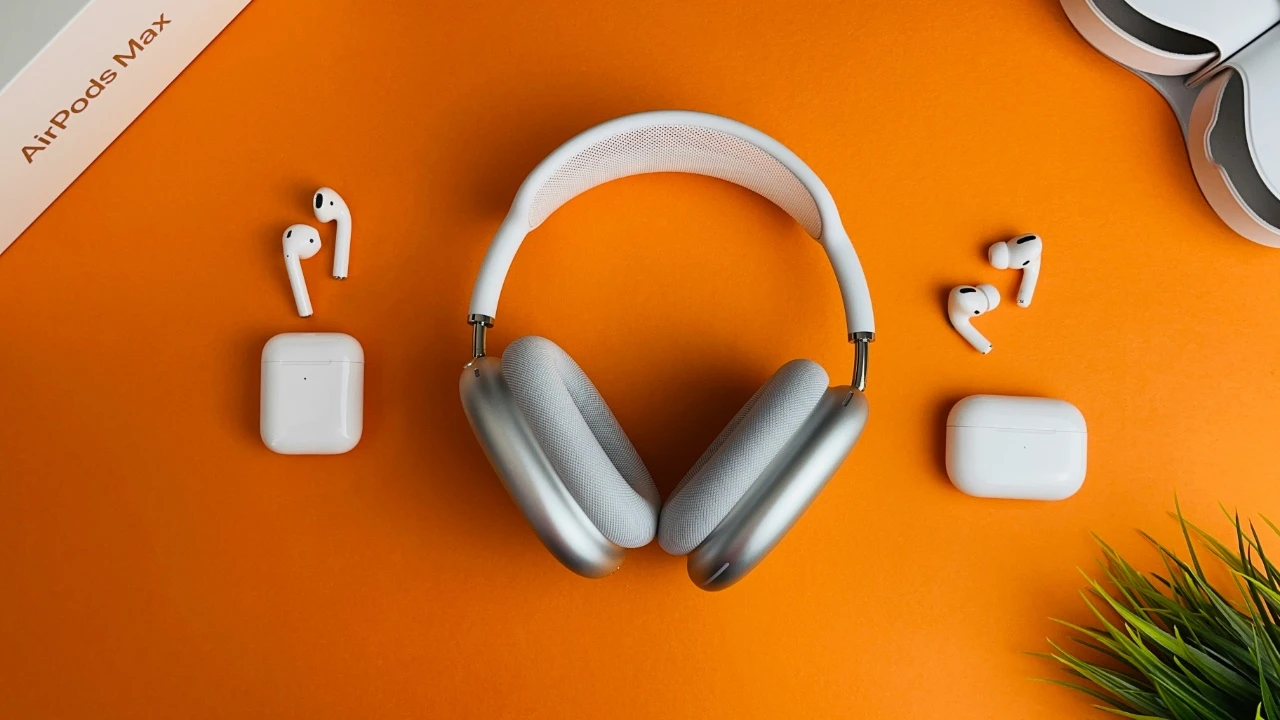
Picture this: you’re gearing up for your morning jog, playlist at the ready when you notice something amiss. Your AirPods, usually the reliable soundtrack to your run, are only playing sound in one ear. Annoying, right? But before you panic and rush to the nearest Apple store, know that this is a common issue with several potential fixes. Let’s dive into why this happens and how you can troubleshoot it, so you can get back to enjoying your music, podcasts, or calls in full stereo glory.
Why Is Only One AirPod Working?
First, let’s get to the root of the problem. When only one of your Apple AirPods is working, it could be due to a variety of reasons, including:
- Connection Issues: Sometimes, the connection between your AirPods and your device can be interrupted or weak, causing one AirPod to stop working.
- Battery Discrepancies: If one AirPod has a significantly lower battery than the other, it may turn off while the other continues to function.
- Dirt and Debris: Over time, earwax and other debris can build up on the mesh of your AirPods, blocking sound.
- Software Bugs: Occasionally, software glitches or outdated firmware can lead to connection and functionality issues.
- Physical Damage: Although they’re generally robust, physical damage from drops or exposure to moisture can affect your AirPods’ performance.
Now that we know why this might be happening, let’s explore the steps you can take to fix the issue.
Step-by-Step Troubleshooting Guide
1. Check Battery Levels
Before delving into more complex solutions, it’s essential to check the battery levels of both AirPods. To do this:
- Open the Apple AirPods Case Near Your iPhone: Open the lid of your AirPods case near your paired iPhone. A popup should appear on the screen displaying the battery levels of both AirPods and the case.
- Check the Battery Widget: Alternatively, add the battery widget to your Today View or Home Screen. This widget displays battery levels for connected devices, including AirPods.
If you notice a significant battery discrepancy between the two AirPods, charge them both fully before testing again.
2. Reconnect Your AirPods
Sometimes, a quick reconnection is all it takes to resolve sound issues. Here’s how:
- Forget and Reconnect: Go to Settings > Bluetooth on your iPhone, tap the “i” icon next to your AirPods, and select Forget This Device. Place your AirPods back in their case, close the lid, wait for about 30 seconds, then open the lid and press and hold the setup button on the back of the case until the status light flashes white. Reconnect your Apple AirPods to your iPhone.
- Restart Your Device: Turn off your iPhone and turn it back on. Then, try reconnecting your AirPods.
3. Clean Your AirPods
Debris buildup can cause sound to be blocked in one AirPod. Cleaning your AirPods might restore sound balance:
- Use a Soft, Dry Cloth: Gently wipe the exterior of your AirPods and the charging case with a lint-free cloth.
- Use a Dry Cotton Swab: Carefully clean the mesh on each AirPod with a dry cotton swab. Avoid using liquids, which could damage the components.
- Compressed Air: For stubborn debris, a can of compressed air (held at a safe distance) can help dislodge dirt.
4. Update Your Firmware
Ensuring your AirPods are running the latest firmware can fix bugs and improve performance:
- Check Firmware Version: Go to Settings > General > About > AirPods on your iPhone to see the current firmware version.
- Update Automatically: Firmware updates are applied automatically when your Apple AirPods are connected to your iPhone and charging. Ensure they are connected and leave them charging for a while.
5. Reset Your AirPods
A full reset can resolve persistent issues:
- Forget Your AirPods: Go to Settings > Bluetooth, tap the “i” icon next to your AirPods, and select Forget This Device.
- Reset Your AirPods: Place your AirPods in their case, close the lid, and wait for 30 seconds. Open the lid and press and hold the setup button on the back until the status light flashes amber, then white. Your AirPods are now reset.
- Reconnect: Follow the on-screen instructions to reconnect your AirPods to your device.
6. Check Stereo Balance Settings
Ensure that your device’s audio balance settings aren’t skewed:
- iOS: Go to Settings > Accessibility > Audio/Visual and check the balance slider. Ensure it’s centered.
- macOS: Go to System Preferences > Sound > Output, select your AirPods, and ensure the balance slider is centered.
7. Test with Another Device
To determine if the issue lies with your AirPods or your device, try connecting your AirPods to another device. If they work correctly with the second device, the problem may be with your initial device’s Bluetooth or audio settings.
8. Inspect for Physical Damage
Examine your AirPods for any signs of physical damage. Cracks, dents, or water exposure could impair their functionality. Unfortunately, if you find damage, you might need to visit an Apple Store or authorized service provider for repair or replacement.
Additional Tips for AirPod Care
- Avoid Moisture: Keep your AirPods away from water and sweat as much as possible.
- Store Properly: Always store your AirPods in their case when not in use to protect them from damage and debris.
- Regular Cleaning: Clean your AirPods regularly to prevent dirt buildup.
- Use Protective Cases: Consider using a protective case for your AirPods case to safeguard against drops and scratches.
When to Seek Professional Help
If you’ve tried all the troubleshooting steps and your AirPods are still only playing sound in one ear, it might be time to contact Apple Support. They can provide further assistance and determine if a hardware repair or replacement is necessary. If your AirPods are under warranty or covered by AppleCare+, you may be eligible for a free or discounted repair.
Summary
Dealing with an AirPod that’s only playing sound in one ear can be frustrating, but with the right troubleshooting steps, you can often fix the issue yourself. From checking the battery to cleaning and resetting your AirPods, these simple actions can restore full functionality and get you back to enjoying your audio in stereo. Remember, regular maintenance and care can prevent many common issues, so keep your AirPods clean and stored safely to prolong their lifespan.
Image Credit: Akhil Yerabati
Disclosure: Some of our articles include affiliate links. If you buy something through one of these links, Geeky Gadgets may earn an affiliate commission. Learn about our Disclosure Policy.
