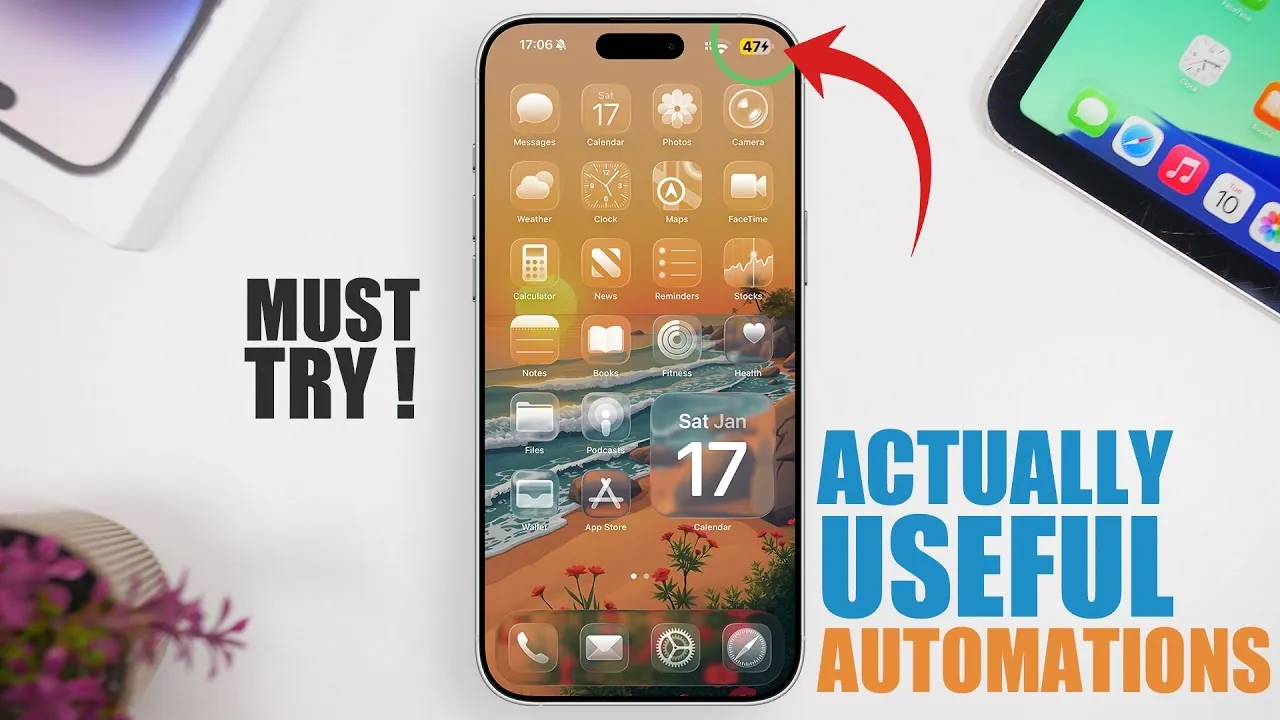
Your iPhone is more than just a device for communication and entertainment—it’s a powerful tool that can anticipate your needs and simplify your daily life. By using the Shortcuts app, you can automate routine tasks, saving time and effort while enhancing your overall experience. Below are ten practical automations that can make your iPhone smarter and more intuitive. These aren’t just features to explore—they’re tools you’ll genuinely use to improve your day-to-day interactions with your device. The video below from iReviews gives us more details about these shortcuts.

1. Wake Up Your Way with Alarm Customization
Starting your day on the right note can set the tone for everything that follows. Instead of waking up to a generic alarm tone, customize your alarm to play your favorite song, deliver a motivational quote, or even read out the weather forecast. This automation ensures your mornings are tailored to your preferences, helping you wake up with purpose and positivity. Whether you need a gentle nudge or an energetic start, this feature makes your mornings more personal and effective.
2. Dynamic Wallpapers for a Fresh Look
Your iPhone’s appearance can reflect your mood, location, or the time of day with dynamic wallpapers. Set your device to automatically change its wallpaper based on specific triggers, such as your current location or the time. Imagine a serene mountain view in the morning, a bustling cityscape during the day, and a calming starry sky at night. This automation adds a personalized and visually engaging touch to your device, making it feel more connected to your surroundings.
3. Stay Powered with Battery Notifications
Managing your iPhone’s battery life is crucial, especially when you’re on the go. Set up battery-level notifications to alert you when your device reaches a specific percentage, such as 20% to remind you to charge or 80% to prevent overcharging. You can choose how you want to be notified—through sound, vibration, or even a spoken alert. This automation helps you stay in control of your device’s power status, making sure you’re never caught off guard by a low battery.
4. Seamless Connectivity with Bluetooth and CarPlay
Driving should be as distraction-free as possible, and automating your iPhone’s connectivity features can help. Configure your device to automatically launch your favorite music app when it connects to your car’s Bluetooth or open a navigation app when CarPlay is activated. These automations streamline your driving experience, allowing you to focus on the road while staying connected and entertained. Whether it’s a playlist for your commute or directions to your destination, your iPhone can handle it automatically.
5. Automatic Low Power Mode
Battery life is a constant concern for many iPhone users, but automating Low Power Mode can help you manage it effortlessly. Set your device to enable this feature when the battery drops below a certain level or when you start charging. This automation not only conserves energy but also speeds up charging, making sure your iPhone is ready when you need it most. By proactively managing your battery, you can extend its lifespan and reduce interruptions.
6. App-Specific Volume Control
Different apps require different volume levels, and constantly adjusting them can be frustrating. With app-specific volume control, your iPhone can automatically set the media volume to your preferred level for each app. For instance, you can keep the volume low for social media apps and high for streaming platforms. This automation creates a seamless and consistent audio experience, eliminating the need for manual adjustments and making sure your device adapts to your preferences.
7. Orientation Lock for Specific Apps
Switching between portrait and landscape modes can be inconvenient, especially when using certain apps. Automate orientation lock based on the app you’re using to make your viewing experience more intuitive. For example, enable portrait mode for messaging apps and landscape mode for video streaming platforms. This automation saves time and effort, allowing you to focus on the content rather than fiddling with settings. It’s a simple yet effective way to enhance usability.
8. Dark Mode, Your Way
While iOS offers a system-wide dark mode, you can take customization a step further by allowing it for specific apps or times of the day. For instance, activate dark mode for reading or social media apps at night to reduce eye strain. This automation ensures your device adapts to your environment, providing a comfortable and user-friendly experience in low-light conditions. It’s a small adjustment that can make a big difference in usability.
9. Personalized Triggers for Productivity
Your iPhone can adapt to your schedule with personalized triggers based on time, location, or device status. For example, set your device to activate Do Not Disturb mode during work hours, turn on Wi-Fi when you arrive home, or launch a fitness app when you reach the gym. These automations ensure your iPhone works in harmony with your routine, helping you stay focused and productive throughout the day.
10. Streamline Your Daily Routine
By combining multiple automations, you can create a streamlined daily routine that minimizes manual effort. For instance, set your iPhone to play a morning playlist, display your calendar events, and read out the weather forecast as soon as you turn off your alarm. These features work together to simplify your day, allowing you to focus on what matters most. With the right automations, your iPhone becomes a proactive and intuitive companion.
Why Automate?
Automations are about more than just convenience—they’re about making your iPhone work smarter for you. By automating repetitive tasks, you can save time, reduce distractions, and enhance productivity. Whether it’s managing battery usage, customizing alarms, or adapting to your schedule, these features allow your device to seamlessly integrate into your lifestyle. Explore the Shortcuts app today to unlock the full potential of your iPhone and transform it into a tool that anticipates your needs.
- Save time by automating repetitive tasks.
- Enhance productivity with personalized triggers.
- Reduce distractions while staying connected.
- Make your iPhone adapt to your lifestyle seamlessly.
Enhance your knowledge on iPhone automation by exploring a selection of articles and guides on the subject.
- 6 Practical iPhone Automations to Simplify Your Daily Life
- 10 Must-Have iOS 18 Automations for Your iPhone
- Essential iOS 26 Shortcuts to Boost Productivity
- 15 Essential iPhone Shortcuts to Automate Your Life
- Secret iPhone Trick: Change Your Charging Sound! (iOS 18
Source & Image Credit: iReviews
Disclosure: Some of our articles include affiliate links. If you buy something through one of these links, Geeky Gadgets may earn an affiliate commission. Learn about our Disclosure Policy.
