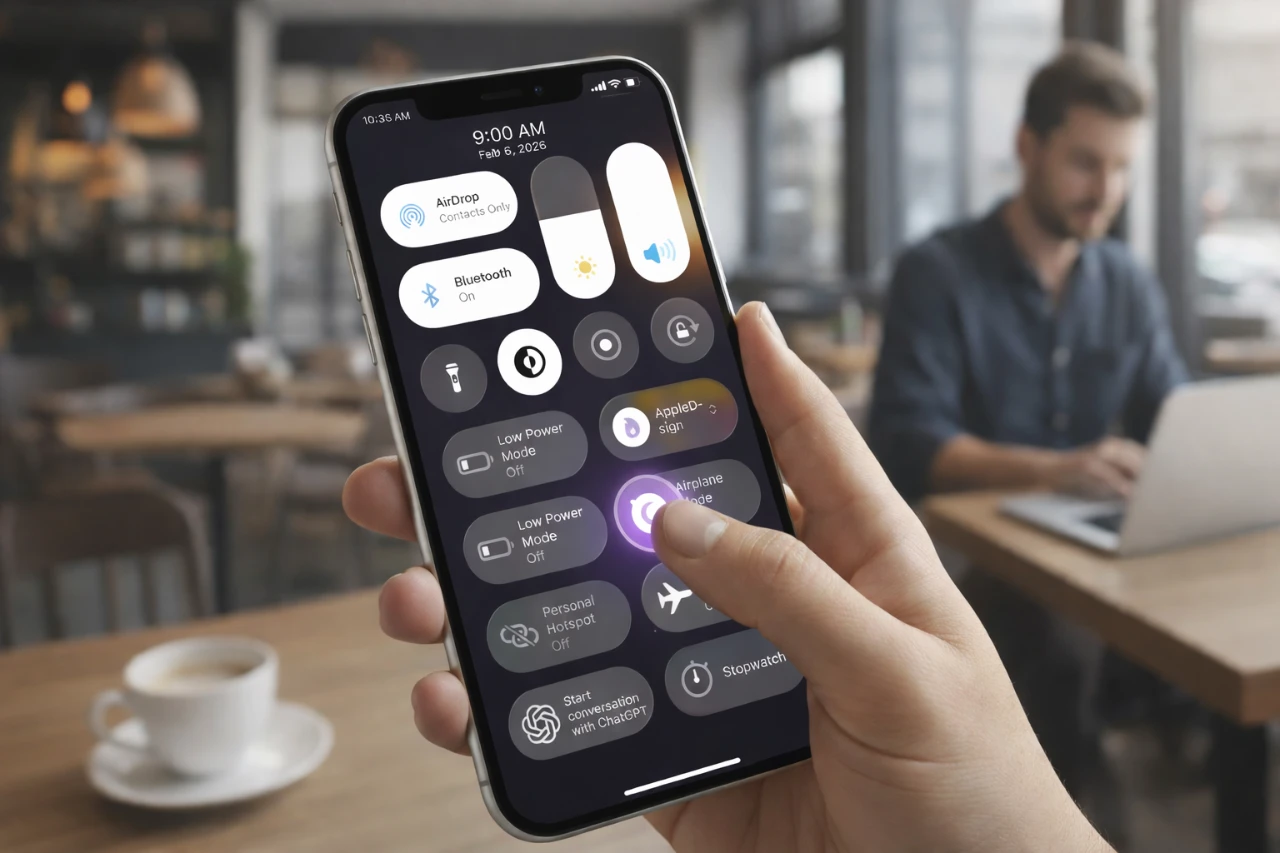
The iPhone Control Center is a powerful feature designed to provide quick access to essential tools and settings with a simple swipe. By customizing it to suit your preferences, you can streamline daily tasks and enhance your overall iPhone experience. This guide explores its core features, customization options, and practical tips to help you create a Control Center that seamlessly integrates into your routine. The video below from AppleDsign shows us how to get the most out of the iPhone Control Center.

Core Features: Quick Access to Essentials
The Control Center serves as a hub for managing key device functions, offering a range of tools that simplify your interactions with your iPhone. Some of its most notable features include:
- Connectivity Toggles: Manage Wi-Fi, Cellular, AirDrop, and Bluetooth with ease. For instance, you can toggle AirDrop to share files instantly or disable Bluetooth to conserve battery life when not in use.
- Brightness and Volume Sliders: Adjust screen brightness or volume levels effortlessly, whether you’re in a dimly lit room or a noisy environment.
- Functional Toggles: Access essential tools like Flashlight, Dark Mode, Screen Recording, and Orientation Lock. These features are particularly useful for tasks such as recording tutorials, reading in low light, or making sure your screen stays in the desired orientation.
These built-in tools are designed to save time and reduce the need to navigate through multiple menus, making your iPhone more intuitive and user-friendly.
Personalization: Tailor the Control Center to Your Needs
One of the standout features of the Control Center is its high level of customization. You can add, remove, or rearrange tools to align with your specific needs and preferences. Some of the most practical options to consider include:
- Low Power Mode: Activate this feature to extend battery life during long days or while traveling.
- Focus Modes: Minimize distractions by allowing modes like Do Not Disturb, Sleep, or Work Focus, depending on your current activity.
- Personal Hotspot: Share your internet connection with other devices when Wi-Fi is unavailable.
- Airplane Mode: Quickly disconnect from all networks during flights or when conserving power.
- Stopwatch: Keep track of time for workouts, cooking, or other time-sensitive activities.
- Accessibility Shortcuts: Add tools like Magnifier or VoiceOver for enhanced usability and accessibility.
Customizing these options allows you to create a Control Center that not only reflects your lifestyle but also enhances your productivity and convenience.
How to Customize Your Control Center
Personalizing your Control Center is a straightforward process that can be completed in just a few steps. Here’s how to do it:
- Open the Settings app and navigate to Control Center.
- Select Customize Controls to view the list of available features.
- Add or remove options by tapping the green “+” or red “-” icons next to each item.
- Rearrange the order of shortcuts by dragging them into your preferred positions.
- Adjust tile sizes to improve visibility and ensure frequently used features are easy to locate.
This simple process allows you to create a layout that is both functional and visually appealing, making sure that the tools you use most often are always within reach.
Tips for Optimizing Your Control Center
To make the most of your Control Center, consider these practical tips for optimization:
- Prioritize Frequently Used Toggles: Place essential features like Wi-Fi, Flashlight, or Screen Recording at the top for quick access.
- Group Related Functions: Arrange similar toggles, such as connectivity settings or productivity tools, together for a more intuitive layout.
- Incorporate Widgets: Add widgets for apps or tools you use regularly, such as music controls, weather updates, or smart home devices.
- Test and Refine: Use your customized layout for a few days and make adjustments based on your workflow and preferences.
By following these strategies, you can create a Control Center that is not only practical but also tailored to your unique needs.
Adapting to Your Evolving Needs
The iPhone Control Center is a dynamic tool that can adapt as your needs change over time. Regularly explore its features and experiment with new customization options to ensure it continues to meet your requirements. Sharing your setup ideas with others can also inspire fresh approaches to optimizing this feature.
Taking the time to personalize your Control Center can transform your iPhone into a device that truly supports your daily activities. Whether you’re managing tasks, staying connected, or boosting productivity, a well-organized Control Center is the key to a seamless and efficient iPhone experience.
Advance your skills in iPhone Control Center by reading more of our detailed content.
- Transform Your iPhone with These Control Center Tricks
- Up Your Control Center Game: 32 Must-Have Apps for iOS 18
- 12 Must-Have Control Center Apps for iOS 18
- iPhone Accessibility: How to Change Text Size
- How to use iPhones Do Not Disturb feature with Control Center
Source: AppleDsign
Disclosure: Some of our articles include affiliate links. If you buy something through one of these links, Geeky Gadgets may earn an affiliate commission. Learn about our Disclosure Policy.
