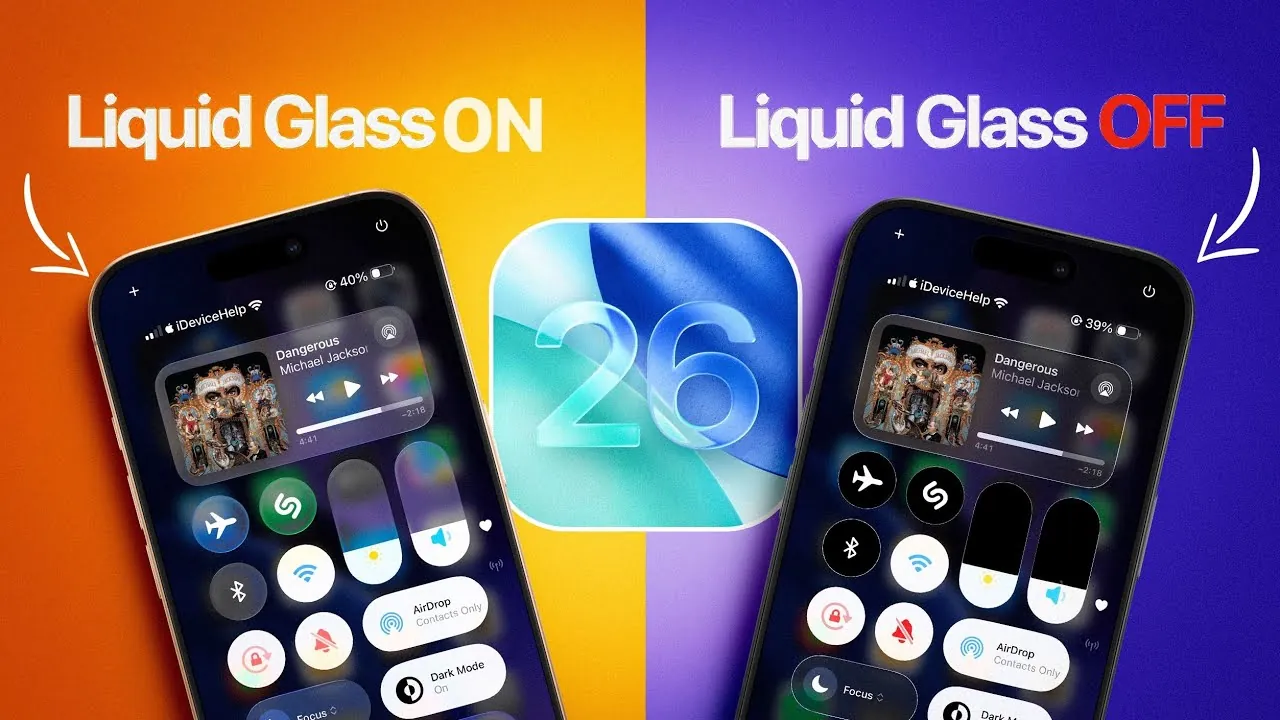
The Liquid Glass feature in iOS 26 introduces a sleek, semi-transparent design that enhances the visual appeal of your iPhone interface. While this modern aesthetic is eye-catching, it can sometimes hinder readability, particularly when interacting with notifications or navigating bright or complex wallpapers. If you find this feature affecting your ability to use your device effectively, iOS 26 offers several options to adjust or disable Liquid Glass. The video below from iDeviceHelp provides detailed steps to help you enhance visibility and usability while maintaining a balance between functionality and design.

Understanding Liquid Glass and Its Impact on Usability
Liquid Glass is a design enhancement introduced in iOS 26, characterized by its translucent effect applied to interface elements such as menus, notifications, and the Control Center. This feature creates a polished and contemporary look, blending seamlessly with the overall aesthetic of iOS. However, its semi-transparent nature can sometimes make text and notifications difficult to read, especially when paired with certain backgrounds or wallpapers. For users who prioritize functionality over aesthetics, modifying or disabling Liquid Glass can significantly improve the usability of their device.
Customizing Visibility Through Accessibility Settings
iOS 26 includes a comprehensive suite of Accessibility settings designed to address visibility challenges posed by Liquid Glass. These settings allow you to enhance readability and tailor your interface to suit your preferences. To adjust these settings, follow these steps:
- Open the Settings app on your iPhone.
- Navigate to Accessibility and select Display & Text Size.
- Explore and enable the following features to improve visibility:
1. Increase Contrast
The “Increase Contrast” option enhances the distinction between text and background elements, making them easier to read. This adjustment retains the Liquid Glass effect while improving functionality, offering a compromise between modern design and practicality.
2. Reduce Transparency
For a more noticeable improvement, enable the “Reduce Transparency” option. This setting replaces translucent backgrounds with solid colors, significantly enhancing the readability of text and interface elements. While this adjustment improves usability, it may alter the overall aesthetic of iOS 26, giving the interface a more static appearance.
3. Bold Text
Allowing the “Bold Text” option can further improve readability by making fonts thicker and more defined. This feature is particularly useful for users who struggle with smaller or lighter text against complex backgrounds.
Using the Action Button for Quick Adjustments
iOS 26 introduces a customizable Action Button, providing users with a convenient way to access specific functions. By configuring the Action Button to toggle between Liquid Glass and enhanced visibility settings, you can quickly adapt your interface to different lighting conditions or personal preferences. Here’s how to set it up:
- Open Settings and navigate to Accessibility.
- Select the Action Button and assign it to the “Increase Contrast” or “Reduce Transparency” function.
- Once configured, press the Action Button to switch between the default Liquid Glass design and your preferred visibility settings.
This feature is particularly beneficial for users who frequently transition between environments with varying lighting conditions, such as moving from indoors to outdoors.
Enhancing Usability Across iOS 26
Customizing the visibility settings in iOS 26 can significantly improve the readability of notifications, menus, and other interface elements. Whether you prefer the sleek, modern design of Liquid Glass or the practicality of increased contrast and reduced transparency, iOS 26 provides tools to meet your needs. These adjustments ensure that your iPhone remains functional and accessible in various environments, from brightly lit outdoor settings to dimly lit rooms.
Device Compatibility and Practical Applications
The customization options discussed are available on all iPhones running iOS 26, making sure that every user can optimize their device for better usability. By using features such as “Increase Contrast,” “Reduce Transparency,” and the customizable Action Button, you can tailor your iPhone experience to strike a balance between style and functionality. Whether you’re navigating notifications, browsing apps, or simply adjusting to changing lighting conditions, these settings empower you to create an interface that aligns with your preferences and enhances your overall user experience.
Browse through more resources below from our in-depth content covering more areas on Liquid Glass.
- iOS 26: Liquid Glass & The TOP Features You Need to See!
- Apple Unveils ‘Liquid Glass’: A New Era of Software Design
- Apple’s Liquid Glass Design in iOS 26
- iOS 26 Beta 4 Features: Liquid Glass, Dynamic Wallpapers & More
- What Is Apple’s Liquid Glass? Ultra-Responsive Touch Sensitivity
Source & Image Credit: iDeviceHelp
Disclosure: Some of our articles include affiliate links. If you buy something through one of these links, Geeky Gadgets may earn an affiliate commission. Learn about our Disclosure Policy.
