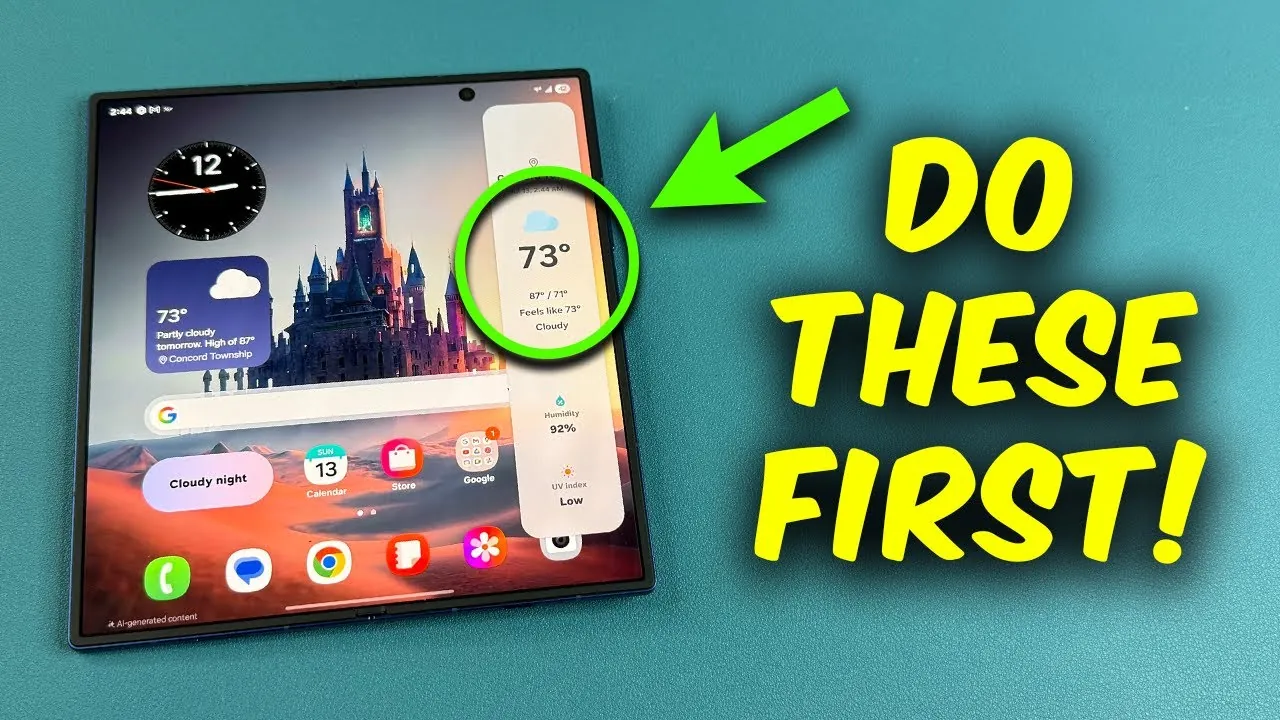
The Samsung Galaxy Z Fold 7 is an innovative foldable smartphone designed to provide a versatile and immersive user experience. To maximize its potential, it’s crucial to customize settings, optimize performance, and secure your device. The video below from Sakitech offers detailed steps to help you personalize and enhance your Galaxy Z Fold 7, making sure you make the most of this innovative device.

Personalize Your Galaxy Z Fold 7
Customizing your device is the first step toward creating a seamless and personalized experience. Here’s how you can tailor your Galaxy Z Fold 7 to suit your preferences:
- Rename Your Device: Assign a unique name to your Galaxy Z Fold 7 for easy identification when connecting to Bluetooth or Wi-Fi networks. This is especially useful if you own multiple devices.
- Update Your Samsung Account: Personalize your Samsung account by adding an avatar and syncing your preferences. This ensures a consistent experience across all your Samsung devices.
- Set Custom Wallpapers: Take advantage of the dual-screen functionality by selecting distinct wallpapers for the inner and outer displays. This not only reflects your style but also enhances the visual appeal of your device.
- Disable Cover Screen Mirroring: Turn off this feature to allow the inner and outer screens to operate independently. This provides greater flexibility, allowing you to use each screen for different tasks.
Optimize Battery Performance
Maintaining battery health is essential for the long-term performance of your Galaxy Z Fold 7. Follow these steps to ensure your device’s battery remains in optimal condition:
- Run Diagnostics: Use the Samsung Members app to monitor your battery’s health. This tool helps identify potential issues early, allowing you to address them before they impact performance.
- Enable Battery Protection: Activate this feature to limit charging to a safe threshold, typically 85%. This reduces wear on the battery and prolongs its lifespan.
- Adjust Power Settings: Use power-saving modes to extend battery life during periods of heavy usage or when you’re away from a charger.
Secure Your Device
Protecting your data is a top priority, and the Galaxy Z Fold 7 offers advanced security features to safeguard your information. Here’s how to enhance your device’s security:
- Activate App Protection: Enable this feature in the Device Care settings to scan apps for malware and spyware, making sure your device remains secure.
- Turn on Automatic Scans: Schedule regular background scans to detect and neutralize potential threats without requiring manual intervention.
- Set Up Biometric Authentication: Use the fingerprint scanner or facial recognition for quick and secure access to your device.
Enhance Display and Multimedia
The Galaxy Z Fold 7’s advanced display and multimedia capabilities are designed to deliver an immersive experience. Optimize these features to enjoy the full potential of your device:
- Enable Video Brightness Effect: This feature dynamically adjusts brightness and contrast, making videos appear more vibrant and engaging.
- Activate Dolby Atmos: Enhance audio quality for movies, music, and games by allowing Dolby Atmos. This setting adapts sound output to provide a richer and more immersive experience.
- Adjust Display Settings: Customize the screen resolution and refresh rate to balance performance and battery life based on your usage needs.
Boost Productivity with Multitasking
The Galaxy Z Fold 7 is designed to streamline multitasking, making it an ideal device for productivity. Here’s how to make the most of its multitasking features:
- Customize the Taskbar: Add frequently used apps to the taskbar for quick access. This saves time and allows you to switch between tasks effortlessly.
- Use Split-Screen Mode: Open up to three apps simultaneously, allowing you to multitask efficiently. For example, you can browse the web, take notes, and join a video call all at once.
- Enable App Pairing: Create app pairs for commonly used combinations, such as email and calendar, to launch them together in split-screen mode with a single tap.
Explore Unique Features
The Galaxy Z Fold 7 includes several unique features that enhance usability and personalization. Take advantage of these to elevate your experience:
- Dynamic Lock Screen: Customize your lock screen with adjustable clocks, animations, and widgets. This adds a personal touch while providing quick access to essential information.
- Always-On Display: Use the “Erase Background” feature to simplify the display, focusing on key notifications and information without distractions.
- Flex Mode: Use the foldable design to prop up the device at an angle, making it easier to watch videos, take hands-free photos, or join video calls.
Master Quick Settings
Quick settings provide easy access to essential functions, helping you save time and streamline your workflow. Here’s how to make the most of this feature:
- Customize Quick Toggles: Add frequently used settings, such as brightness, sound, and display adjustments, to the quick settings menu for instant access.
- Streamline Access: Rearrange toggles to prioritize the features you use most often, making sure they’re always within reach.
- Use Quick Panel Layout: Adjust the layout of the quick panel to display more toggles or notifications, depending on your preferences.
Maximize Your Galaxy Z Fold 7 Experience
The Samsung Galaxy Z Fold 7 is a feature-rich device that combines innovation with practicality. By personalizing your settings, optimizing performance, and exploring its unique features, you can unlock the full potential of this foldable smartphone. Whether you’re enhancing multimedia playback, securing your data, or boosting productivity with multitasking, these tips will help you make the most of your investment in this advanced technology.
Check out more relevant guides from our extensive collection on Samsung Galaxy Z Fold 7 that you might find useful.
- Samsung Galaxy Z Fold 7: The 6 Biggest Expected Changes
- More Samsung Galaxy Z Fold 7 Details Leaked
- Samsung Galaxy Z Fold 7 UNLEASHED: New Power, New Look
- Samsung Galaxy Z Fold 7 Ultra 5G: Specs, Features, and More
- Samsung Galaxy Z Fold 7 Launch Date, Features, and Design
Source & Image Credit: sakitech
Disclosure: Some of our articles include affiliate links. If you buy something through one of these links, Geeky Gadgets may earn an affiliate commission. Learn about our Disclosure Policy.
