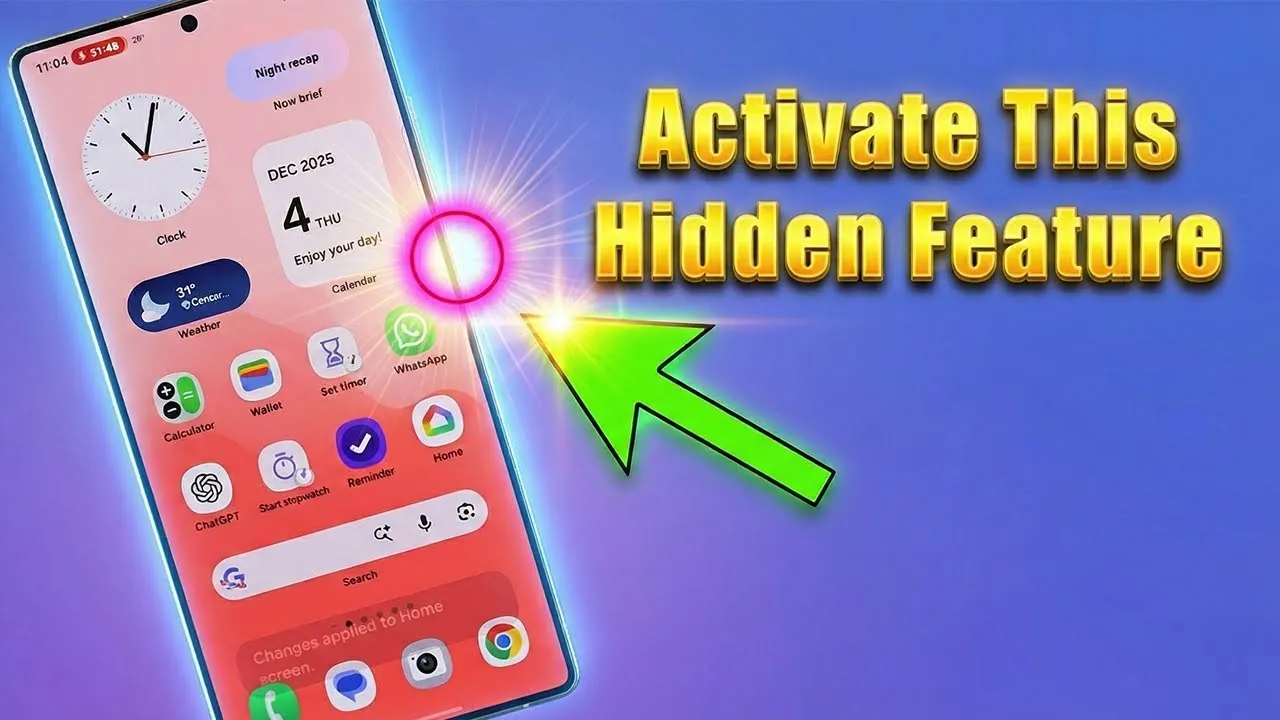
Samsung Galaxy smartphones come equipped with a versatile feature that many users may not fully use: the ability to customize the side power button. This functionality allows you to enhance your phone’s usability by assigning quick-access shortcuts to essential tools. Whether you want to launch an app, activate the flashlight, or open the camera, this feature can make your daily interactions with your device faster and more efficient. By taking advantage of this customization, you can tailor your smartphone experience to better suit your needs. The video below from Sakitech shows us how you can activate and personalize this feature, along with practical ways to use it.
Why Customize the Side Button?
The side button on your Samsung Galaxy device is far more than just a power switch. With a few adjustments in the settings, you can transform it into a multifunctional shortcut that aligns with your daily habits. By allowing the double-press feature, you can assign specific actions to the button, such as:
- Launching your favorite app instantly for quick access.
- Turning on the flashlight to navigate in low-light conditions.
- Opening the camera in a specific mode, such as portrait or video, to capture moments instantly.
- Starting the voice recorder to jot down ideas or notes on the go.
This level of customization ensures that the tools you rely on most are always just a double press away, saving you time and effort.
Practical Applications of the Side Button
Customizing the side button is not just about convenience—it’s about making your smartphone work smarter for you. Here are some practical and impactful ways to use this feature in your daily life:
1. Quick Flashlight Access
Imagine finding yourself in a dark environment, struggling to unlock your phone and locate the flashlight app. By assigning the flashlight function to the side button, you can turn it on or off instantly with a double press. This is particularly useful in emergencies or when you need light quickly, eliminating unnecessary steps and making sure you’re prepared for any situation.
2. Instant Voice Recording
For those who frequently jot down ideas, record meetings, or capture thoughts on the go, the side button can be configured to launch the voice recorder. With this setup, you can start recording even when your phone is locked, making sure you never miss an important idea or moment. This feature is especially beneficial for professionals, students, or anyone who values quick and easy access to note-taking tools.
3. Camera at Your Fingertips
The camera is one of the most-used features on any smartphone, and capturing moments quickly is often essential. By customizing the side button, you can open the camera directly in your preferred mode—whether it’s for a selfie, video, or a fleeting moment. This shortcut ensures you’re always ready to capture life’s moments without delay, making it a valuable tool for photography enthusiasts and casual users alike.
4. Launch Your Favorite App
If there’s an app you use frequently, such as a messaging platform, navigation tool, or productivity app, you can assign it to the side button for instant access. This eliminates the need to scroll through your home screen or app drawer, allowing you to stay focused and efficient throughout your day.
How to Set Up the Side Button
Activating and personalizing the side button on your Samsung Galaxy smartphone is a straightforward process. Follow these steps to configure it:
- Open the “Settings” app on your Samsung Galaxy device.
- Scroll down and tap on “Advanced Features.”
- Select “Side Button” to access the customization options.
- Enable the double-press functionality if it’s not already activated.
- Choose your desired action from the available options, such as launching an app, turning on the flashlight, or opening the camera.
Once set up, the side button will perform your selected action whenever you double press it. This simple adjustment can significantly enhance your phone’s functionality and usability.
Works Even When Locked
One of the standout advantages of this feature is its ability to function even when your phone is locked. Whether you need to record a voice memo, turn on the flashlight, or launch the camera, the side button shortcuts work seamlessly without requiring you to unlock your device. This ensures quick and uninterrupted access to essential tools, especially in time-sensitive situations. It’s a practical solution that enhances both convenience and efficiency in your daily life.
Maximize Your Samsung Galaxy Experience
The customizable side button on Samsung Galaxy smartphones is a powerful yet often underutilized feature that can significantly improve your device’s functionality. By taking a few moments to configure it, you can simplify everyday tasks and gain quick access to your most-used tools. Whether you’re capturing a fleeting moment, jotting down an idea, or navigating in the dark, this feature ensures your phone adapts to your lifestyle. Explore the “Advanced Features” settings today to unlock the full potential of your Samsung Galaxy device and make it work smarter for you.
Here are additional guides from our expansive article library that you may find useful on Samsung Galaxy side button customization.
- Unlock the Full Potential of Your Samsung Galaxy Side Button
- Samsung Galaxy S25 Features: Tips for Customization
- How iOS 26.2 Enhances iPhone Usability and Customization
- iOS 26.2 Features Apple Needs To Change
- iOS 26.2 Hidden Features: 10 Updates You Need to Know
Source & Image Credit: sakitech
Disclosure: Some of our articles include affiliate links. If you buy something through one of these links, Geeky Gadgets may earn an affiliate commission. Learn about our Disclosure Policy.
