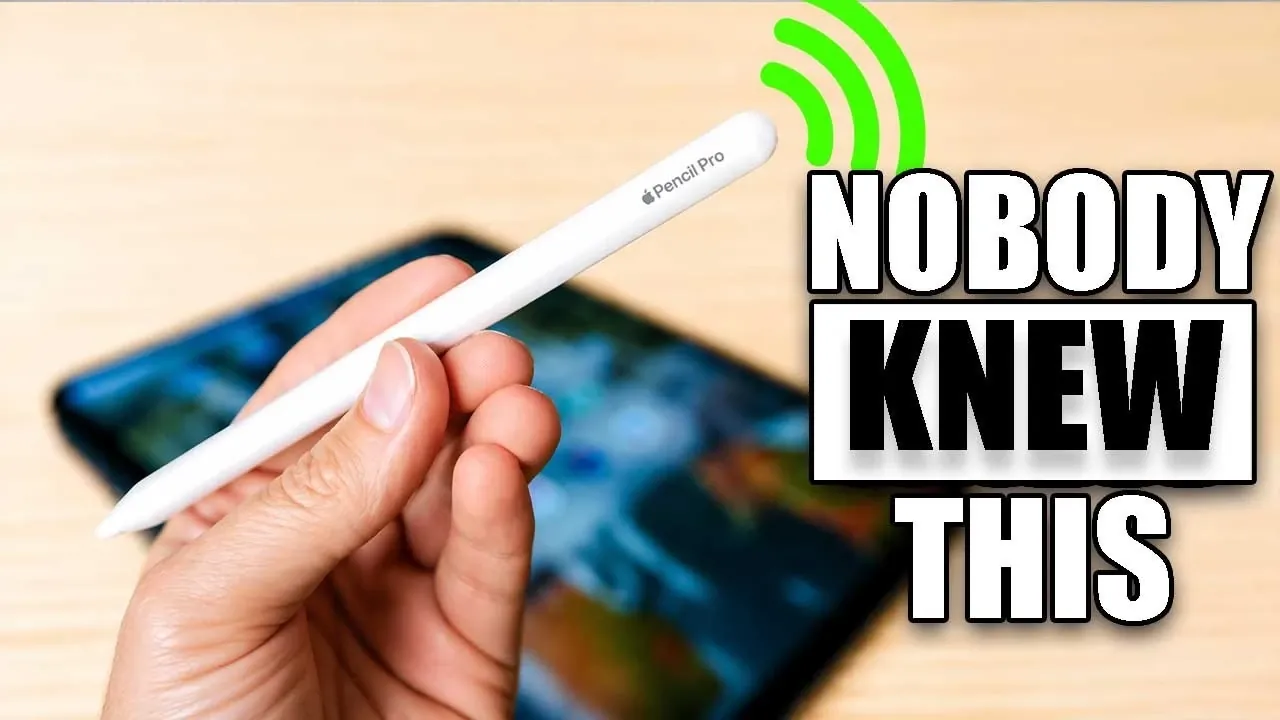
The Apple Pencil Pro, when paired with iPadOS 26, transforms your iPad into a dynamic tool for both creativity and productivity. Beyond its sleek and ergonomic design, this advanced stylus is equipped with features that cater to artists, students, and professionals alike. By exploring its capabilities, you can enhance your workflow, streamline tasks and elevate your digital experience. Whether you’re sketching, taking notes, or navigating your device, the Apple Pencil Pro offers tools that adapt to your needs.

Enhanced Tracking with Find My Integration
Misplacing your Apple Pencil Pro is no longer a concern, thanks to its integration with the “Find My” app. This feature allows you to locate your stylus quickly using your iPad or iPhone. With proximity-based alerts, you’ll receive notifications when the Pencil is nearby, minimizing downtime and frustration. This functionality ensures that your tools are always accessible, helping you maintain focus and productivity.
Seamless Compatibility Across iPad Models
The Apple Pencil Pro is designed to work effortlessly with a wide range of iPads, making sure accessibility for users across different device generations. Supported models include:
- iPad Pro – All models with M1, M2 and later chips.
- iPad Air – M2, M3 and M4 versions.
- iPad Mini – A17 Pro and newer models.
This broad compatibility ensures that users can enjoy the stylus’s advanced features without being limited by hardware constraints.
Creative Freedom for Artists
The Apple Pencil Pro is a fantastic option for digital artists, offering tools that enhance creativity and precision. Key features include:
- Gesture Controls: Switch between tools with a simple squeeze or pivot the stylus for unique effects like highlighters or erasers.
- Infinite Canvas: The Freeform app provides endless space for sketching, brainstorming and designing without boundaries.
- Customizable Tools: Adjust brushes, pencils and other tools to suit your artistic style and workflow.
These features make the Apple Pencil Pro an indispensable tool for artists seeking intuitive and versatile creative solutions.
Transforming Text Input and Navigation
The Scribble feature transforms how you interact with text on your iPad, offering a seamless and efficient way to manage input. With Scribble, you can:
- Write directly into text fields, such as search bars or URLs, without needing a keyboard.
- Scribble over text to delete it instantly, saving time during edits.
- Circle text to select, cut, or copy it effortlessly.
This functionality is especially useful for students, professionals and anyone who frequently takes notes or edits documents on the go.
Instant Access to Notes and Tools
The Apple Pencil Pro simplifies multitasking with its quick-access features. By tapping the corners of your iPad screen, you can instantly open Notes or other tools. This functionality is ideal for:
- Jotting down ideas or sketches without interrupting your workflow.
- Adding reminders or annotations while multitasking.
- Linking content seamlessly between apps.
This feature ensures that your most-used tools are always just a tap away, enhancing efficiency and organization.
Hover Detection for Intuitive Interaction
Hover functionality introduces a new level of interaction with your iPad. By hovering the Apple Pencil Pro over apps or icons, you can:
- Preview content without opening it, saving time during navigation.
- Access additional information or options quickly and efficiently.
This feature reduces unnecessary taps and enhances productivity, making it easier to manage tasks and explore content.
Advanced Handwriting and Mathematical Recognition
The Apple Pencil Pro excels in recognizing and refining handwritten input, making it a valuable tool for students, researchers and professionals. Its capabilities include:
- Handwriting Refinement: Automatically straighten and clean up handwritten notes for a polished appearance.
- Mathematical Recognition: Solve equations directly on your iPad and convert them into digital text.
- Spotlight Search: Search handwritten notes effortlessly, making sure quick access to important information.
These tools simplify complex tasks, allowing you to focus on your work without being hindered by manual processes.
Efficient Lock Screen Shortcuts
Even when your iPad is locked, the Apple Pencil Pro provides quick access to essential tools. Features include:
- Instant Notes: Tap the screen to open Notes immediately, perfect for capturing ideas on the spot.
- Corner Taps: Access screenshots, notifications, or the control center with a simple gesture.
These shortcuts save time and ensure that your workflow remains uninterrupted, even in moments of urgency.
Precision in Shapes and Diagrams
Creating accurate shapes and diagrams is effortless with the Apple Pencil Pro. Simply draw a shape and hold the stylus in place to refine it into a perfect version. This feature is particularly useful for:
- Designing flowcharts, graphs, or technical diagrams.
- Annotating documents or presentations with clean, professional visuals.
This capability enhances both creative and professional tasks, making sure precision and clarity in your work.
Streamlined Document Signing
The Apple Pencil Pro simplifies the process of signing digital documents, making it an essential tool for administrative tasks. Key features include:
- Saved Signatures: Store your signature for repeated use, saving time on frequently signed documents.
- Auto-Straightening: Ensure your signature appears clean and professional every time.
Whether you’re signing contracts, forms, or PDFs, this feature streamlines the process and enhances productivity.
Maximizing the Apple Pencil Pro Experience
The Apple Pencil Pro, combined with iPadOS 26, offers a comprehensive suite of tools designed to cater to a diverse range of users. From advanced gesture controls and handwriting recognition to seamless app integration and compatibility across multiple iPad models, this stylus enables you to achieve more. By using its features, you can unlock new levels of creativity, productivity and efficiency, making it an indispensable part of your digital toolkit.
Become an expert in Apple Pencil Pro with the help of our in-depth articles and helpful guides.
- 10 Awesome iPad Shortcuts for the Apple Pencil Pro
- How to Use Apple Pencil with OneNote on iPad
- How to Pair Your Apple Pencil with Your iPad: A Complete Guide
- iPad Air M4 (2026): The Pro Model for the Rest of Us
- How to Pair an Apple Pencil With Your iPad
Source & Image Credit: HotshotTek
Disclosure: Some of our articles include affiliate links. If you buy something through one of these links, Geeky Gadgets may earn an affiliate commission. Learn about our Disclosure Policy.
