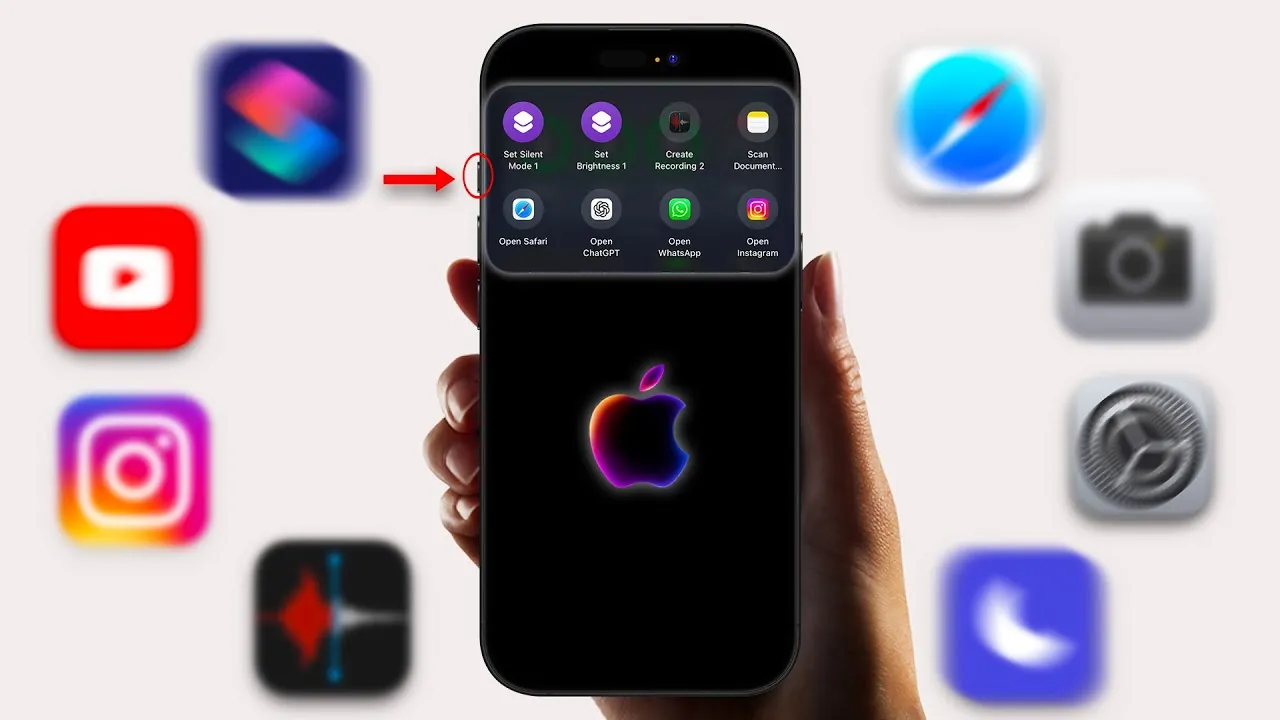
The iPhone Action Button, introduced with the iPhone 15 Pro and subsequent models, represents a significant step forward in simplifying and enhancing the way you interact with your device. Positioned on the side of the phone, this customizable button goes beyond the traditional silent mode toggle, offering a wide range of possibilities to streamline your daily tasks. By integrating it with the Shortcuts app, you can unlock its full potential, tailoring it to your specific needs for greater efficiency and accessibility. The video below from AppleDsign shows us how to get the most out of the Apple Action Button.

What Is the Action Button?
The Action Button replaces the mute switch found on earlier iPhone models. While its default function is to toggle between silent and ring modes, its true strength lies in its versatility and customization options. Through the Shortcuts app, you can program the button to perform a variety of tasks, transforming it into a powerful tool for managing your device with a single press. This feature allows you to adapt your iPhone to your personal workflow, making it a more intuitive and efficient companion.
How to Customize the Action Button
Customizing the Action Button is a straightforward process that enables you to align it with your specific needs. The Shortcuts app plays a central role in this customization, allowing you to create and assign actions that enhance your productivity. Follow these steps to get started:
- Step 1: Open the Shortcuts app on your iPhone.
- Step 2: Create a new folder dedicated to Action Button shortcuts. Give it a clear and intuitive name, such as “Action Button Tasks,” for easy identification.
- Step 3: Add shortcuts to the folder. You can either select existing shortcuts or create new ones tailored to your specific needs.
- Step 4: Customize each shortcut by assigning specific actions, such as launching apps, adjusting settings, or initiating tasks like voice recording or document scanning.
This process ensures that the Action Button is configured to perform tasks that are most relevant to your daily routine, saving you time and effort.
Practical Examples of Action Button Shortcuts
The true power of the Action Button lies in its ability to perform a variety of tasks with a single press. Here are some practical examples of how you can use it effectively:
- Toggle Silent Mode: Quickly switch between silent and ring modes without navigating through settings.
- Adjust Screen Brightness: Set the screen brightness to a predefined level, such as dimming it for nighttime use or brightening it for outdoor visibility.
- Start Voice Recording: Launch the Voice Memos app instantly to capture audio notes on the go.
- Document Scanning: Open the Notes app’s scanner to digitize physical documents with ease.
- Launch Frequently Used Apps: Access apps like Safari, Instagram, or WhatsApp directly with a single press.
These examples demonstrate how the Action Button can simplify repetitive tasks, reduce navigation time, and make your iPhone experience more seamless and efficient.
Organizing Your Shortcuts for Maximum Efficiency
To ensure the Action Button operates smoothly and effectively, it’s essential to organize your shortcuts in a way that prioritizes usability. A well-structured setup minimizes confusion and ensures that your most-used shortcuts are always within reach. Here are some tips for organizing your shortcuts:
- Prioritize Frequently Used Shortcuts: Arrange shortcuts in the folder based on how often you use them, placing the most important ones at the top for quick access.
- Create Logical Groupings: Organize shortcuts by category or function, such as productivity, entertainment, or utilities, to make them easier to locate and manage.
By taking the time to organize your shortcuts, you can ensure that the Action Button remains a reliable and efficient tool for your daily tasks.
Linking Shortcuts to the Action Button
Once you’ve created and organized your shortcuts, the next step is to link them to the Action Button through your iPhone’s settings. This process is simple and allows you to fully integrate the button into your workflow. Follow these steps to set it up:
- Step 1: Open the Settings app on your iPhone.
- Step 2: Navigate to the Action Button option in the settings menu.
- Step 3: Select the folder you created in the Shortcuts app as the Action Button’s primary function.
- Step 4: Test the setup by pressing the Action Button to ensure it triggers the desired shortcuts.
This setup process ensures that the Action Button is configured to perform the tasks you need most, making it an indispensable part of your iPhone experience.
Enhancing Productivity with the Action Button
The iPhone Action Button, when paired with the Shortcuts app, redefines how you interact with your device. By customizing it to suit your workflow, you can streamline repetitive tasks, reduce navigation time, and focus on what matters most. Whether you’re toggling silent mode, scanning documents, or launching apps, the Action Button adapts to your needs, making your iPhone experience more efficient and personalized.
With its ability to consolidate multiple actions into a single button, the Action Button is more than just a convenience—it’s a tool that enables you to get more done with less effort. By taking full advantage of its capabilities, you can transform your iPhone into a highly efficient and personalized device that works seamlessly with your lifestyle.
Here are more guides from our previous articles and guides related to iPhone Action Button that you may find helpful.
- Beyond the Basics: 15+ iPhone 16 Action Button Hacks
- Supercharge Your iPhone: The Action Button Guide
- iPhone 16 and iPhone 16 Plus in Action (Video)
- iPhone 17 Pro Features: Customization, Camera, and Smart Tech
- Opera 56 android browser brings new reader mode, action button
Source & Image Credit: AppleDsign
Disclosure: Some of our articles include affiliate links. If you buy something through one of these links, Geeky Gadgets may earn an affiliate commission. Learn about our Disclosure Policy.
