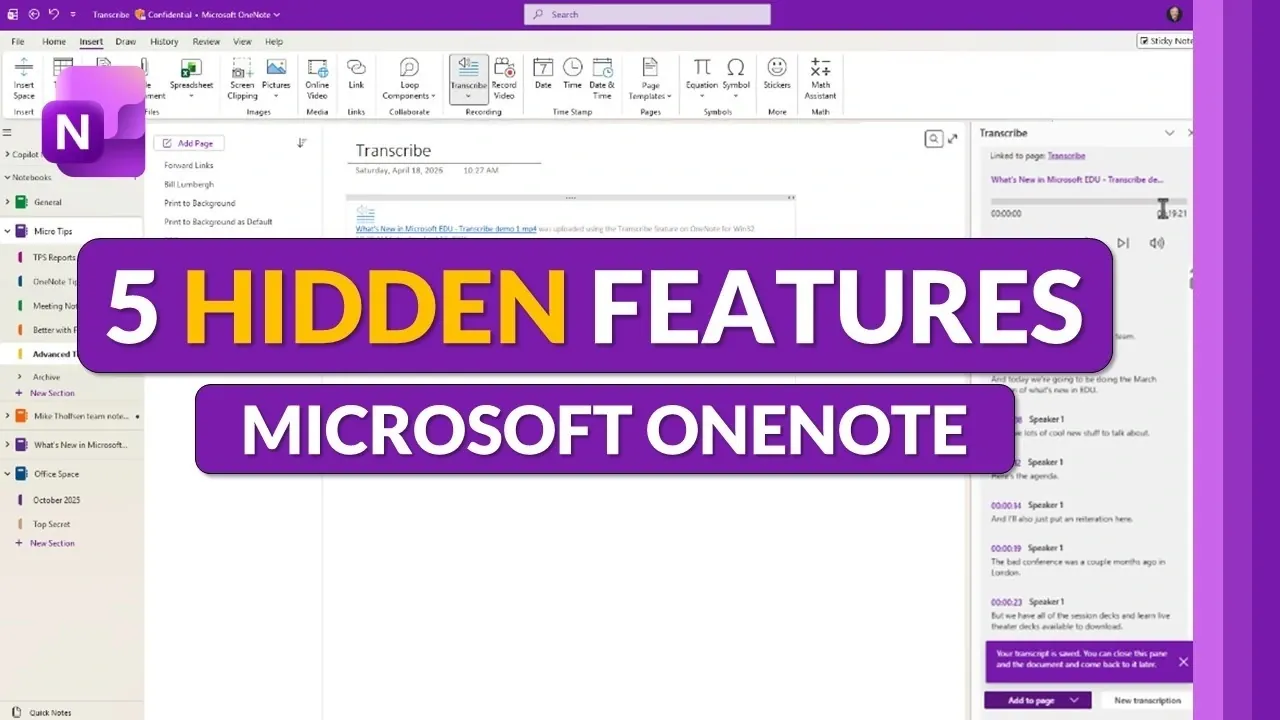
Microsoft OneNote includes a range of features that extend far beyond simple note-taking, yet some of its more advanced functionalities often go unnoticed. Mike Tholfsen highlights five lesser-known options that can improve how you manage and connect your notes. For example, the forward linking feature enables you to create dynamic links between pages using double brackets ([[Page Name]]), automatically generating new pages when needed. This is particularly useful for organizing related content, such as linking project plans to meeting notes or building a structured table of contents.
Discover how to make the most of these underutilized features. Learn how to use Print to Background for annotating documents without altering their layout, convert recordings into searchable text with audio transcription, and use Dock to Desktop for multitasking more effectively. Additionally, explore the customization options provided by the OneTastic add-in, which includes advanced functions like macros and calendar creation.
Hidden OneNote Features
TL;DR Key Takeaways :
- Forward Linking: Create hyperlinks between pages using double brackets, allowing seamless navigation and organization of interconnected content.
- Print to Background: Embed files like PDFs or slides as static backgrounds, allowing annotations without disrupting the layout.
- Audio Transcription: Convert recordings into searchable, editable text, ideal for capturing and organizing spoken content like meetings or lectures.
- Dock to Desktop: Pin OneNote as a narrow window for multitasking, allowing easy reference and note-taking alongside other tasks.
- OneTastic Add-In: Expand OneNote’s functionality with advanced tools like macros, calendars and search-and-replace operations for enhanced customization.
1. Forward Linking: Effortless Page Connections
OneNote’s forward linking feature allows you to create hyperlinks between pages using double brackets ([[Page Name]]). This functionality is particularly useful for organizing interconnected content. If the referenced page doesn’t exist yet, OneNote automatically generates it for you, saving time and effort.
This feature is ideal for tasks such as:
- Linking meeting notes to project plans for seamless navigation.
- Building a dynamic table of contents for your notebook.
- Creating a web of related ideas for brainstorming sessions.
By interconnecting your notes, forward linking ensures your information remains structured, accessible and easy to navigate. This is especially beneficial for professionals managing complex projects or students organizing study materials.
2. Print to Background: Annotate Without Disruptions
The Print to Background feature simplifies the process of reviewing and annotating documents. It allows you to embed files such as PDFs, PowerPoint slides, or Word documents directly into your OneNote pages as static backgrounds. This prevents the content from shifting when you add annotations, ink notes, or highlights on top.
To enable this feature:
- Insert a file into your OneNote page.
- Set it as a background to lock its position.
- Begin annotating without worrying about layout disruptions.
This tool is particularly valuable for students reviewing lecture slides or professionals marking up reports. By making sure your annotations stay aligned with the document, it enhances both accuracy and efficiency.

Become an expert in Microsoft OneNote with the help of our in-depth articles and helpful guides.
- How to Capture Everything in OneNote, Complete Guide 2025
- Best OneNote Hotkeys for Search, Screen Clipping and Full Screen
- 25 Best OneNote Features in 2026 : OCR, Loop, Task Sync for Work
- OneNote Integration Guide 2026 : Outlook Tasks, Teams Meetings & Loop
- New OneNote 2026 Features, from Crop Tools to Copilot Chat
- How to Use Microsoft Copilot in OneNote : Features, Benefits & Tips
- 9 New Copilot Features : Across Teams, OneDrive & PowerPoint
- How to Use Microsoft OneNote for Maximum Productivity
- Advanced Note-Taking Techniques with Microsoft OneNote
- How to Use Microsoft OneNote for Effective Project Management
3. Audio Transcription: Convert Recordings into Searchable Text
OneNote’s audio transcription feature transforms recordings or uploaded audio files into editable, searchable text. This functionality is especially useful for capturing spoken content such as meeting discussions, interviews, or lectures.
Key benefits of this feature include:
- Editing speaker names and adding timestamps for clarity.
- Organizing transcripts into structured notes for easy reference.
- Accessing transcribed files across devices via OneDrive integration.
By converting spoken words into text, this tool saves time and ensures important details are preserved. Whether you’re a student, journalist, or business professional, audio transcription can streamline your workflow and improve note accuracy.
4. Dock to Desktop: Multitask with Ease
The Dock to Desktop feature enhances multitasking by allowing you to pin OneNote as a narrow window on your screen while working in other applications. This setup is particularly helpful when you need to reference notes during a video call, draft content while researching, or take notes alongside another task.
How to use Dock to Desktop:
- Open OneNote and select the “Dock to Desktop” option.
- Resize the docked window to fit your workflow.
- Switch back to full-screen mode when needed.
By keeping OneNote accessible without occupying your entire screen, this feature boosts productivity and ensures you can seamlessly switch between tasks.
5. OneTastic Add-In: Advanced Customization for Power Users
For users seeking to expand OneNote’s capabilities, the OneTastic add-in offers a suite of advanced tools and features. With over 700 additional functionalities, this add-in allows you to customize OneNote to suit your specific needs.
Notable features of OneTastic include:
- Sorting sections and pages for better organization.
- Creating calendars directly within OneNote.
- Performing search-and-replace operations across notebooks.
- Using customizable macros to automate repetitive tasks.
While some advanced features require a premium subscription, the free version provides a robust set of tools for enhancing your workflow. OneTastic is an excellent choice for power users looking to unlock the full potential of OneNote.
Why These Features Matter
These hidden features—forward linking, print to background, audio transcription, dock to desktop, and the OneTastic add-in—offer practical solutions to common challenges in digital note-taking. By integrating these tools into your workflow, you can streamline organization, improve efficiency and maximize productivity.
Whether you’re managing complex projects, preparing for exams, or organizing daily tasks, these capabilities make Microsoft OneNote an indispensable tool for achieving your goals. Embracing these features ensures you get the most out of this versatile platform, transforming it into a central hub for all your digital organization needs.
Media Credit: Mike Tholfsen
Disclosure: Some of our articles include affiliate links. If you buy something through one of these links, Geeky Gadgets may earn an affiliate commission. Learn about our Disclosure Policy.
