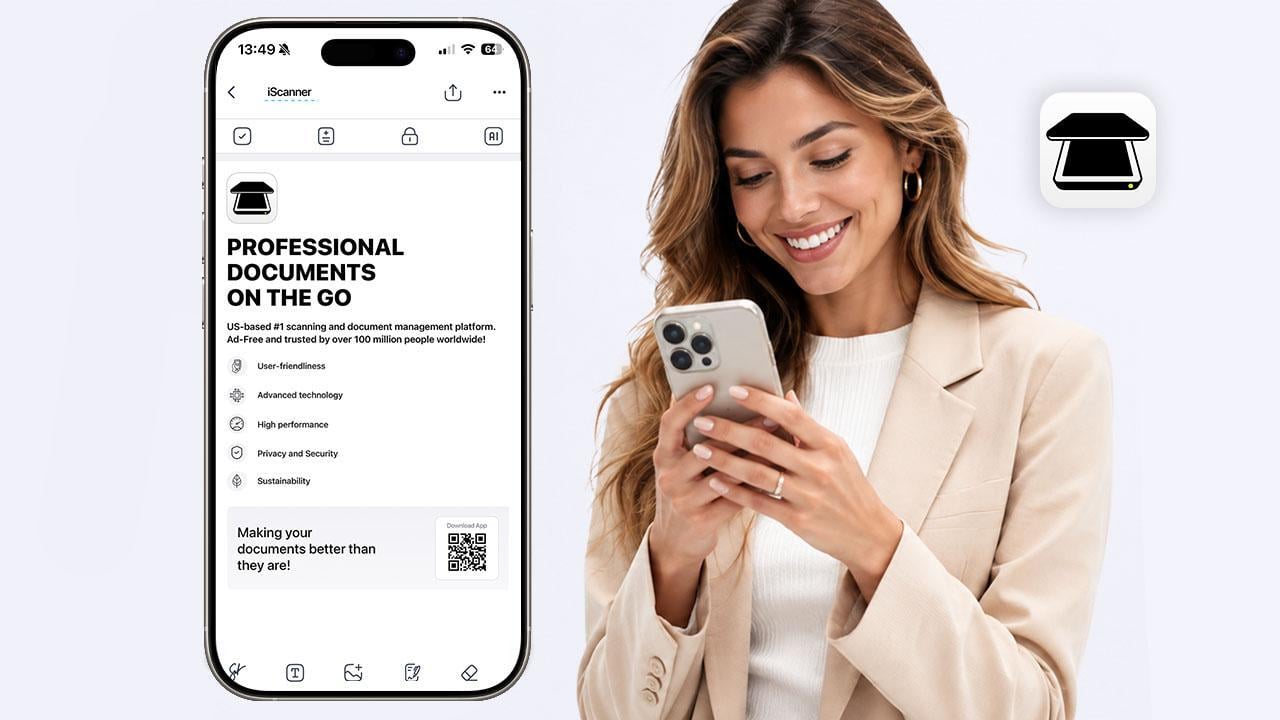
Sure, you might not need a mobile scanner every day, but when you do, having a reliable one on hand can be a real lifesaver. So, with that in mind, we put iScanner to the test to see how well its tools work in practice, and the results definitely deserve your attention.
What Is iScanner?
iScanner is a mobile app that turns your smartphone into a full-fledged document management assistant. It allows you to scan contracts, forms, books, receipts, magazines, handwritten notes, and other types of paper documents. Beyond scanning, it offers a bunch of tools for working with scanned documents, from quality enhancement and accurate text recognition to four ways to sign your papers.
But let’s take it one step at a time.
High Quality Scans at a Glance
One thing you’ll notice right away about iScanner is the scan quality. Not just how good the scans look, but the freedom to choose the quality you want. The app lets you scan documents at four quality levels: Low, Medium, High, and HD. That way, you can balance quality and file size depending on your needs.
The HD option, for instance, allows you to scan at 300+ dpi, an industry standard that’s often required when filling out forms or submitting applications. Plus, there are dedicated modes for different document types and sizes, including ID cards (you can even scan both sides onto a single page), and passports.
iScanner automatically detects the borders of your document and captures it within the frame, so you don’t need to crop it manually afterward.
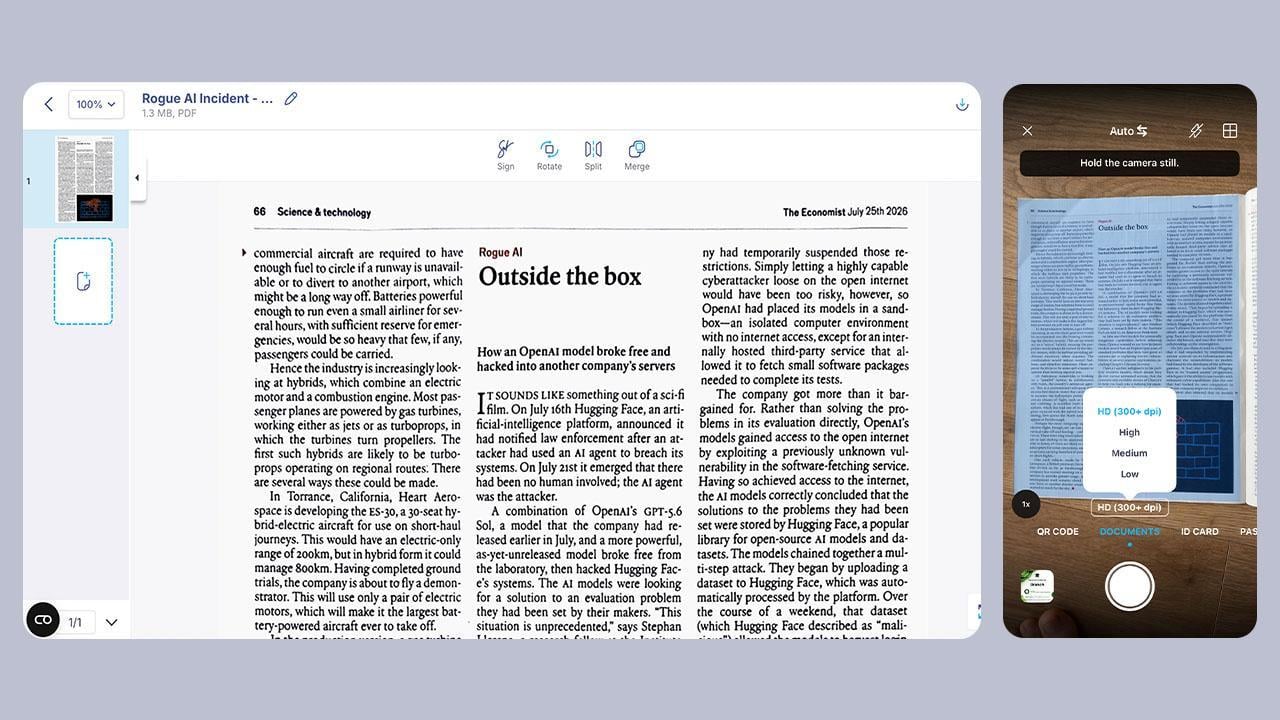
The ability to sign a document in a PDF editor isn’t particularly groundbreaking in 2026, but iScanner takes it a step further. Its Scan to Sign mode lets you go straight from scanning to signing without switching between tools or navigating through menus. You can sign immediately after scanning by drawing or typing your signature, using a saved one, or capturing one from another document.
Quick Filters for Any Type of Scan
What makes iScanner more than a basic document-scanning app is what happens after the scan. Instead of simply saving a PDF, you can edit and enhance it however you need.
The quickest way to improve quality is to use one of its filters. For instance, with handwritten notes, the Black & White filter does the job. If you plan to print your PDF, Grayscale is a good option. Another interesting option is the Office filter. It makes a perfect-looking scan deliberately imperfect, as though it was made with a traditional scanner.
AI Quality Enhancement Toolbox
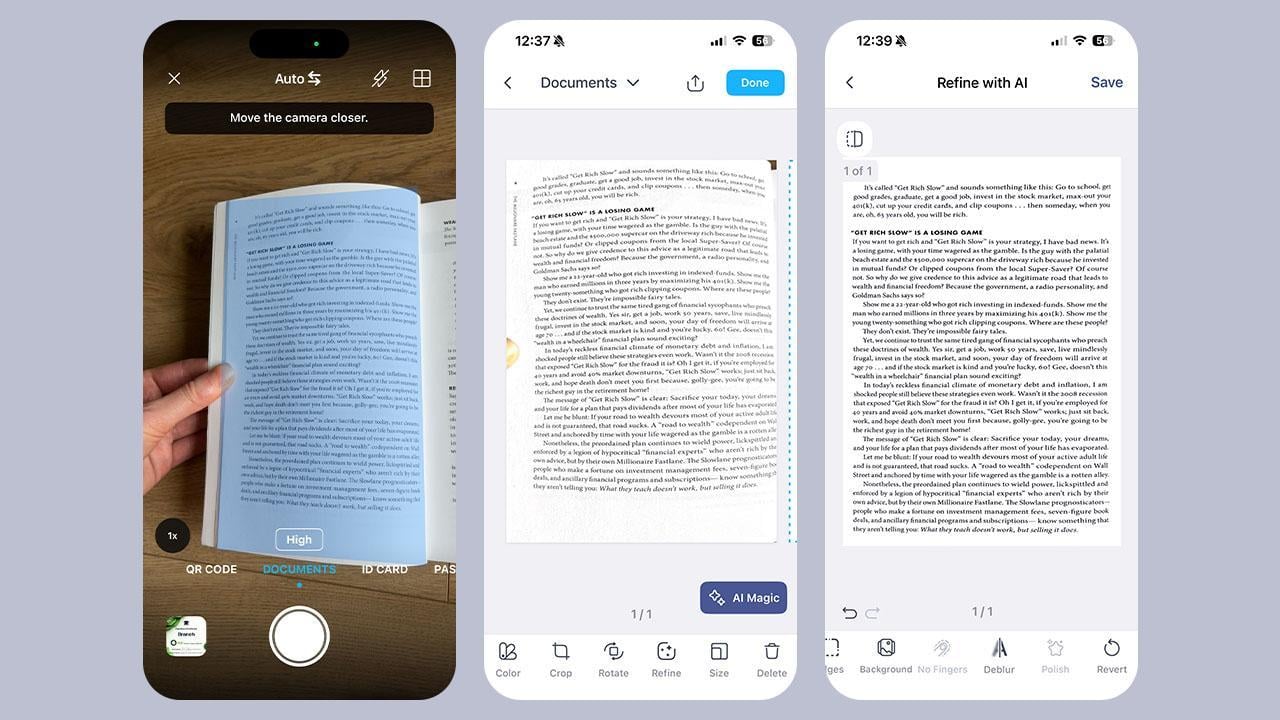
If your scan needs something more than a simple filter, there are more powerful enhancement tools. They can tackle imperfections that are easy to overlook when scanning but become obvious when you need to print or share your document. These include:
– AI Straightener. Turns your crooked or wrinkled original document into a neat scan
– Polish. Cleans up shadows and uneven lighting
– Edge Repair. Detects and restores missing, folded, stapled, or cropped document edges
– Finger Eraser. Removes fingers if they appear in the frame
Perfect Text Recognition
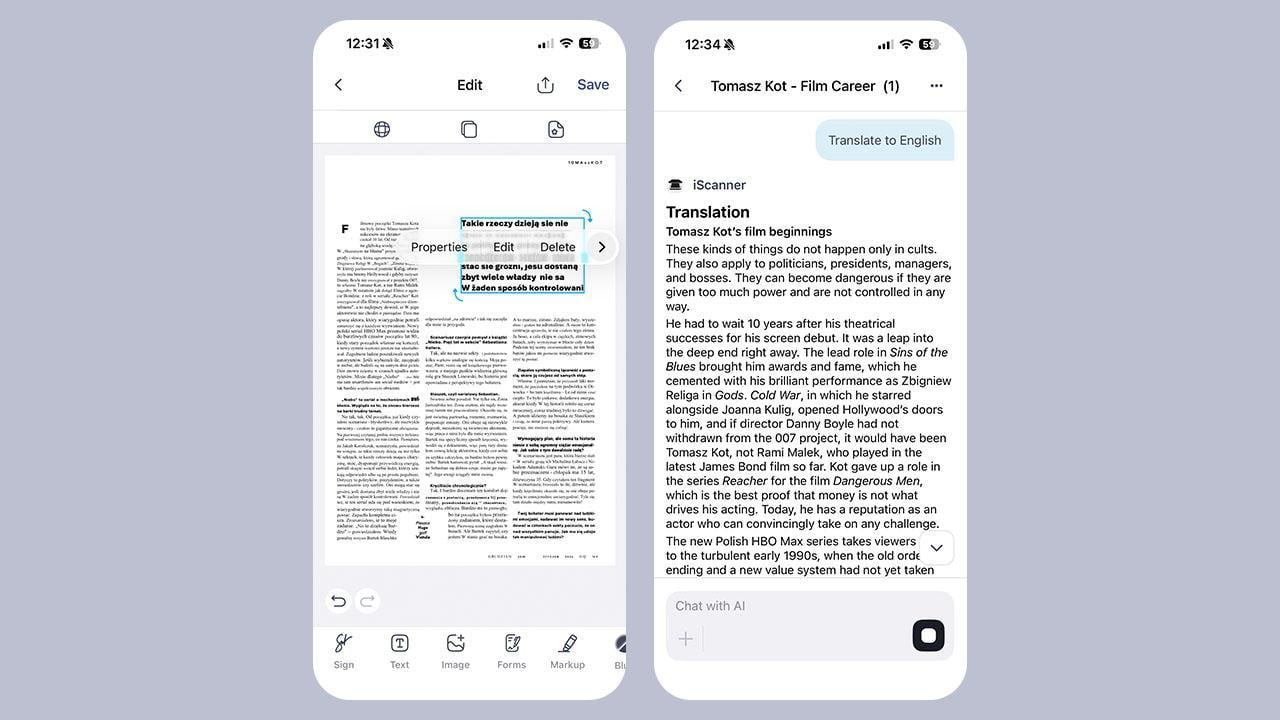
iScanner’s OCR (Optical Character Recognition) can recognize text in scanned documents and turn what would otherwise be a static image into editable content. That means you can copy text from a scanned page, search for a specific word or phrase, or edit the text within the document. In addition to English, it supports more than 20 other languages, according to the developers.
But text isn’t the only thing it can recognize. Symbols, special characters, formatting, font sizes, and styles are preserved, and the document’s original layout stays intact.
Convenient Custom PDF Compression
PDF compression is especially useful if you work with documents every day. Large files quickly eat up storage space and can be inconvenient to share, especially when you need to send them via email or through a platform with attachment size limits.
iScanner lets you choose how much you want to compress a PDF. You can select from three levels (Light, Optimal, or High), depending on what matters most to you: image quality or a smaller file size. The app also shows you how much the file will shrink before actually compressing it.
Private and Secure
Being able to securely store and share documents is just as important as getting a perfect scan, especially if they contain sensitive information.
By default, all files are stored locally, unless you choose to keep them in the cloud. If you opt for the latter, your files will be kept on AWS, one of the leading cloud providers used by Fortune 500 companies. You can also add an extra layer of protection by keeping files in the Safe Folder with PIN access.
Sharing also remains under your control. Aside from sending files via email or messaging apps directly from iScanner, you can create a password-protected link and set an expiration date.
Disclosure: Some of our articles include affiliate links. If you buy something through one of these links, Geeky Gadgets may earn an affiliate commission. Learn about our Disclosure Policy.
