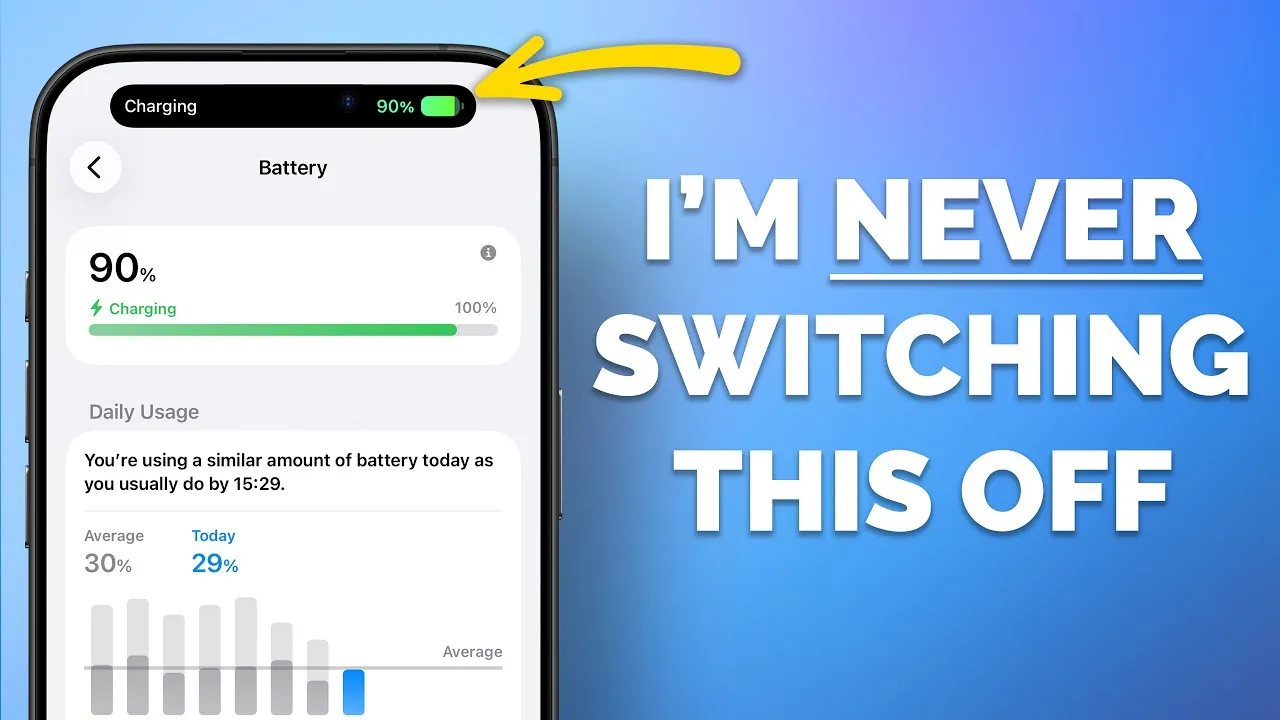
Maximizing your iPhone’s battery life doesn’t require advanced technical skills or drastic measures. By adopting a few strategic adjustments and smarter habits, you can significantly reduce power consumption and extend your device’s daily performance. The video below from Proper Honest Tech provides practical, actionable steps to help you optimize battery efficiency while maintaining long-term health.

Limit Background Activity
Background processes are one of the most common culprits behind unnecessary battery drain. Many apps refresh their content in the background, even when you’re not actively using them. To reduce this:
- Navigate to Settings > General > Background App Refresh.
- Turn off the feature entirely or restrict it to Wi-Fi-only updates for essential apps.
Disabling background activity for non-essential apps ensures your iPhone isn’t wasting energy on tasks you don’t need.
Adjust Display Settings
Your iPhone’s display is one of its most power-intensive components. By tweaking its settings, you can significantly reduce energy consumption:
- If your device supports an Always-On Display, consider turning it off or customizing it to show minimal information, such as disabling wallpaper or notifications.
- Enable Auto-Brightness under Settings > Display & Brightness to allow your device to adjust screen brightness based on ambient lighting conditions.
- Reduce the screen timeout duration to ensure the display turns off quickly when not in use.
These adjustments can make a noticeable difference in your iPhone’s battery performance.
Optimize Email Fetching
Email fetching can quietly drain your battery, especially if you rely on push notifications for instant updates. Instead of using push notifications, consider these alternatives:
- Switch to a scheduled fetch system by going to Settings > Mail > Accounts > Fetch New Data.
- Select “Fetch” and set it to hourly or manual updates rather than “Push.”
This reduces the frequency of background activity and helps conserve power throughout the day.
Streamline Notifications
Frequent notifications can cause your screen to wake unnecessarily, consuming battery life. Managing notifications effectively can help:
- Use the Scheduled Summary feature under Settings > Notifications > Scheduled Summary to group non-essential notifications and deliver them at specific times.
- Turn off notifications for apps that don’t require immediate attention by adjusting settings under Settings > Notifications.
Reducing screen wakeups and interruptions can have a significant impact on battery performance.
Use Power Management Modes Wisely
Low Power Mode is a useful feature for conserving battery life during emergencies, but it’s not ideal for everyday use. Instead, consider these strategies:
- Enable Adaptive Power settings (if available) to let your iPhone intelligently manage power consumption based on your usage patterns.
- Manually activate Low Power Mode under Settings > Battery when your battery level is critically low or when you anticipate extended periods without charging.
These tools help balance performance and efficiency, making sure your device lasts longer when needed.
Disable Unused Voice Assistants
If you rarely use “Hey Siri,” disabling it can save battery life by reducing constant microphone activity. To turn it off:
- Go to Settings > Siri & Search and toggle off “Listen for ‘Hey Siri’.”
You can still activate Siri manually by pressing the side button whenever necessary, preserving battery life without losing functionality.
Adopt Smarter Charging Habits
Proper charging practices are essential for maintaining your battery’s health over time. Follow these tips:
- For newer models, use manual charge limits or stop charging once the battery reaches 80% to avoid overcharging.
- Enable Optimized Battery Charging under Settings > Battery > Battery Health & Charging to reduce battery wear by learning your charging patterns.
- Ensure Significant Locations is enabled under Settings > Privacy & Security > Location Services to allow your iPhone to optimize charging based on your routine.
These habits help preserve battery health and extend its lifespan.
Minimize Haptic Feedback
Haptic feedback and vibrations, while useful, consume more power than you might realize. To reduce their impact:
- Limit haptics to silent mode or disable them entirely under Settings > Sounds & Haptics.
This is particularly effective if you receive frequent notifications or use apps with extensive vibration feedback.
Manage Cellular Signal Usage
A weak cellular signal forces your iPhone to work harder to maintain a connection, which can drain your battery quickly. To mitigate this:
- If you’re in an area with poor 5G coverage, switch to 4G/LTE under Settings > Cellular > Voice & Data.
- In areas with no signal, enable Airplane Mode to prevent your iPhone from constantly searching for a connection.
These adjustments can help conserve power in low-signal environments.
Avoid Force-Closing Apps
Contrary to popular belief, force-closing apps can increase battery usage. Reopening an app from scratch requires more power than resuming it from a suspended state. Only force close apps if they’re malfunctioning or unresponsive.
Restart Your Device Regularly
Restarting your iPhone occasionally can clear background processes and resolve minor software glitches that may contribute to battery drain. This simple step can improve overall performance and ensure your device operates efficiently.
Take Control of Your Battery Life
By implementing these straightforward adjustments, you can significantly extend your iPhone’s battery life while preserving its long-term health. From managing background activity and display settings to adopting smarter charging habits, each step contributes to a more efficient and reliable device. Take control of your iPhone’s power consumption today and enjoy longer usage without the constant need to recharge.
Here are more guides from our previous articles and guides related to iPhone battery optimization that you may find helpful.
- Maximize Your iPhone Battery Life with These Genius iOS 26 Hacks
- How to Stop iOS 18.5 Battery Drain
- How to Optimize iPhone Battery Settings on iOS 26
- How to Fix iOS 26.2 Battery Drain on Your iPhone
- Why iOS 26 Causes Battery Drain and How to Fix It
Source & Image Credit: Proper Honest Tech
Disclosure: Some of our articles include affiliate links. If you buy something through one of these links, Geeky Gadgets may earn an affiliate commission. Learn about our Disclosure Policy.
