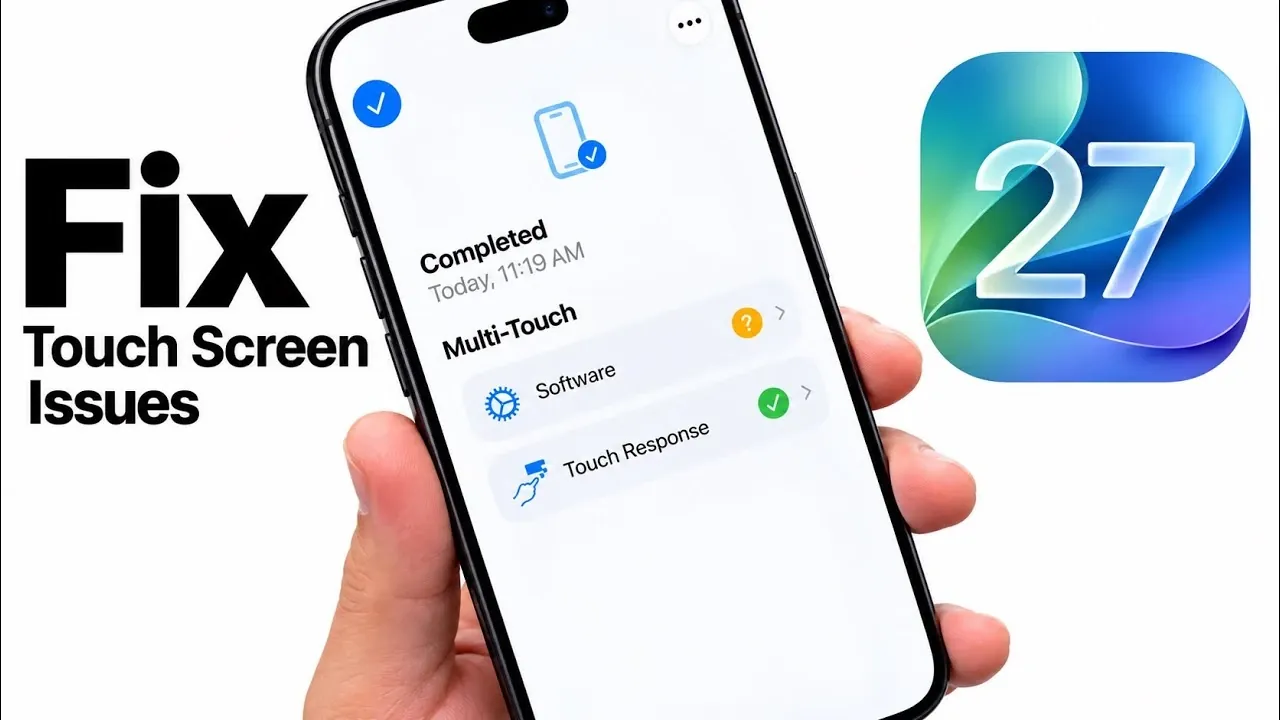
Experiencing an unresponsive or freezing touchscreen on your iPhone 18 Pro or Pro Max running iOS 27 can be frustrating, especially when it interferes with daily tasks. This issue has been reported by many users, but there’s good news: iOS 27 includes a built-in diagnostics mode that allows you to determine whether the problem stems from hardware or software. By following a systematic approach, you can identify the root cause and take the necessary steps to resolve the issue effectively. The video below from iDeviceHelp gives us more details.

How to Access Diagnostics Mode
Diagnostics mode is a powerful feature in iOS 27 that enables you to troubleshoot your device directly. Accessing it is straightforward and requires only a few steps:
- Press the volume up button, then the volume down button, and hold the side button until the Apple logo appears on the screen.
- Continue holding the side button until the recovery options menu is displayed.
Once the recovery options menu appears, select “Diagnostics Mode” from the list of tools. This will initiate the diagnostics process, providing access to features designed to evaluate your device’s performance.
Performing the Multi-Touch Test
After entering diagnostics mode, the first step is to connect your iPhone to a Wi-Fi network. This connection ensures that the diagnostic tools operate correctly. You will also need to agree to the terms of use before proceeding. Once connected, you can perform a multi-touch test to assess the functionality of your touchscreen.
The multi-touch test is easy to conduct. Simply swipe your finger across the screen in various directions. Pay close attention to any areas of the screen that fail to register your touch. If certain sections of the screen are unresponsive, it may indicate a hardware issue. Conversely, if the screen responds consistently, the problem is likely related to software.
Interpreting the Multi-Touch Test Results
The results of the multi-touch test provide valuable insights into the nature of the touchscreen issue. Here’s how to interpret the findings and decide on the next steps:
- If the test passes: A fully responsive touchscreen suggests that the issue is software-related. To address this, you can try updating your iOS to the latest version, as updates often include bug fixes. If the problem persists, performing a factory reset may resolve the issue.
- If the test fails, unresponsive areas on the screen indicate a hardware problem. In this case, it’s advisable to visit an Apple Store or an authorized repair center for professional assistance. Attempting to fix hardware issues on your own may void your warranty or cause further damage.
By understanding these results, you can take the appropriate action to restore your iPhone’s functionality.
How to Exit Diagnostics Mode
Once you’ve completed the diagnostics process, exiting the mode is a simple task. Restart your iPhone by holding the side button until the Apple logo reappears. This action will return your device to the home screen, allowing you to continue using it or proceed with additional troubleshooting steps as needed.
Maximizing the Benefits of Diagnostics Mode
The diagnostics mode in iOS 27 is an invaluable tool for addressing touchscreen issues on the iPhone 18 Pro and Pro Max. It enables users to identify whether the problem lies in the hardware or software, saving both time and effort. By using this feature, you can take control of the troubleshooting process and make informed decisions about the next steps.
Whether the solution involves a simple software update or a visit to a repair center, diagnostics mode equips you with the knowledge to act confidently. This proactive approach ensures that you can resolve touchscreen issues efficiently, minimizing disruptions to your daily routine.
Expand your understanding of iOS 27 with additional resources from our extensive library of articles.
- Apple Delaying iOS 27 Beta 5? Here’s When to Expect the Next Update
- New iOS 27 Beta 5 Release Arrives with a Big Shift Coming
- iOS 27 Beta 5 Is Late: What’s Holding Up Apple’s Next Release?
- The iOS 27 Beta 5 Release Is Imminent with More New Features
- Apple iOS 27 Beta 5 Preview: A Look at the Next Release
Source & Image Credit: iDeviceHelp
Disclosure: Some of our articles include affiliate links. If you buy something through one of these links, Geeky Gadgets may earn an affiliate commission. Learn about our Disclosure Policy.
