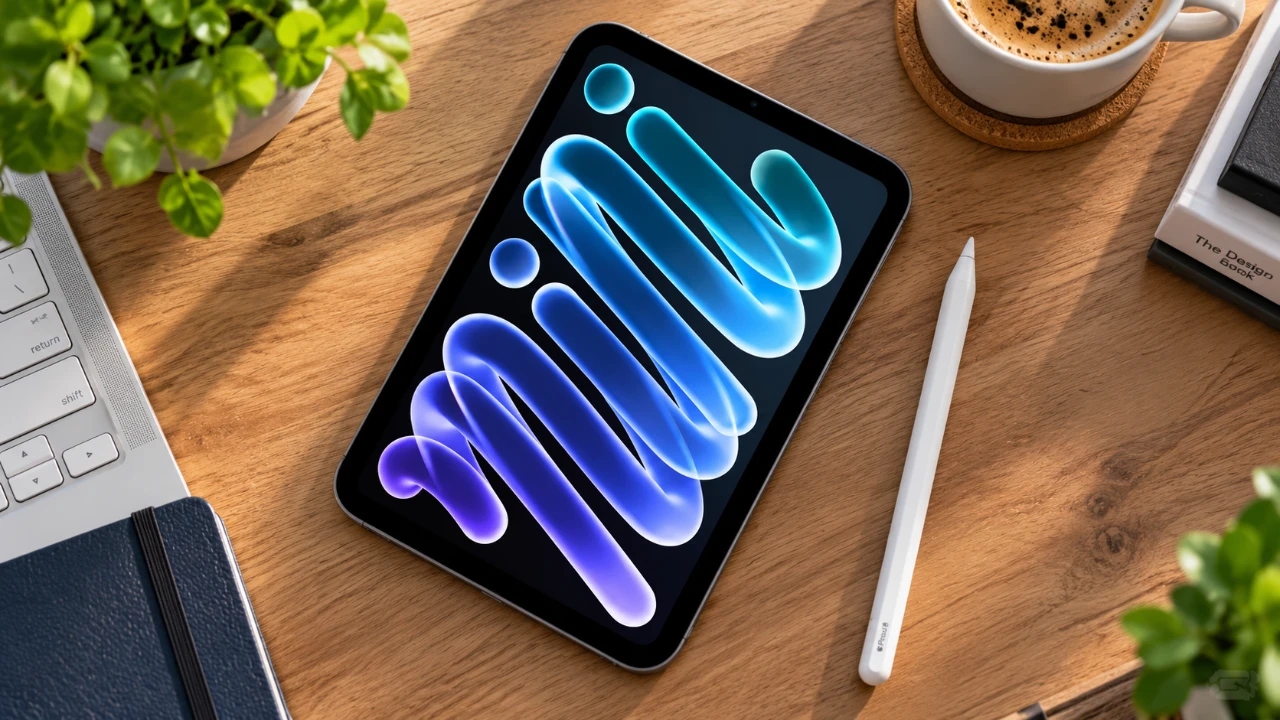
A bright screen can make reading in a dark room uncomfortable, but the Apple iPad mini (A20 Pro) can dim its OLED display to 1 nit. The compact tablet also lets you adjust text and page colours in the Kindle app, while its lightweight design makes it easier to hold through a chapter. With an Apple Pencil Pro, you can ask for an explanation of a passage or add handwritten notes. Learn more about these reading settings and shortcuts as Dailytekk breaks down how to set them up in the video below.
TL;DR Key Takeaways :
- Display size: The iPad mini has an 8.5-inch OLED display, up from the previous model’s 8.3-inch LCD.
- Tablet weight: The Wi-Fi model weighs 255 grams, 38 grams less than its predecessor.
- Dark reading: The screen can dim to 1 nit, and a black Kindle page background reduces glow.
- Pencil shortcut: An Apple Pencil Pro squeeze shortcut can extract a passage and request three explanatory bullets from the on-device model.
- Handwritten passages: Notes can paste text in your handwriting style after you save at least 10 different lowercase letters.
Apple’s iPad mini (A20 Pro) has a larger display than its predecessor in the same footprint. Thinner bezels surround an OLED panel that replaces the older mini’s LCD and improves contrast. Its compact size also lets you hold the tablet in one hand while reading.
At 255 grams, the Wi-Fi model weighs 38 grams less than the previous version and is 5.4 mm thick, down from 6.3 mm. The lower weight is noticeable when you hold it through a chapter.
Set Up the Kindle App for Reading
The Kindle app lets you read books on the iPad mini and adjust the text to suit you. In testing, increasing the text size helped with reading faster, rather than compensating for eyesight.
At 8.5 inches, the display is larger than the previous model’s 8.3-inch screen, with a resolution of 2316 by 1512 pixels at 326 pixels per inch.

Make the Screen Dimmer for Dark Rooms
For reading in a dark room, the iPad mini’s OLED screen can drop to 1 nit; it also reaches 600 nits for normal full-screen content and up to 1,200 nits for HDR highlights. Set the reader’s page background to black and lower the brightness. The black background avoids the glow from an LCD backlight.
In Kindle, tap the page and use the reading controls:
Aa → black page, lower brightness
If the text is still too bright, turn on Reduce White Point in Settings. You can also add it to the Accessibility Shortcut and triple-click the top button for quick access.
Settings → Accessibility → Display & Text Size → Reduce White Point
Use Pencil Squeeze to Explain a Passage
An Apple Pencil Pro shortcut can capture the screen, extract its text and ask Apple’s on-device model to explain it, so you can get help with a passage without copying it into a separate request.
In Shortcuts, build the following sequence, using the extracted text as a variable:
Take Screenshot → Extract Text from Image → Use Model (On-Device; prompt: "Explain this text in three short bullets") with the extracted text as a variable → Show Content
Then assign the shortcut to the Pencil’s squeeze gesture:
Settings → Apple Pencil → Squeeze → Shortcut → pick it
Save Passages in Your Handwriting
Notes can paste copied text in your handwriting style, so you can circle parts of a passage and add your own thoughts with the Pencil. First, save handwritten notes containing at least 10 different lowercase letters.
Copy the text, then hold the Pencil just after a written word in a handwritten note and select Paste. The passage can then sit alongside your handwritten annotations.
Reach Controls While Holding the mini
The Virtual Trackpad places a trackpad area within reach of your thumb and moves a pointer around the whole screen. It can help you reach a small control on the opposite side while you hold the tablet one-handed.
Assign it to a double-tap of the floating AssistiveTouch button or add it to the AssistiveTouch menu:
Settings → Accessibility → Touch → AssistiveTouch on → Custom Actions → Double-Tap → Virtual Trackpad
Although the mini does not have Face ID, it was reportedly unlocked for landscape reading by enrolling the part of the palm that naturally touches the top button. Use the fingerprint setup and keep your normal fingerprints too:
Settings → Touch ID & Passcode → Add a Fingerprint
The Pencil squeeze shortcut requires Apple Pencil Pro and Apple Intelligence. The iPad mini is rated IP67 for splash, water and dust resistance, at a maximum depth of one metre for up to 30 minutes. Liquid damage is not covered by the warranty.
We think it suits people who read for long stretches and also want one device for notes, video and browsing. If you only read books and want something simple, a dedicated e-reader may still be the better fit.
Your reading and handwritten notes can share one compact device, keeping your thoughts close to the passages that prompted them. If you want a portable reader that also gives you room to reflect on what you read, the iPad mini is worth exploring in more detail.
Discover other guides from our vast content that could be of interest on the Apple iPad mini and Pencil.
- OLED iPad Mini First Impressions: Is Apple’s Smallest Tablet Worth $699?
- iPad Mini 8 vs iPad Air M4: OLED Displays Meet LCD Panels
- Apple Pencil and OneNote: A Complete Guide for iPad Users
- Apple’s OLED iPad Mini Is Finally Happening: Here Is Everything We Know
- Apple iPad Mini 8 Just Fully Leaked: Here is Everything Changing
Source: Dailytekk
Disclosure: Some of our articles include affiliate links. If you buy something through one of these links, Geeky Gadgets may earn an affiliate commission. Learn about our Disclosure Policy.
