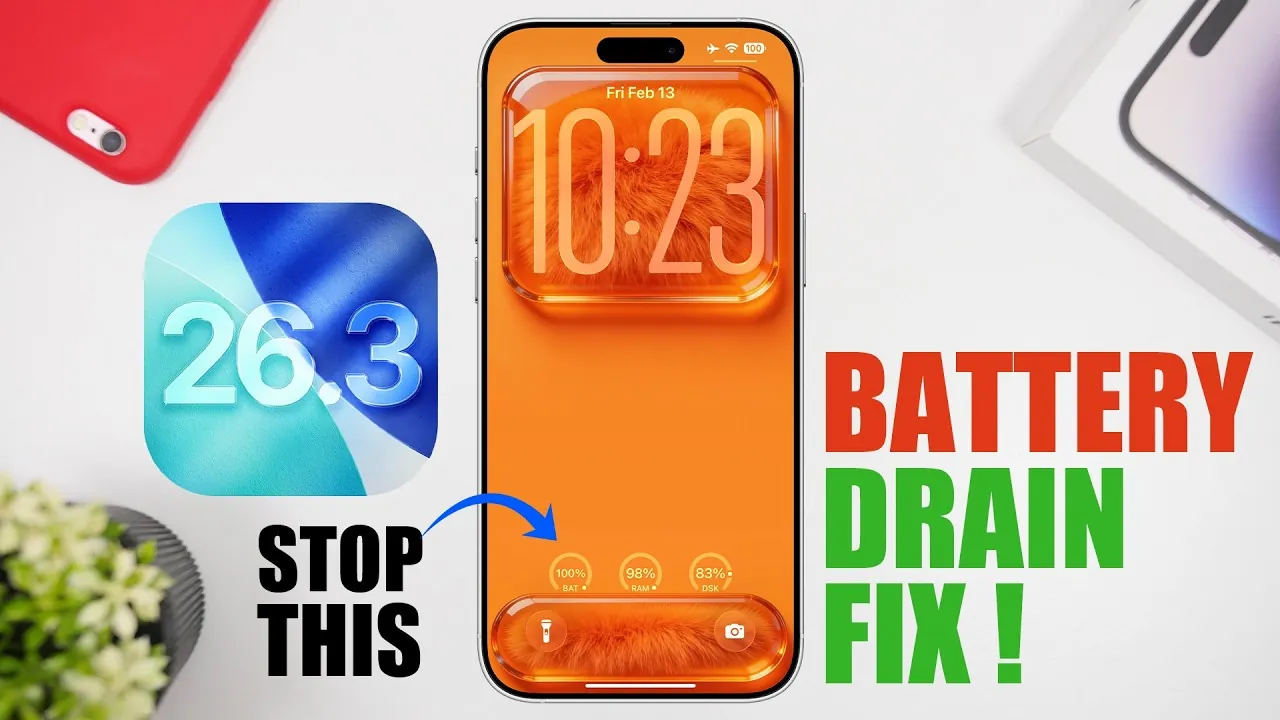
If you’ve noticed increased battery drain after updating your iPhone to iOS 26.3, you’re not alone. Battery performance is a critical aspect of your device’s functionality, and addressing this issue can greatly enhance your overall experience. The video below from iReviews outlines practical steps to help you conserve power and extend your iPhone’s battery life.
Update iOS and Apps
Making sure your iPhone and apps are up to date is a fundamental step in resolving battery issues. Software updates often include performance optimizations and bug fixes that can improve battery efficiency. To check for updates, navigate to Settings > General > Software Update and install any available updates. Similarly, outdated apps can consume unnecessary power. Enable automatic updates in the App Store settings or manually update your apps to ensure they are running the latest versions. Keeping both your system and applications current is essential for maintaining optimal battery performance.
Manage Notifications Effectively
Frequent notifications can significantly impact your battery life by activating your screen and triggering background processes. To minimize this, disable notifications for apps that are not essential. You can do this by going to Settings > Notifications and customizing notification preferences for each app. Additionally, consider using the Scheduled Summary feature to group non-urgent alerts, reducing the frequency of interruptions. If you use notification forwarding to other devices, evaluate whether it is necessary, as this feature can further strain your battery.
Optimize Location Services
Location tracking is one of the most power-intensive features on your iPhone. To reduce its impact, limit location access for apps by setting permissions to “while using the app” or disabling precise location for apps that don’t require it. Adjust these settings under Settings > Privacy & Security > Location Services. For apps or services that you rarely use, consider turning off location access entirely. Additionally, some carriers offer location-based services that can drain your battery; disabling these features can help conserve power.
Adjust Widgets and Wallpapers
Widgets and wallpapers, while visually appealing, can consume significant battery power. Limit the number of widgets on your home screen, especially those that require frequent updates, such as weather or stock widgets. To make adjustments, press and hold a widget, then select “Remove Widget” if it is not essential. Similarly, avoid using live or dynamic wallpapers, as they continuously use system resources. Opt for static wallpapers instead, which are less demanding on your battery.
Refine Siri and Apple Intelligence Settings
Features like Siri and Apple Intelligence rely on background processes that can contribute to battery drain. If you rarely use Siri, disable the “Always Listen for Siri” option under Settings > Siri & Search. You can also turn off personalized suggestions and other Apple Intelligence features if they are not critical to your daily use. These adjustments can reduce background activity and help conserve battery life.
Disable Background App Refresh
Background App Refresh allows apps to update their content even when they are not actively in use, which can lead to unnecessary battery consumption. To manage this feature, go to Settings > General > Background App Refresh and disable it for apps that do not require constant updates. You can also turn off Background App Refresh entirely if you prefer. This simple change can significantly reduce background activity and improve your device’s battery performance.
Review Accessibility and Privacy Settings
Accessibility features, while useful, can sometimes consume additional power. Review these settings under Settings > Accessibility and disable features that you do not use regularly. For example, features like VoiceOver or Magnifier may not be necessary for all users. Similarly, audit your privacy settings to ensure apps are not overusing resources. Regularly check app permissions under Settings > Privacy & Security to ensure they align with your needs and usage patterns. Restricting unnecessary permissions can help conserve battery life.
Additional Tips for Battery Conservation
Beyond the steps outlined above, there are other practical measures you can take to extend your iPhone’s battery life:
- Reduce screen brightness or enable Auto-Brightness under Settings > Display & Brightness.
- Turn on Low Power Mode in Settings > Battery to temporarily reduce power consumption.
- Disable Push Email and switch to manual fetching under Settings > Mail > Accounts > Fetch New Data.
- Limit the use of power-intensive apps, such as games or video streaming, when your battery is low.
- Restart your iPhone periodically to clear background processes and improve performance.
Implementing these additional strategies can further enhance your device’s battery efficiency.
Maximizing Battery Performance
Addressing battery drain on iOS 26.3 requires a combination of system updates, app management, and fine-tuning your device settings. By updating your software, managing notifications, optimizing location services, and adjusting features like widgets and background app refresh, you can significantly improve your iPhone’s battery performance. Incorporating these steps into your routine will help you enjoy a more efficient and longer-lasting device.
Discover other guides from our vast content that could be of interest on iOS 26.3 battery optimization.
- iOS 26.3 Update: Performance, Battery, and Key Features
- iOS 26.2 Release Date, Features, and Battery Life
- How to Prepare Your iPhone for the iOS 26.3 Update
- iOS 26.3 Beta 1 Features and Updates Explained
- iOS 26.3 Update: Everything You Need to Know
Source & Image Credit: iReviews
Disclosure: Some of our articles include affiliate links. If you buy something through one of these links, Geeky Gadgets may earn an affiliate commission. Learn about our Disclosure Policy.
