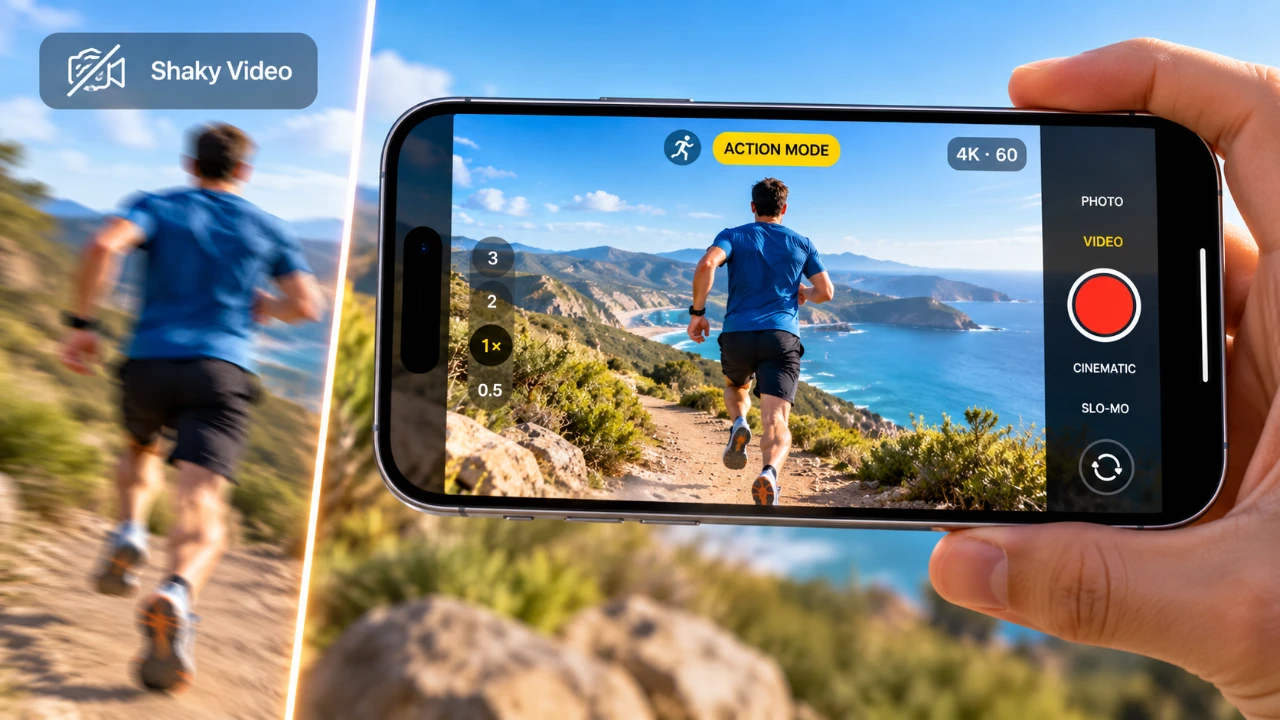
Action Mode on the iPhone is a feature designed to deliver smooth, stabilized video footage, even during fast-paced or high-motion activities. Whether you’re capturing a sports event, an outdoor adventure, or a dynamic performance, this tool helps you achieve professional-quality results with minimal effort. By understanding how to use Action Mode effectively, you can unlock the full potential of your iPhone’s camera and elevate your video content to a higher standard. The video below from iPhone Photography School gives us more details.

What is Action Mode and Why Should You Use It?
Action Mode is an advanced video stabilization feature that minimizes camera shake and jitter during movement. It employs sophisticated stabilization algorithms and utilizes the ultra-wide camera to produce steady footage, even in challenging conditions. This makes it particularly useful for capturing:
- Fast-moving subjects, such as athletes, wildlife, or vehicles in motion.
- Scenes with unpredictable motion, like dance performances or action-packed events.
- Outdoor activities, including hiking, skiing, or cycling adventures.
By reducing the impact of vibrations and sudden movements, Action Mode ensures that your videos remain visually appealing and free from distracting shakiness. This feature is especially valuable for content creators, vloggers, and anyone who wants to record high-quality videos without requiring additional equipment like gimbals.
How to Activate Action Mode
Enabling Action Mode is straightforward and can be done directly within the Camera app. Follow these steps to get started:
- Open the Camera app on your iPhone and switch to video mode.
- Locate the Action Mode button, represented by a running figure icon, and tap it. The button will turn yellow to indicate that the feature is active.
- Adjust the resolution and frame rate settings as needed. Action Mode supports resolutions up to 2.8K and frame rates of 24, 30, or 60 frames per second (fps).
Once activated, Action Mode automatically stabilizes your footage, allowing you to focus on capturing the action without worrying about shaky results. This seamless integration makes it easy to switch between standard and stabilized video modes as needed.
Key Features and Limitations
While Action Mode offers significant advantages, understanding its features and limitations is essential for optimal use. Here are some key points to consider:
- Image Cropping: To achieve stabilization, Action Mode uses the ultra-wide camera and crops the image slightly. While this reduces the field of view, it ensures smoother and more stable results.
- Resolution Limit: The maximum resolution for Action Mode is 2.8K, which is lower than the 4K resolution available in standard video mode. This trade-off is necessary to maintain the quality of stabilization.
- Low-Light Performance: Action Mode may not perform as effectively in low-light conditions. The stabilization algorithms rely on sufficient lighting to deliver optimal results, so consider using additional light sources if needed.
Despite these constraints, Action Mode remains a powerful tool for capturing high-motion scenes with minimal effort, making it an excellent choice for both casual users and professionals.
Tips for Getting the Best Results
To maximize the potential of Action Mode, consider these practical tips:
- Maintain a Steady Grip: While Action Mode compensates for movement, holding your phone as steadily as possible enhances stabilization further and improves overall video quality.
- Plan Your Shots: Anticipate the movement of your subject and keep them centered in the frame. This ensures smoother tracking and more engaging footage.
- Move with the Action: Follow your subject’s motion with your phone to minimize abrupt transitions and create a dynamic viewing experience.
- Experiment with Settings: Adjust the resolution and frame rate to suit your specific needs. For instance, higher frame rates are ideal for capturing fast-paced action, while lower frame rates can create a cinematic effect.
By applying these techniques, you can achieve polished, professional-looking videos, even in demanding scenarios.
When to Use Action Mode
Action Mode is particularly effective in situations involving significant motion. Here are some scenarios where this feature can make a noticeable difference:
- Sports Events: Capture activities like running, skateboarding, or cycling with smooth, stabilized footage.
- Outdoor Adventures: Document hiking, skiing, or mountain biking trips with clarity and precision.
- Wildlife Filming: Record fast-moving and unpredictable animals without worrying about shaky results.
- Performances: Film dance routines, concerts, or theatrical performances with fluid camera movement.
By using Action Mode in these scenarios, you can ensure that your videos are both visually impressive and engaging, even in challenging environments.
How to Deactivate Action Mode
When you no longer require enhanced stabilization, turning off Action Mode is just as simple as activating it. Tap the Action Mode button in the Camera app again and it will return to its default state. This flexibility allows you to seamlessly switch between stabilized and standard video modes, depending on your filming needs. Whether you’re capturing a high-energy scene or a static moment, the ability to toggle Action Mode ensures you have the right tool for the job.
Maximizing Your iPhone’s Video Capabilities
Action Mode on the iPhone is a versatile and powerful tool for creating smooth, professional-quality videos during high-motion activities. By understanding its features, limitations and best practices, you can make the most of this innovative feature and enhance your video recording experience. Whether you’re documenting a sports event, an outdoor adventure, or a creative project, Action Mode ensures your footage remains steady, visually appealing and engaging. With a little practice and attention to detail, you can elevate your video content and capture moments with clarity and precision.
Browse through more resources below from our in-depth content covering more areas on iPhone.
- iPhone Ultra Fold Launch Date Reportedly Confirmed by Leak
- Apple May Keep the iPhone 18’S Best New Feature Exclusive to the Pro Max
- iPhone Air 2 Leaks: Apple Reportedly Solves the Biggest Battery Flaw
- Why the iPhone Air 2 Might Actually Be Worth Buying This Time
- Early iPhone 18 Reports Point to Major Unconfirmed Shifts
- iPhone Air 2 Leak: Apple Finally Fixes the Camera and Battery
Source & Image Credit: iPhone Photography School
Disclosure: Some of our articles include affiliate links. If you buy something through one of these links, Geeky Gadgets may earn an affiliate commission. Learn about our Disclosure Policy.
