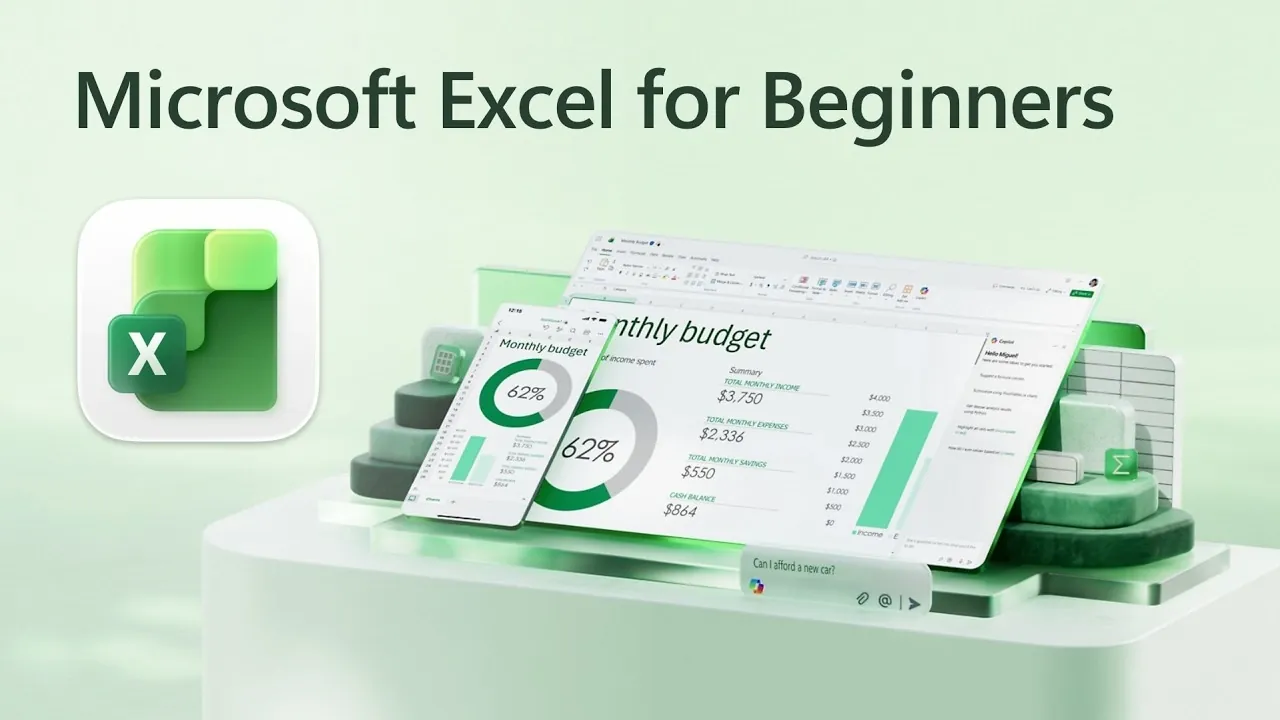
If you are new to Excel, Microsoft Mechanics offers a detailed overview of Microsoft Excel, focusing on its core features and user-friendly layout. The interface is designed around key elements such as the Ribbon and Quick Access Toolbar, which organize functions for easy navigation. For instance, users can quickly apply formatting options grouped by category or use built-in charting features to transform raw data into clear visual summaries. AI-powered tools like Copilot further enhance usability by assisting with tasks such as generating sample data or identifying trends.
Discover how to apply conditional formatting to highlight important information or use basic formulas like SUM and AVERAGE for everyday calculations. Learn about Excel’s collaboration features, including real-time co-authoring through OneDrive, which streamline teamwork on shared files. This overview also introduces practical approaches for tasks like budgeting and data organization, helping you develop essential skills for working with Excel.
Getting Started with Microsoft Excel
TL;DR Key Takeaways :
- Microsoft Excel is a versatile tool for organizing, analyzing and sharing data, accessible across multiple platforms like PC, Mac, mobile and web browsers.
- Excel’s intuitive interface includes features like cells, columns, rows, ranges and sheets, along with customizable tools like the Ribbon and Quick Access Toolbar to streamline workflows.
- AI-powered Copilot enhances productivity by automating repetitive tasks, generating insights and simplifying data visualization and analysis.
- Excel offers robust data analysis and visualization tools, including formulas, functions, conditional formatting and charting options to extract meaningful insights.
- Real-time collaboration features, such as co-authoring, comments and change tracking, make teamwork seamless and efficient when using cloud integration via OneDrive.
Excel is available across multiple platforms, including PC, Mac, mobile devices and web browsers, making sure accessibility wherever you are. To begin, you’ll need a Microsoft account, which integrates seamlessly with services like Outlook.com, OneDrive and Microsoft 365. Once logged in, you can create new workbooks or access existing ones stored locally or in the cloud.
Excel’s cloud integration allows you to save your work securely and access it from any device. This feature is particularly useful for those who frequently switch between devices or collaborate with others. Additionally, Microsoft 365 subscribers benefit from regular updates, making sure access to the latest features and tools.
Understanding Excel’s Interface
Excel’s interface is designed to enhance productivity and simplify your workflow. Upon opening the application, you can choose between a blank workbook or pre-designed templates tailored for specific tasks such as budgeting, invoicing, or project management. These templates provide a head start for common tasks, saving you time and effort.
The workbook structure is intuitive and consists of several key components:
- Cells: The basic units where you input data, such as numbers, text, or formulas.
- Columns and Rows: Vertical and horizontal divisions that organize your data into a grid format.
- Ranges: Groups of selected cells that allow for bulk operations, such as formatting or calculations.
- Sheets: Tabs at the bottom of the workbook that enable you to organize data across multiple pages.
At the top of the screen, the Ribbon interface organizes tools into tabs and groups, making it easy to locate features like formatting options, formulas and data visualization tools. The Quick Access Toolbar, located above the Ribbon, allows you to customize shortcuts for frequently used commands, further streamlining your workflow.

Below are more guides on Microsoft Excel from our extensive range of articles.
- The Hidden Excel Shortcuts Missing from Your Standard Cheat Sheet
- Why Excel Power Users Are Switching to “Zero-Click” Workflows
- 17 New Excel Features for 2026 to Speed up Your Work
- 14 New Microsoft Excel Features for Fall 2024 You Should Know
- Stop Struggling with Spreadsheets : Microsoft’s AI Agent Mode is Here
- Powerful Excel formulas you should know in 2024
- How to Build Interactive Excel PivotTable Dashboards in 2026 with Copilot Shortcuts
- New Microsoft Word AI Assistant Mode : Writes, Formats & Summarizes For You
- Say Goodbye to Excel Errors : Ditch INDIRECT for These Smarter Methods
- Master Advanced Excel Functions BYROW vs MAP vs SCAN vs REDUCE
Entering and Formatting Data
Entering data in Excel is straightforward and flexible. You can input numbers, text, dates, or formulas directly into cells. To enhance the readability and presentation of your spreadsheet, Excel offers a wide range of formatting options:
- Font Customization: Adjust styles, sizes and colors to emphasize key data.
- Alignment Tools: Align text, center headings, or wrap text within cells for better organization.
- Number Formats: Apply specific formats for currencies, percentages, dates, or custom values.
- Cell Adjustments: Resize columns and rows to fit your data neatly or merge cells for a cleaner layout.
These formatting tools allow you to transform raw data into polished, professional-looking spreadsheets that are easy to interpret. For instance, applying bold text to headers or using color coding can make your data visually appealing and easier to navigate.
Using AI with Copilot
Excel’s AI-powered Copilot is a fantastic option for users at all skill levels. This intelligent assistant simplifies complex tasks and enhances productivity by automating repetitive processes and providing actionable insights. Key features of Copilot include:
- Data Generation: Create sample datasets, such as monthly budgets or sales trackers, to jumpstart your projects.
- Task Automation: Perform repetitive actions like applying conditional formatting, generating charts, or organizing data with minimal effort.
- Insight Discovery: Identify patterns, anomalies and trends in your data to support informed decision-making.
For example, if you’re managing a household budget, Copilot can highlight unusual spending patterns or suggest visualizations to better understand your financial habits. By using AI, you can focus on strategic tasks while Copilot handles the details.
Exploring Formulas and Functions
Formulas and functions are the foundation of Excel’s analytical capabilities. They allow you to perform calculations, analyze data and automate processes. Beginners can start with simple formulas, such as:
- SUM: Adds up a range of numbers, ideal for calculating totals.
- AVERAGE: Computes the mean of selected values, useful for analyzing trends.
To apply a formula across multiple cells, simply drag the fill handle, saving time and effort. As you become more comfortable, explore Excel’s extensive library of functions, including:
- Financial Functions: Tools like PMT and FV assist with budgeting, loan calculations and forecasting.
- Logical Functions: Functions like IF and AND help automate decision-making processes.
- Lookup Functions: VLOOKUP and HLOOKUP simplify data retrieval from large datasets.
These tools empower you to perform advanced calculations and streamline data analysis, making Excel an invaluable resource for both personal and professional use.
Analyzing and Visualizing Data
Excel offers robust features for data analysis and visualization, allowing you to extract meaningful insights from your datasets. Conditional formatting is a powerful tool that allows you to highlight trends, outliers, or specific criteria. Common applications include:
- Color Scales: Visualize performance metrics with gradient color coding.
- Data Bars: Compare values at a glance using bar charts embedded within cells.
- Icon Sets: Categorize data visually with symbols like arrows or checkmarks.
Additionally, Excel’s charting tools enable you to create a variety of visualizations, such as bar graphs, pie charts and scatter plots. These visual aids make complex data more accessible and easier to interpret. Copilot further enhances your analysis by summarizing large datasets, detecting anomalies and suggesting actionable insights.
Collaborating and Sharing in Real Time
Excel’s collaboration features make it easy to work with others, whether you’re part of a team or sharing data with stakeholders. By saving your workbook to OneDrive, you can enable real-time co-authoring, allowing multiple users to edit the same file simultaneously. Key collaboration tools include:
- Comments: Add notes to specific cells or sections for feedback and discussion.
- Change Tracking: Monitor edits made by others and review the history of changes.
These features ensure smooth communication and efficient teamwork, reducing the risk of errors and improving overall productivity.
Unlocking Excel’s Full Potential
Microsoft Excel is more than just a spreadsheet application, it’s a comprehensive platform for data management, analysis and collaboration. Its intuitive interface, combined with advanced features like AI-powered Copilot, makes it accessible to beginners while offering depth for complex tasks. By mastering the basics of navigation, data entry, formatting and collaboration, you can harness Excel’s full potential to make informed, data-driven decisions. Whether you’re managing personal finances, analyzing business metrics, or collaborating on projects, Excel equips you with the tools to succeed.
Media Credit: Microsoft Mechanics
Disclosure: Some of our articles include affiliate links. If you buy something through one of these links, Geeky Gadgets may earn an affiliate commission. Learn about our Disclosure Policy.
