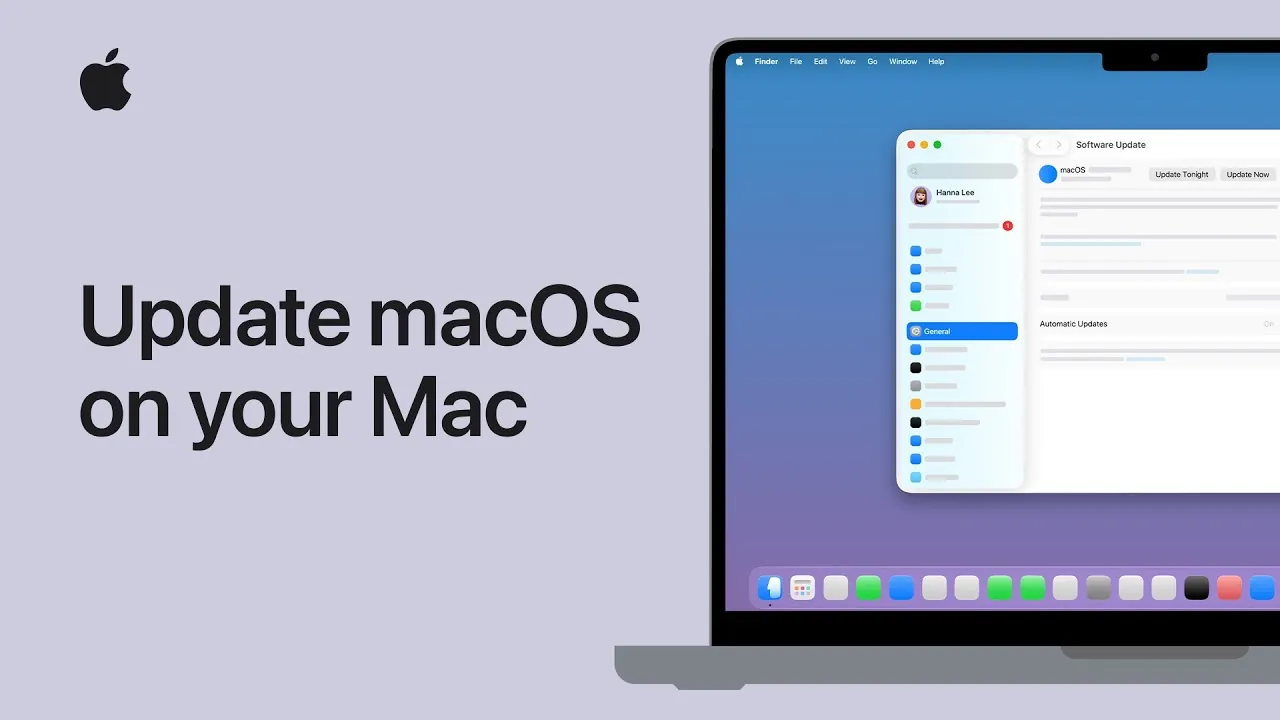
Keeping your macOS updated is a crucial step in making sure your Mac remains secure, efficient, and equipped with the latest features. While the process is designed to be user-friendly, taking the time to prepare and follow best practices can make the experience seamless and stress-free. Thie video below from Apple provides a detailed walkthrough, from preparation to post-update checks, to help you update your Mac effectively.

Preparation: Setting the Stage for a Smooth Update
Proper preparation is key to avoiding interruptions and making sure a successful update. Before you begin, take the following steps:
- Ensure a stable internet connection: macOS updates often require downloading large files, so a reliable and fast connection is essential to avoid delays or interruptions.
- Connect to a power source: If you’re using a MacBook, make sure it is plugged in to prevent the battery from running out during the update process.
- Back up your data: Use Time Machine or another backup tool to safeguard your files. This precaution ensures that your data is protected in case of unexpected issues during the update.
Taking these steps reduces the risk of complications and ensures a smooth update process.
Accessing macOS Updates
To check for available macOS updates, follow these steps:
- Click the Apple menu in the top-left corner of your screen.
- Select “System Settings.”
- Navigate to the “General” section and click “Software Update.”
Your Mac will automatically search for updates. If updates are available, they will be displayed here. For added convenience, consider allowing automatic updates. This feature allows your Mac to download and install updates during idle times, such as overnight, as long as it is connected to power and the internet. Automatic updates help minimize disruptions to your daily workflow while keeping your system up to date.
Manually Updating macOS
If you prefer to update macOS manually, follow these steps:
- When an update is available, click the “Update Now” button.
- Carefully review and accept the terms and conditions, if prompted.
- Enter your administrator password to authorize the update. This step ensures that only authorized users can make changes to the system.
Once these steps are completed, the update process will begin. It is important to remain patient and avoid interrupting the process to ensure a successful installation.
Installation and Restart
During the installation phase, your Mac will display an Apple logo and a progress bar. The duration of this process depends on the size of the update and the speed of your internet connection. Keep the following points in mind:
- Your Mac may restart multiple times during the installation process.
- The screen may dim or go blank temporarily—this is a normal part of the update.
- Avoid using your Mac until the update is fully complete to prevent errors or delays.
Patience is essential during this stage. Interrupting the installation could lead to complications, so it is best to let the process run its course.
Post-Update Checks
After the update is complete, your Mac will restart automatically. Once you log in, take a few moments to verify that everything is functioning as expected:
- Open and test your applications to ensure they are running smoothly.
- Check that your system settings and preferences remain intact.
- Confirm that your Mac is running the latest version of macOS by revisiting the “Software Update” section in System Settings.
Performing these checks ensures that your system is fully operational and that the update was successful.
Why Regular Updates Are Essential
Updating macOS is about more than just accessing new features. Regular updates provide several critical benefits that enhance your overall experience:
- Enhanced security: Updates often include important security patches that protect your Mac from vulnerabilities and potential threats.
- Improved performance: Updates optimize your system, resolving bugs and improving efficiency to keep your Mac running smoothly.
- Compatibility: Staying current ensures your Mac remains compatible with the latest applications and software, allowing you to take full advantage of new tools and features.
By keeping your macOS updated, you can maintain a secure, efficient, and reliable system. Regular updates are a simple yet effective way to ensure your Mac continues to meet your needs, whether for work, creativity, or everyday use.
Gain further expertise in macOS update process by checking out these recommendations.
- What’s New in MacOS 26 Beta 8 Tahoe
- What’s New in MacOS 15.6.1 Sequoia? Key Updates and Fixes
- How to Prepare Your iPhone for the iOS 26 Update
- macOS Tahoe 26.2 Update: Key Features Explained
- Apple macOS 26.1: Key Features, Bug Fixes, and More
Source & Image Credit: Apple Support
Disclosure: Some of our articles include affiliate links. If you buy something through one of these links, Geeky Gadgets may earn an affiliate commission. Learn about our Disclosure Policy.
