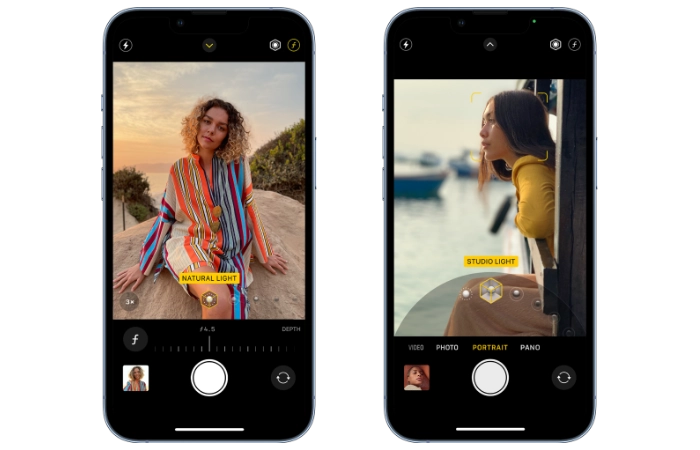
If you would like to improve your phone photography skills especially when taking portraits using an iPhone. This quick guide will take you through a few tips and tricks as well as all the features that are included in the iPhone Portrait mode. Capturing a fantastic portrait of your family member or friend is easier than you might think. Knowing just a few tips and tricks, can transform your iPhone into a high-quality portrait studio. Now it’s time to capturing professional-looking portraits right from your iPhone.
Understanding the iPhone Portrait mode
Before we dive into the tips and tricks, let’s understand what portrait mode is. It’s a feature available on iPhone 7 Plus and later models. The iPhone Portrait mode uses advanced algorithms and depth-sensing technology to create a depth-of-field effect, keeping your subject in focus while blurring the background. Immediately making your portrait photographs look more professional without you having to do anything apart from selecting the mode.
Tips to capture impressive portraits
Follow these tips to start taking your iPhone portraits to the next level.
- Use ample lighting: Good lighting is crucial for quality portraits. For best results, use natural light whenever possible. Try shooting near a window, or outside on an overcast day to avoid harsh shadows.
- Choose the right distance: Portrait Mode works best when you’re about 2-8 feet away from your subject. If you’re too close or too far, your iPhone will let you know.
- Focus on the eyes: The eyes are often the most expressive part of the face. Tap on your subject’s eyes to set focus there.
- Experiment with different perspectives: Don’t be afraid to get creative! Try shooting from different angles and perspectives to add interest and depth to your portraits.
- Edit your photos: Use the built-in editing tools on your iPhone to enhance your portraits. Adjust brightness, contrast, and saturation, or use filters to achieve the look you want.

How to take portraits on your iPhone
Ready to start taking stunning portraits? Simply follow the steps below:
- Open the camera app: The Camera app is typically found on your home screen. Just tap on the icon to open it.
- Swipe to portrait mode: Once you have the Camera app open, swipe left or right until you reach Portrait mode.
- Choose a lighting effect: On newer iPhones, you’ll find different lighting options in Portrait mode. Experiment with Natural, Studio, Contour, Stage, and Stage Mono to see which one you prefer.
- Position your subject: Once you’ve chosen your lighting effect, position your subject within the camera’s view. Remember to keep them within the ideal 2-8 foot distance.
- Focus on your subject: Tap on your subject’s face (ideally the eyes) to set focus. You’ll see the word “Portrait” highlighted yellow when the camera is ready.
- Take the photo: When you’re happy with your setup, press the shutter button to take the photo.
- Review and edit your photo: Tap the thumbnail in the bottom-left corner to review your photo. If you’re not happy with it, simply hit ‘Retake’. If you are, hit ‘Done’ and proceed to edit it using your preferred tools and filters.

Learning how to take portraits on your iPhone can truly elevate your photography game. Although it might seem a bit complex at first, with practice and the right techniques, you’ll be capturing breathtaking portraits in no time. Remember, the key to great photography is not just understanding your equipment (in this case, your iPhone), but also practicing regularly and experimenting with different techniques. So, go ahead and start capturing beautiful moments with your iPhone.
If you would like to learn more about the iPhone camera and its functions jump over to the official Apple support website for more details. Or perhaps book an appointment with an Apple Genius bar representative for face-to-face help with any issues or photography related problems you may be experiencing.
Disclosure: Some of our articles include affiliate links. If you buy something through one of these links, Geeky Gadgets may earn an affiliate commission. Learn about our Disclosure Policy.
