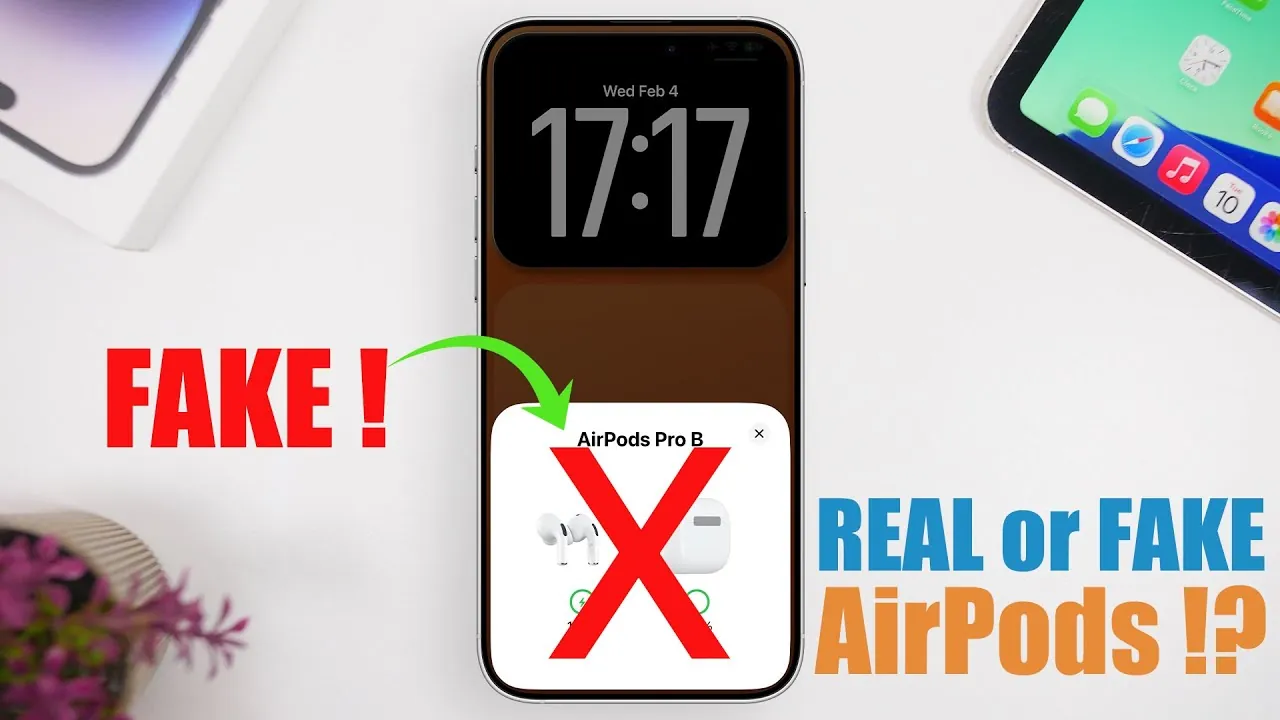
Making sure the authenticity of AirPods is crucial, particularly when purchasing from third-party sellers. Counterfeit AirPods often lack the quality, features, and performance of genuine ones, which can lead to a subpar user experience. Fortunately, Apple provides several built-in tools and methods to help you confirm whether your AirPods are authentic. This guide outlines the steps you can take to verify their authenticity and avoid counterfeit products. The video below from iReviews shows us how to spot fake AirPods easily.

Start with the Popup Notification
One of the quickest ways to check if your AirPods are genuine is by using the popup notification feature on your iPhone. This feature is exclusive to authentic AirPods and provides an immediate indication of their legitimacy. Follow these steps:
- Open the AirPods case and place it near your iPhone.
- Wait for a popup notification to appear on your iPhone screen, displaying the AirPods’ name and battery status.
If the popup notification does not appear, it could indicate that the AirPods are counterfeit or not properly connected. However, this method is not entirely foolproof, as connectivity issues can sometimes prevent the popup from appearing. For a more reliable verification, proceed with additional checks.
Check Bluetooth Settings for Detailed Information
Your iPhone’s Bluetooth settings can provide detailed information about your AirPods, helping you confirm their authenticity. To access this information, follow these steps:
- Open the “Settings” app on your iPhone and select “Bluetooth.”
- Locate your AirPods in the list of connected devices and tap the “i” icon next to their name.
- Review the displayed details, including the model name, serial number, and firmware version.
Authentic AirPods will display complete and accurate information in this section. If any details are missing, incomplete, or appear suspicious, it may indicate that the AirPods are not genuine. This method is a reliable way to cross-check the device’s information against Apple’s standards.
Use General Settings for Additional Verification
For a more thorough examination, you can verify your AirPods through the General settings on your iPhone. This method provides an additional layer of confirmation. Here’s how to do it:
- Go to “Settings” > “General” > “About.”
- Scroll down to the “AirPods” section under connected devices.
- Check for key details such as the serial number and firmware version.
If the “AirPods” section does not appear, it could mean that the device is either not genuine or not properly connected to your iPhone. This method offers a deeper level of verification compared to the Bluetooth settings and is particularly useful for identifying counterfeit products.
Validate the Serial Number
The serial number is one of the most reliable identifiers for confirming the authenticity of AirPods. Once you locate the serial number in the Bluetooth or General settings, you can validate it using Apple’s official resources. Follow these steps:
- Visit Apple’s official website and navigate to the serial number verification tool.
- Enter the serial number and review the results provided by Apple.
If the serial number is invalid or unrecognized, it is a strong indication that the AirPods are counterfeit. This method is highly reliable and should be part of your verification process, especially when purchasing from non-authorized sellers.
Ensure Proper Connection Before Testing
For all the above methods to work effectively, your AirPods must be properly connected to your iPhone. If you encounter connectivity issues, it may prevent your iPhone from displaying the necessary details to verify authenticity. To resolve such issues, try the following troubleshooting steps:
- Reset your AirPods by holding the setup button on the case until the status light flashes.
- Ensure that the AirPods are fully charged before attempting to connect them.
- Reconnect the AirPods to your iPhone by following the standard pairing instructions.
Proper connection is essential for accessing the information needed to confirm whether your AirPods are genuine. If issues persist, it may be worth consulting Apple Support for further assistance.
Key Takeaways for Avoiding Counterfeit AirPods
By following these steps, you can confidently determine whether your AirPods are authentic. Using features like popup notifications, Bluetooth settings, General settings, and serial number validation ensures a comprehensive verification process. To minimize the risk of purchasing counterfeit products, consider these additional tips:
- Purchase AirPods directly from Apple or authorized retailers.
- Avoid deals that seem too good to be true, as they often involve counterfeit items.
- Inspect the packaging and product for any signs of poor quality or inconsistencies.
Taking these precautions will help you enjoy the full quality, features, and performance of genuine AirPods, making sure a seamless and reliable user experience.
Browse through more resources below from our in-depth content covering more areas on AirPods Authenticity Check.
- How to Spot fake Apple AirPods and iPhones (Video)
- How to Identify AI Images in 2026 with 6 Tools & Checks
- Spotting a Fake Samsung Galaxy S25 Ultra: Key Identification Tips
- Fake iPhones Exposed: Key Signs You Need to Know Before Buying
- New Picade Raspberry Pi Desktop Arcade Cabinet 2018 Kit Now
Source & Image Credit: iReviews
Disclosure: Some of our articles include affiliate links. If you buy something through one of these links, Geeky Gadgets may earn an affiliate commission. Learn about our Disclosure Policy.
