The loss of essential photos or app data can happen on any Android device. It also feels even more stressful, especially if there is no immediate backup. Yet, acting correctly in the first few minutes helps keep your data safer and easier to restore. Android phones have native storage and folders that sometimes save deleted items.
However, when these fail, recovery software becomes necessary. This is where Dr.Fone Android recovery software can help. It guides users stepwise to reduce errors and improve the chances of restoring data. So, this article explains what to do when you delete any data and when to use recovery tools.
Part 1: What to Do Immediately After Deleting Android Data
The first few minutes after deleting data decide whether you can recover it. When a file is deleted, it is not erased but marked for overwriting. Therefore, you must stop downloading or saving anything new on your device right away. So, keeping the phone idle reduces the chance of replacing deleted data fragments. Moreover, avoid system updates and large app installations until recovery is attempted.
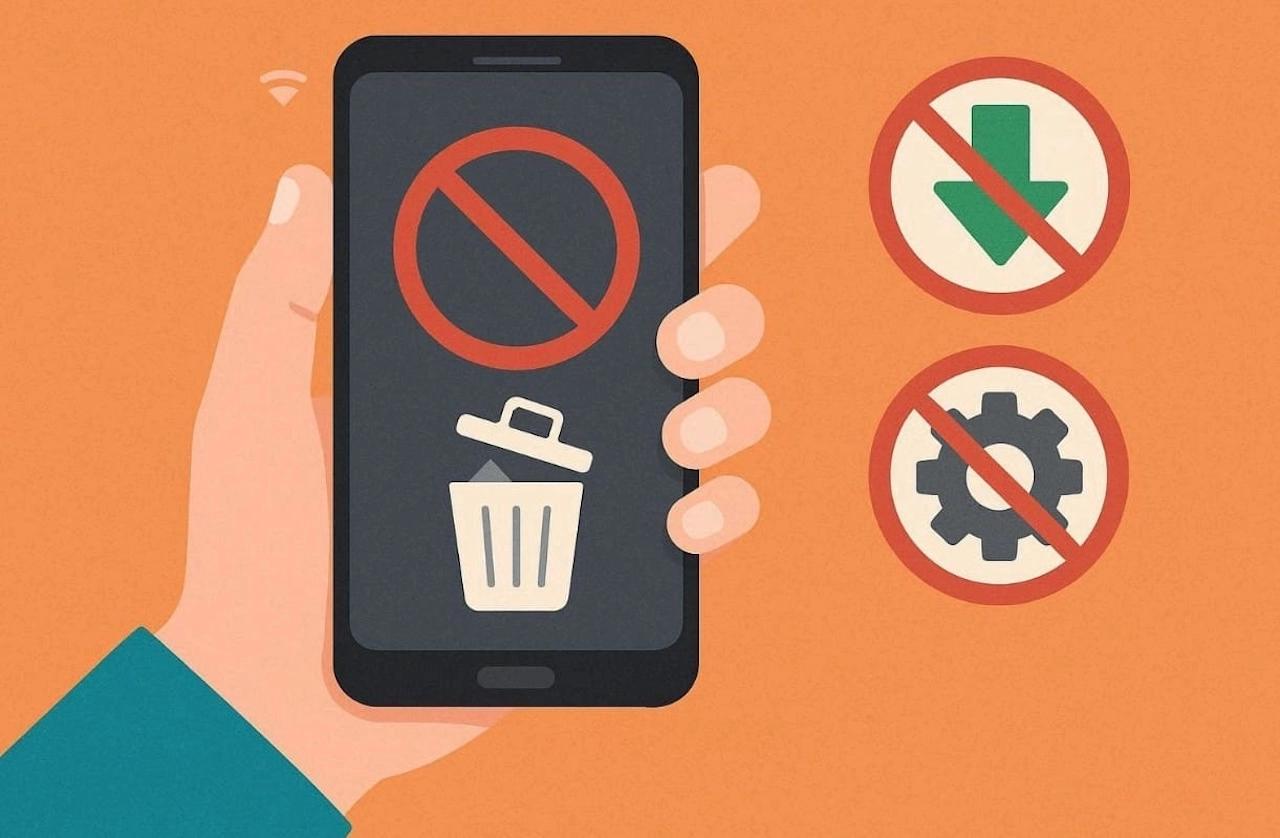
Furthermore, check whether the deleted items appear in the trash or recently deleted folder first. If the files are not there, pause all phone activity to avoid mistaken overwrites. You can also use Android data recovery software, which later becomes more effective. Upon following these steps, you preserve recoverable data and improve chances of restoring data.
Part 2: How to Check Native Recovery Options Before Using Any Tool
Before using any recovery software, check if your Android already stores deleted files. Many apps and cloud services keep backups or trash folders for easy restoration. So, the following sections explain where you can find these saved items and how to restore them:
1. Preview Trash Folder
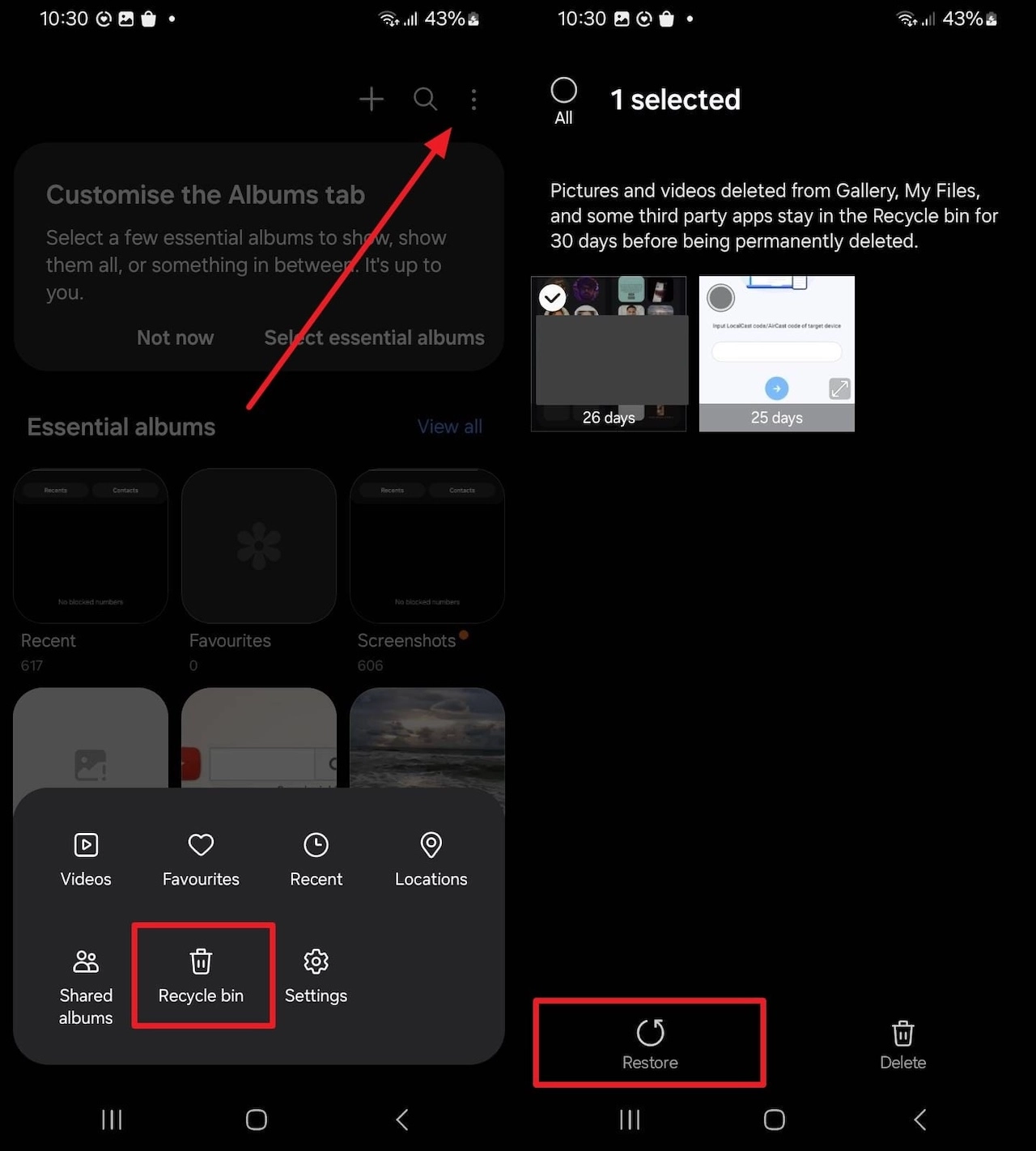
The trash folder lets users restore mistakenly deleted photos and videos. Most Android phones keep removed items here for around 30 days before permanent deletion. Checking it first can save effort and avoid using advanced tools. If files are missing, Android data recovery software can further help recover items. Thus, go through the given guide to find out how you can preview and restore multimedia:
Instructions. Upon heading to the “Gallery” app, tap “Three Dots” and opt for “Recycle Bin.” Subsequently, find the deleted image you want and press “Restore” to recover it.
2. Sync Cloud Data
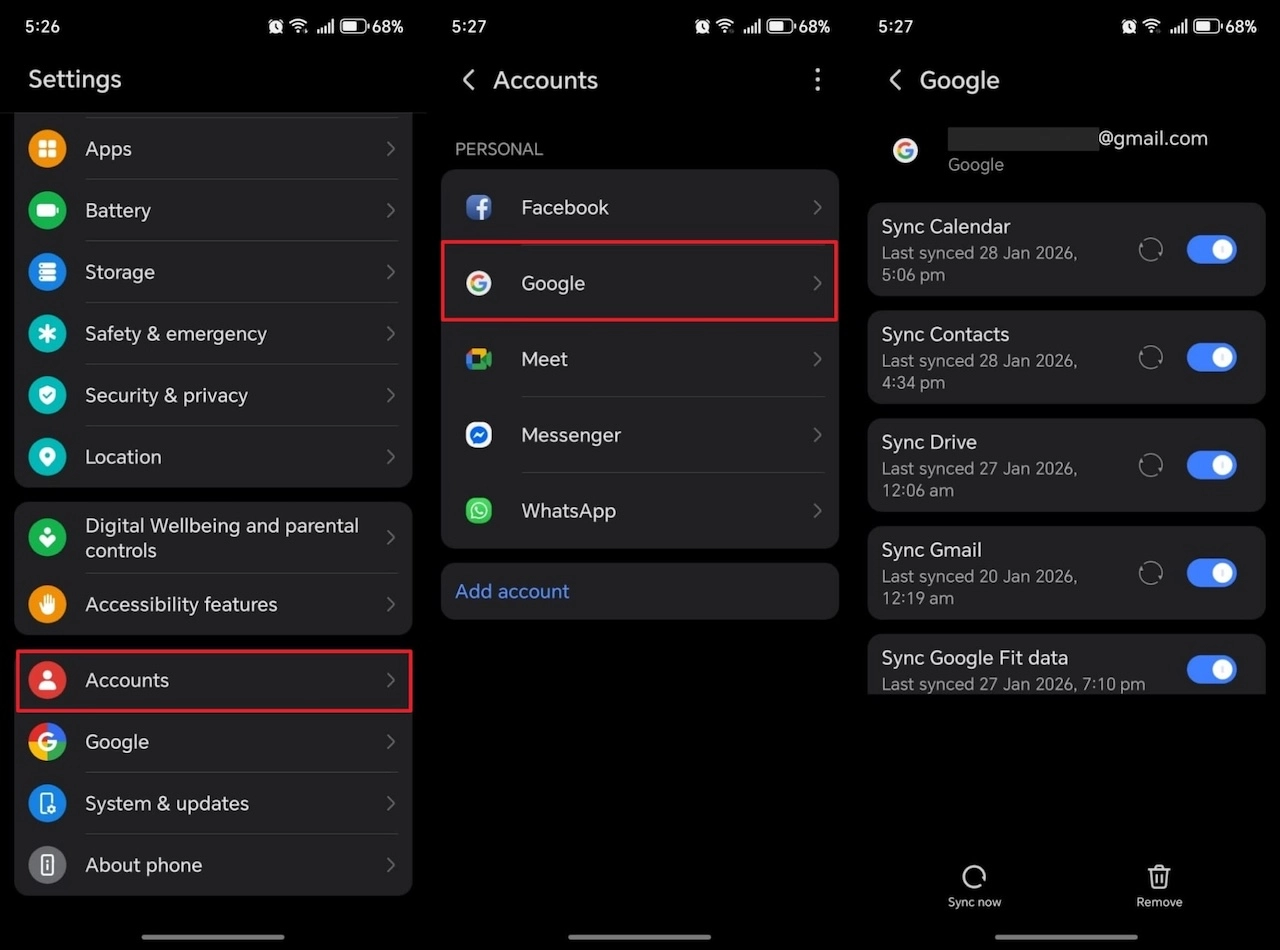
Cloud sync saves contacts and files across connected Android devices and accounts. Services like Google Drive or Photos allow restoring deleted content from the cloud. This feature reduces data loss by keeping regular online backups ready for recovery. When synced data is unavailable, Dr.Fone Android recovery software can assist in restoring files. Thus, take guidance from below to restore your deleted data from cloud storage:
Instructions. As you access your device’s “Settings,” navigate to “Accounts” and tap “Google.” Next, enable the particular data type toggle you wish to restore and sync.
3. Preview Backup and Restore it
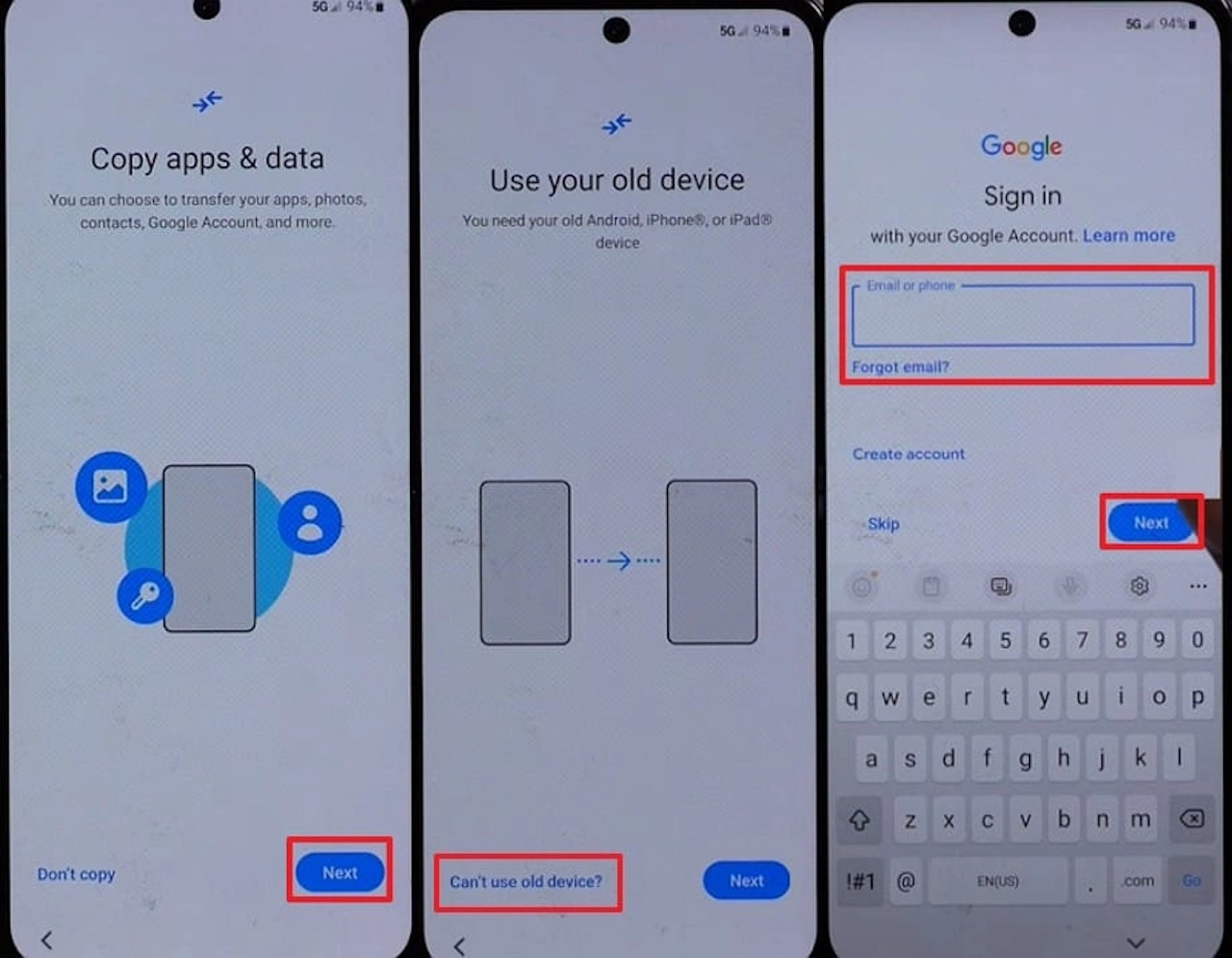
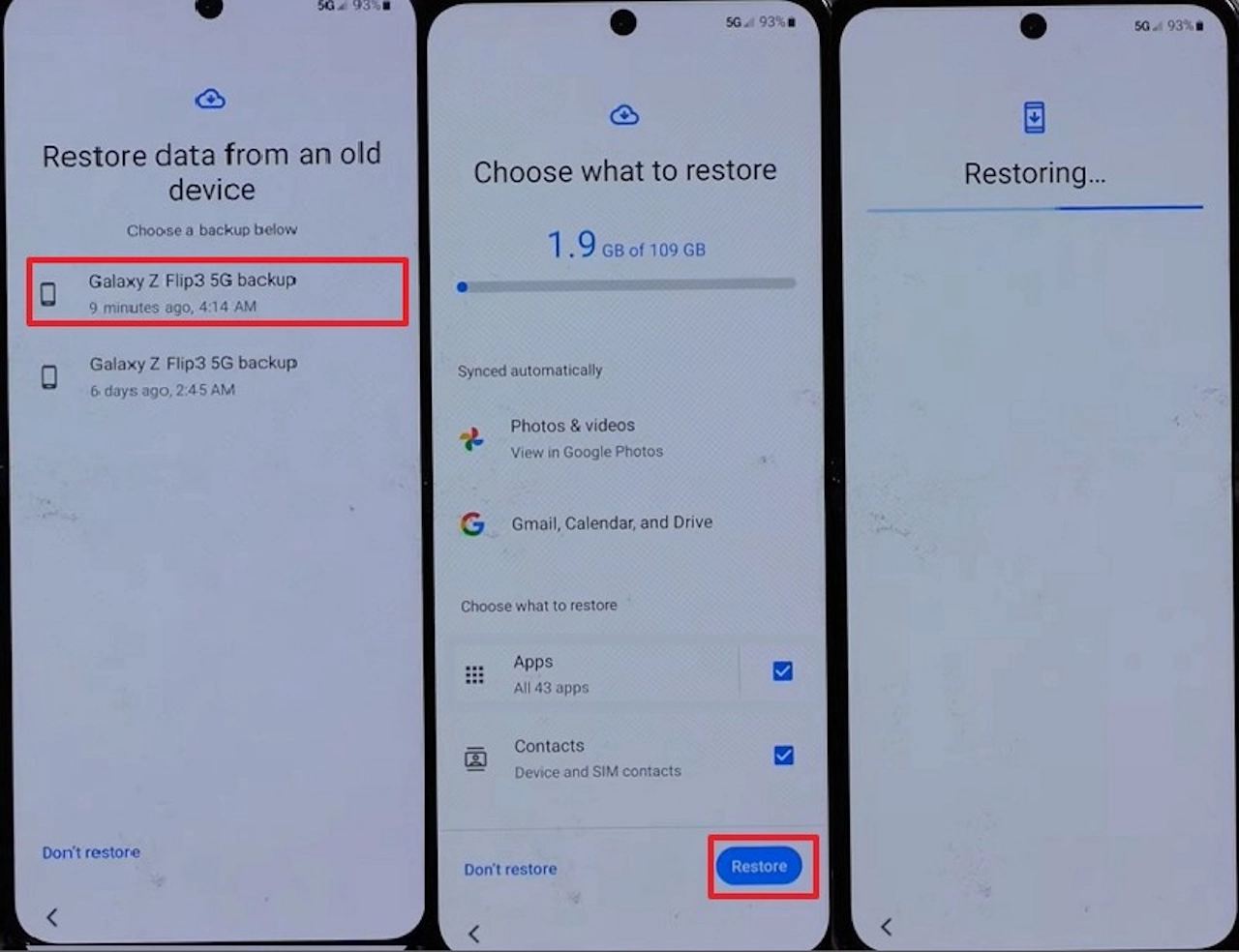
Backups also help restore deleted photos and app data from your Google account. During device setup, users can select the latest backup and choose what to recover. People exploring recovery tips, such as how to save view once on WhatsApp, can benefit from regular backups. Keeping updated backups ensures smoother restoration even after data loss. Anyhow, you can follow the steps below to restore deleted data while setting up your phone:
Step 1. During phone setup, tap “Next” upon seeing the “Copy Apps & Data” display. Next, input your Google account details after opting for “Can’t Use Old Device.”
Step 2. When backups appear, pick the most recent one to choose the Google Backup file to restore and tap “Restore.”
Part 3: Recovering App Data: What’s Possible and What’s Not
App data recovery is dependent upon how each app saves and treats privacy settings. Some apps store data locally, while others store it on cloud servers. These limits help determine whether Android data recovery software can access deleted content. The table below explains which types of app data are recoverable:
| Storage Type / Source | Recovery Possibility | Typical Recoverable Data | Recovery Limitations |
| Internal App Storage (/data/data/) | Very low | Settings, small databases (only if the app is still installed) | Android restrictions and encryption prevent access without root. |
| External Storage (/sdcard/Android/…) | Moderate | Photos, videos, downloads stored by apps | High risk of overwrite; newer devices use encryption. |
| Cloud or Account Sync (e.g., Google Drive, Telegram) | High | Synced messages, media, and user data | Recovery depends on login and backup availability; server deletion removes files. |
| Local App Backups (e.g., WhatsApp local backup folder) | High | Chats, images, and exported data | Only recoverable if a manual or automatic backup was created before deletion. |
| After Factory Reset | Difficult but sometimes recoverable | Depends on the tool | Reset removes active access, yet advanced recovery tools may retrieve traces if storage remains lightly used afterward. |
| End-to-End Encrypted Apps | Impossible | None if no backup exists | Encryption ties data to private keys; deleted or reset data cannot be decrypted. |
Part 4: When to Use Android Data Recovery Software
You should consider using recovery tools when native methods fail to restore. Android’s encryption and privacy settings can make manual recovery almost impossible. In such cases, Android data recovery software helps access hidden or unlisted files. So, below are a few key points to decide when to use a dedicated recovery tool:
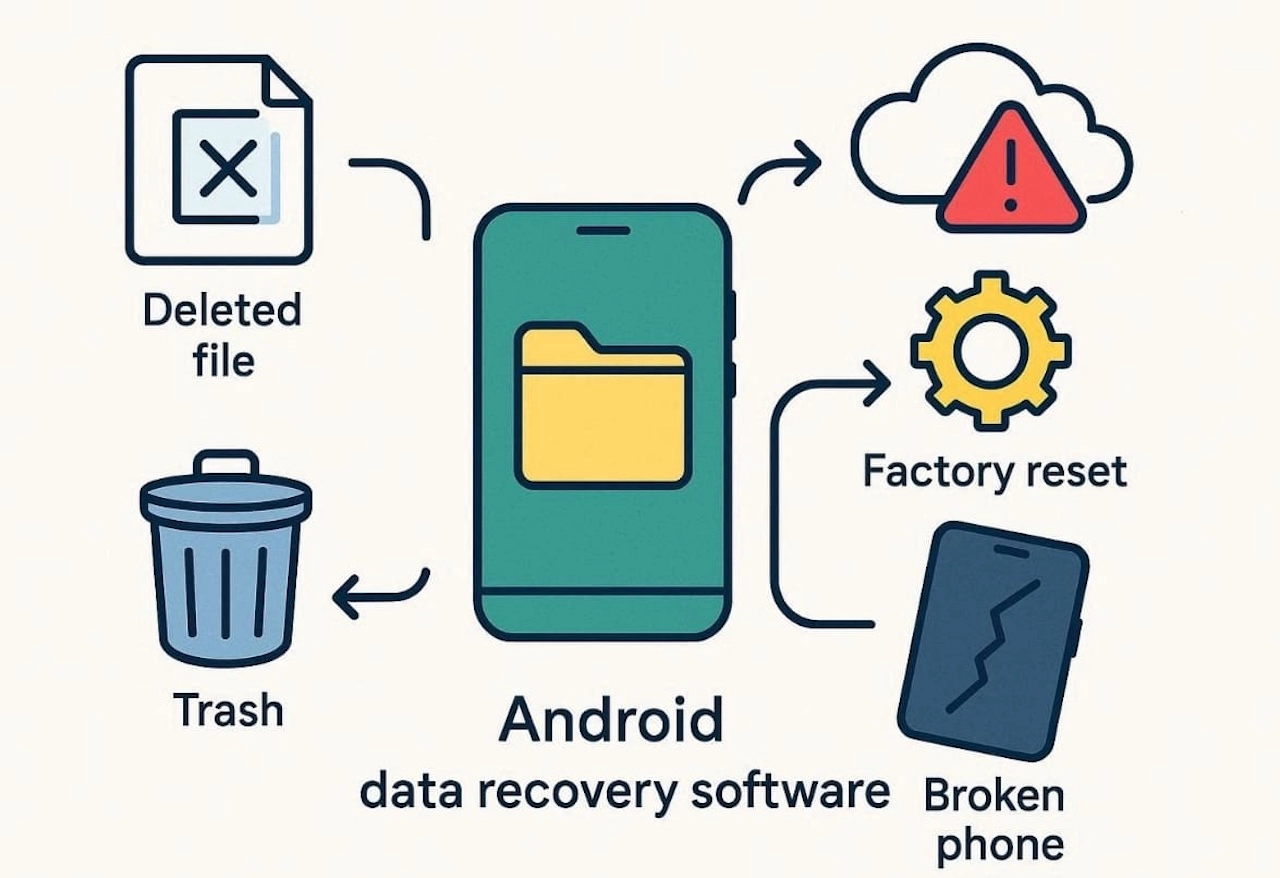
- Mistaken Deletion: Files deleted by mistake cannot be restored by standard Android options. Recovery software scans the device to recover lost content without hassle.
- Trash Empty: If the trash folder or recently deleted items are missing, recovery software helps. It can detect deleted files not visible in standard storage locations.
- Sync Failed: Sometimes cloud backups fail, or files are not uploaded. Recovery software scans local storage to restore unsynced data.
- Factory Reset: A reset wipes temporary data, making manual recovery impossible. Specialized tools search deeper system levels, restoring recoverable data.
- Device Corruption: System errors or corrupted storage can make files invisible. Yet, software retrieves lost data without risking further device damage.
Part 5: How to Recover Deleted Files on Android Using Dr.Fone
When Android’s native recovery options fail, a reliable tool becomes necessary. Dr.Fone – Data Recovery (Android) provides a fast, proven solution for restoring lost files. It supports over 6000 Android models and works without root or USB debugging. Moreover, this Android data recovery software scans your device and checks for recoverable files in real time.
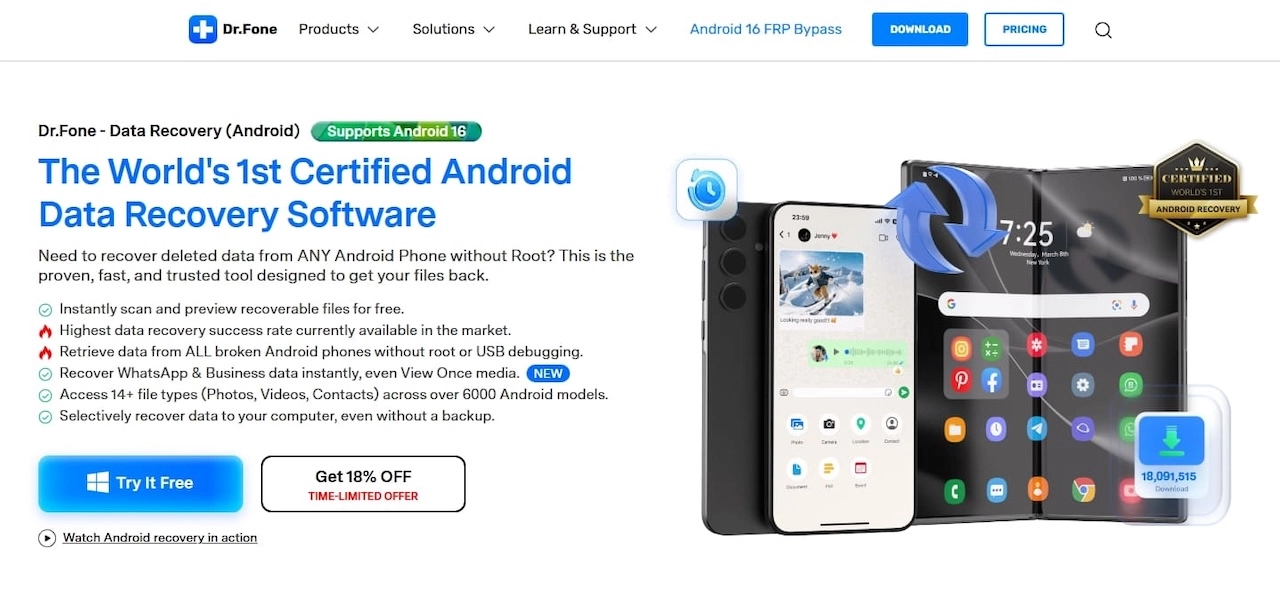
It also ensures the highest success rate by retrieving data without overwriting existing content. Another advantage is selective recovery, which saves chosen data to a computer. Apart from that, you can even restore deleted WhatsApp chats and data. Moreover, Dr.Fone saves disappearing media, which is beneficial for learning how to save a view once on WhatsApp.
Key Features
- Android Data Types: Recover 14+ types of deleted data, including photos and contacts.
- Broken Android Phone: Retrieve data from Android even when screens are cracked or unresponsive.
- Cloud Extraction: Extract files from Google Drive or other cloud backups without resetting.
Guide to Recover Deleted Files on Android Using Dr.Fone
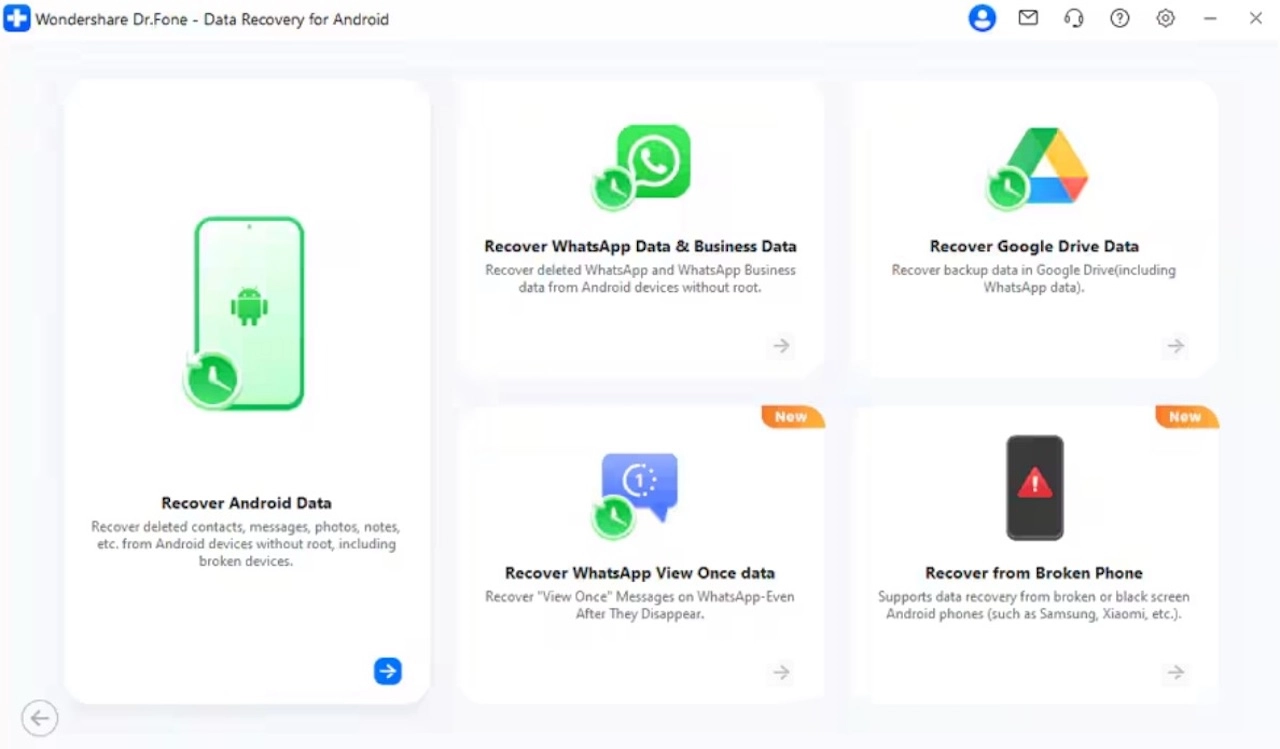
Step 1. Launch Android Data Recovery in Dr.Fone
Go to “Toolbox” when you run Dr.Fone to select “Data Recovery.” Connect your device to the PC to choose “Android” and click “Recover Android Data.”
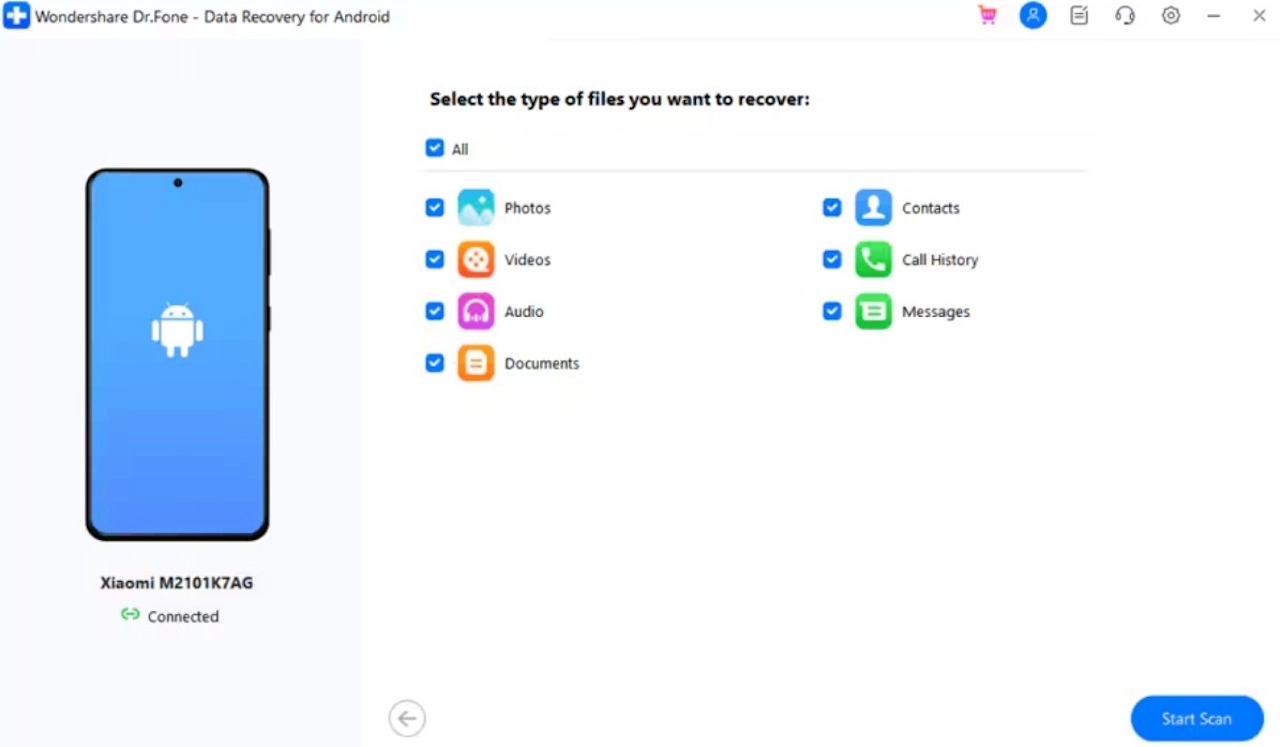
Step 2. Select Deleted Android Data Types
Afterward, tick the data types you want to recover and press “Start Scan” to search for them.
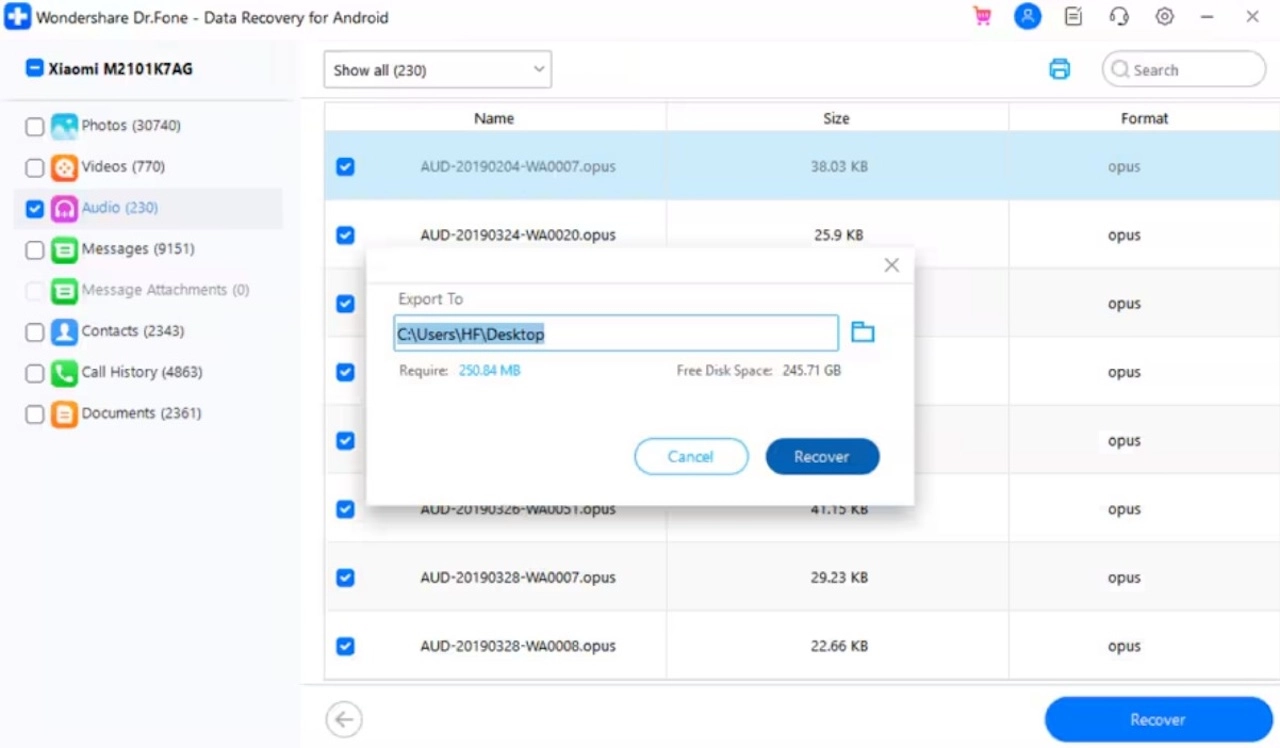
Step 3. Recover Your Android Files
Preview the found files to select the ones to restore, choose a save location, and press “Recover.”
Conclusion
To conclude, an ordered recovery plan increases your chances of getting deleted data back. Besides, it is advisable to act quickly and check native options. You should also avoid overwriting data with new downloads to preserve deleted items. When those steps are not enough, a guided tool becomes essential. In such cases, using Dr.Fone Android recovery software offers a safe way to restore important files.
Disclosure: Some of our articles include affiliate links. If you buy something through one of these links, Geeky Gadgets may earn an affiliate commission. Learn about our Disclosure Policy.
