The iOS 26 update brings a significant leap forward in lock screen personalization, offering a suite of tools designed to enhance both the aesthetic appeal and functionality of your iPhone. With features like 3D effects, adjustable fonts, color options, and widget integration, you now have the ability to tailor your lock screen to reflect your unique style and practical needs. Below is a comprehensive guide to help you explore and maximize these customization options. The video below from Daniel About Tech gives us more details on how to customise your iPhone Lock Screen in iOS 26.
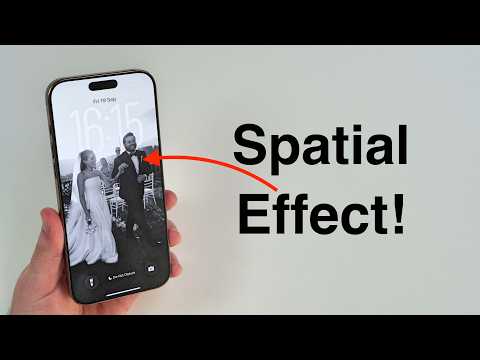
3D Effect: Adding Depth and Dimension
One of the standout features of iOS 26 is the 3D effect, which introduces a sense of depth and dimension to your lock screen. This feature works by separating the subject of your chosen photo from its background, creating a layered, immersive look. It’s a simple yet effective way to make your device feel more dynamic and visually engaging.
To apply the 3D effect:
- Choose a photo from your library that features a clear subject.
- iOS 26 will automatically detect the subject and apply the 3D effect, creating a layered appearance.
It’s important to note that this feature is only available on iPhone 12 models and newer, excluding the iPhone 11 and SE2. This limitation ensures optimal performance and visual quality for supported devices.
Wallpaper Customization: Make It Your Own
iOS 26 allows you to personalize your lock screen wallpaper with ease, offering flexibility to adjust the image’s position and zoom level. Whether you prefer a minimalist design or a vibrant, bold aesthetic, this feature ensures your lock screen reflects your personality and preferences.
Steps to customize your wallpaper:
- Open your photo library and select an image that resonates with your style.
- Use intuitive gestures to zoom in, zoom out, or reposition the image until it fits your desired look.
This seamless process encourages experimentation, making it easy to refresh your lock screen whenever you feel inspired.
Font and Color Adjustments: Redefine the Clock Display
Customizing the clock display on your lock screen is another powerful feature of iOS 26. You can now adjust the font style, size, and color to align with your aesthetic preferences. Whether you favor a sleek, modern look or a more classic design, there’s a font option to suit your taste. Additionally, the translucent “liquid glass” effect adds a contemporary touch, blending harmoniously with your chosen wallpaper.
How to adjust fonts and colors:
- Tap on the clock display while in lock screen customization mode.
- Browse through a variety of font styles and sizes to find the perfect match.
- Select a color that complements your wallpaper or aligns with your personal style.
These adjustments not only enhance the visual appeal of your lock screen but also ensure that the clock remains easy to read at a glance.
Widget Integration: Boost Your Lock Screen’s Functionality
Widgets in iOS 26 bring a new level of practicality to your lock screen. By integrating widgets, you can access essential information such as calendar events, weather updates, alarms, and battery status directly from your lock screen. This feature is designed to save time and improve convenience, allowing you to stay informed without unlocking your device.
To add widgets:
- Enter lock screen customization mode by tapping and holding the lock screen.
- Select the widget area and choose from a variety of options, including weather, calendar, and battery status.
The layout automatically adjusts to accommodate the size of your clock display, making sure a clean and organized appearance. This feature is particularly useful for users who want quick access to important updates throughout the day.
Home Screen Customization: Sharpen Your Display
In addition to lock screen enhancements, iOS 26 introduces new options for home screen customization. You can now choose to unblur your home screen wallpaper, making sure it remains crisp and visually cohesive with your lock screen. Furthermore, you have the flexibility to customize the lock and home screens independently or save them as a matching pair.
Steps to customize your home screen:
- Decide whether to blur or unblur your home screen wallpaper for a sharper display.
- Customize the lock and home screens separately or save them as a cohesive pair for a unified look.
This added flexibility allows you to create a polished and personalized design that aligns with your preferences.
Language and Number Formats: Personalize Regional Preferences
iOS 26 also introduces options for language and numeral formats, catering to diverse regional preferences. You can now choose between Arabic, Western, or Eastern numeral styles, making sure your lock screen customization is both inclusive and adaptable.
To change language and number formats:
- Navigate to the lock screen settings menu.
- Select your preferred language and numeral style from the available options.
This feature is particularly valuable for users who want to experiment with different regional aesthetics or align their device settings with their cultural preferences.
Finalizing Your Customizations
Once you’ve explored and applied your desired customizations, iOS 26 makes it easy to save your settings. You can choose to save your changes as a cohesive wallpaper pair or customize the lock and home screens separately for a more unique look.
Steps to finalize your customizations:
- Save your adjustments as a wallpaper pair for a seamless design.
- Alternatively, customize the lock and home screens independently to create a distinct appearance for each.
This flexibility ensures that you can revisit and refine your design whenever you like, keeping your iPhone’s appearance fresh and aligned with your evolving preferences.
Unlocking the Potential of iOS 26
The lock screen customization features in iOS 26 represent a thoughtful blend of aesthetic flexibility and functional enhancements. From the immersive 3D effect to adjustable fonts, colors, and widgets, these tools empower you to create a lock screen that is both visually stunning and highly practical. By exploring these options, you can transform your iPhone into a personalized interface that reflects your individuality while meeting your everyday needs.
Browse through more resources below from our in-depth content covering more areas on iOS 26 Lock Screen Customization.
- iOS 26 A Complete Guide to Apple’s Latest iPhone Update
- How iOS 26 Enhances Your iPhone with AI and Customization
- iOS 26 Customization: How to Personalize Your iPhone
- Best iOS 26 Home Screen Setup Ideas
- iOS 26 Lock Screen and Home Screen Features Explained
Source & Image Credit: Daniel About Tech
Disclosure: Some of our articles include affiliate links. If you buy something through one of these links, Geeky Gadgets may earn an affiliate commission. Learn about our Disclosure Policy.
