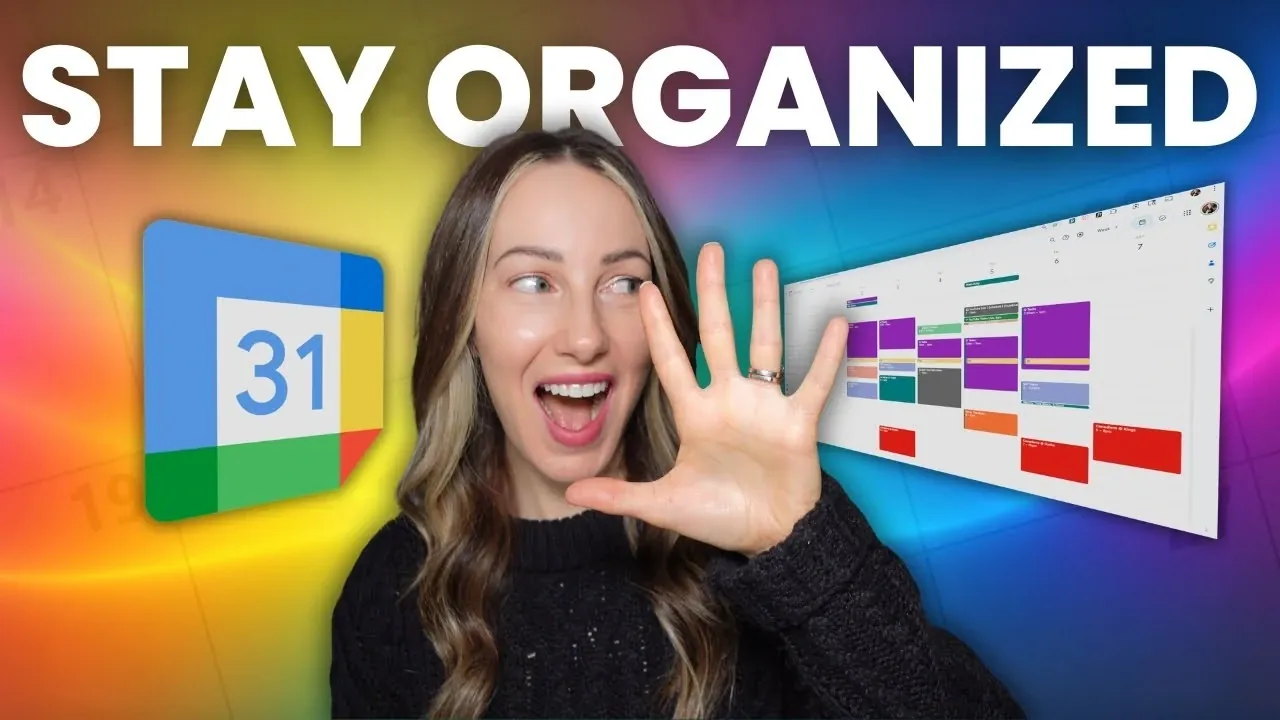
Have you ever looked at your calendar and felt completely overwhelmed by the chaos of overlapping events, forgotten deadlines, and missed opportunities? Tasia Custode explains how mastering Google Calendar in 2026 can completely transform the way you manage your time, helping you move from disorganized chaos to a streamlined, stress-free schedule. With its advanced features and intuitive design, Google Calendar isn’t just a scheduling app, it’s a powerful ally in reclaiming control over your day-to-day life. Whether you’re juggling work meetings, personal commitments, or long-term goals, this guide will show you how to make your calendar work for you, not the other way around.
In this overview, you’ll uncover strategies to customize your calendar views, manage multiple schedules, and even use color coding to bring clarity to your daily plans. You’ll also learn how to automate repetitive tasks and optimize notifications so you never miss what matters most. From simplifying global coordination with time zone management to creating a system that’s as visually appealing as it is functional, these tips will help you unlock the full potential of Google Calendar. Imagine a life where your schedule feels effortless and empowering, this guide will show you how to make that vision a reality.
Google Calendar Productivity 2026
TL;DR Key Takeaways :
- Customize calendar views (daily, weekly, monthly) and use keyboard shortcuts to streamline navigation and maintain focus on your schedule.
- Manage multiple calendars for different priorities (work, personal, hobbies) and enhance clarity with toggled visibility and unique colors.
- Use color coding to visually organize tasks and events, making it easier to identify categories and priorities at a glance.
- Automate repetitive tasks with recurring events to save time and reduce the risk of missing important commitments.
- Optimize notifications and manage time zones to stay on track, making sure seamless coordination and timely reminders for global collaboration.
1. Customizing Calendar Views for Enhanced Perspective
Customizing your calendar view is a foundational step in mastering Google Calendar. The platform offers multiple viewing options, daily, weekly, monthly, and even yearly, allowing you to select the perspective that aligns with your goals. For example:
- The weekly view is ideal for managing multiple deadlines, meetings, or tasks within a single week.
- The monthly view is better suited for long-term planning, tracking recurring events, or preparing for upcoming projects.
To streamline navigation, use keyboard shortcuts such as pressing “D” for the day view or “M” for the month view. These shortcuts save time and ensure you always have the most relevant information at your fingertips. By tailoring your calendar view, you can maintain focus and clarity, regardless of the complexity of your schedule.
2. Managing Multiple Calendars for Clear Prioritization
Google Calendar’s ability to manage multiple calendars is a powerful feature for separating different aspects of your life. This functionality allows you to create distinct calendars for various priorities, making sure that your schedule remains organized and easy to navigate. For instance:
- Maintain a dedicated calendar for work-related tasks, meetings, and deadlines.
- Use a separate calendar for personal events, such as family gatherings, appointments, or social activities.
- Create additional calendars for hobbies, fitness routines, or extracurricular commitments.
Sharing calendars with colleagues, friends, or family members fosters collaboration and ensures everyone stays aligned on shared responsibilities. To avoid clutter, you can toggle the visibility of specific calendars or assign unique names and colors to each one. This approach not only enhances clarity but also allows you to focus on what matters most at any given time.
How to Organize Your Google Calendar Effectively in 2026

Discover other guides from our vast content that could be of interest on productivity.
- Best Productivity Apps for ADHD: Stay Focused and Organized
- The Ultimate iOS 18 Productivity Setup (iPhone 16)
- How to Turn Your iPhone Into a Productivity Machine in 2025
- How Apple Core Apps Can Boost Productivity and Simplify Life
- How to Use NotebookLM to Boost Research & Writing Productivity
- Apple’s 3 App Productivity System: A Guide to Simplify Your Day
- CORE : Stay Productive & Organized with This Simple System in
- AI Productivity Framework to Reduce Interruptions & Refocus Time
- Apple Watch for Students: Top Features to Boost Productivity
- 2026 Apple Productivity Workflow : Daily, Weekly Plans & Projects
3. Using Color Coding for Improved Visual Organization
Color coding is a simple yet highly effective way to bring order and clarity to your calendar. By assigning specific colors to different categories, tasks, or events, you can quickly identify them at a glance. For example:
- Blue can represent work-related events, such as meetings or project deadlines.
- Green can signify personal appointments, like doctor visits or family outings.
- Red can highlight urgent tasks or critical deadlines that require immediate attention.
Google Calendar also supports custom hex codes, allowing you to match colors to your personal preferences or brand identity. This level of customization ensures your calendar is not only functional but also visually appealing, making it easier to stay organized and on track.
4. Automating Repetitive Tasks with Recurring Events
Recurring events are an invaluable feature for managing repetitive tasks and commitments. Whether it’s a weekly team meeting, a monthly bill payment, or an annual birthday reminder, automating these events saves time and reduces the risk of oversight. Google Calendar offers flexible recurrence options, including daily, weekly, monthly, or custom intervals. Additionally, you can edit or delete individual occurrences without affecting the entire series, allowing you to adapt to changes in your schedule seamlessly. By automating repetitive tasks, you free up mental energy to focus on more pressing priorities.
5. Optimizing Notifications to Stay on Track
Notifications are a critical tool for making sure you never miss an important event or deadline. Google Calendar allows you to customize reminders for specific calendars or individual events, giving you control over how and when you receive alerts. You can choose between:
- Pop-up notifications for immediate, on-screen alerts.
- Email reminders for detailed updates sent directly to your inbox.
- A combination of both for comprehensive coverage and added assurance.
Adjust the timing of notifications to suit your needs. For instance, set a 10-minute reminder for meetings or a 24-hour alert for all-day events like birthdays or travel plans. By managing notifications effectively, you can stay informed and prepared without feeling overwhelmed by constant alerts.
6. Managing Time Zones for Seamless Global Coordination
In an increasingly interconnected world, managing time zones is essential for effective collaboration across regions. Google Calendar simplifies this process by allowing you to:
- Add and label additional time zones for quick reference during scheduling.
- Display both your local time zone and that of a colleague or client in another country.
This feature eliminates confusion and ensures meetings are scheduled at mutually convenient times. Whether you’re coordinating with a global team or planning international travel, allowing multiple time zones helps streamline communication and avoid scheduling conflicts. By using this functionality, you can enhance productivity and maintain strong connections with collaborators worldwide.
By implementing these strategies, you can transform Google Calendar into a powerful tool for managing your time and commitments in 2026. Customizing views, managing multiple calendars, using color coding, automating recurring events, optimizing notifications, and incorporating time zone management all contribute to a more organized and efficient scheduling system. These features not only simplify your daily routine but also empower you to stay focused and productive, no matter how complex your schedule becomes.
Media Credit: Tasia Custode
Disclosure: Some of our articles include affiliate links. If you buy something through one of these links, Geeky Gadgets may earn an affiliate commission. Learn about our Disclosure Policy.
