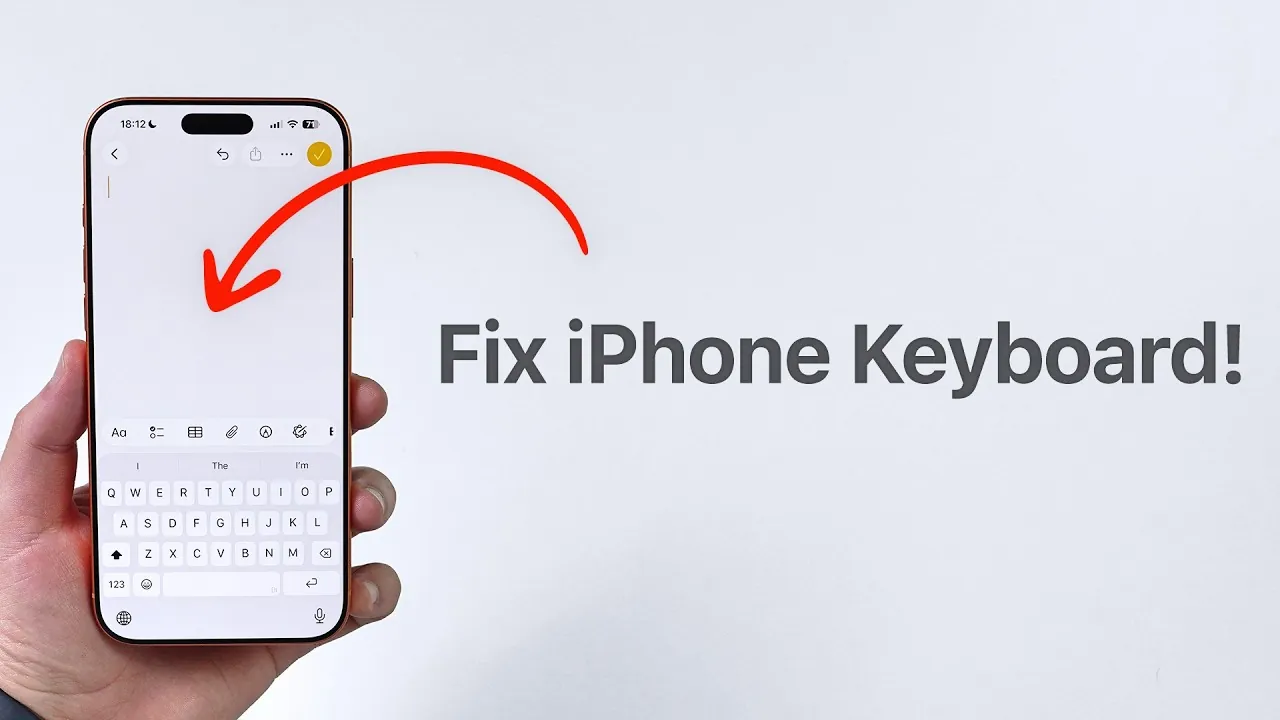
If you’ve recently updated your iPhone to iOS 26 and are encountering keyboard-related challenges, you’re not alone. Many users have reported issues such as reduced typing accuracy, unhelpful predictive text suggestions, and frustrating autocorrection errors. These problems can disrupt your typing experience, but there are effective solutions available. This guide outlines practical steps to help you identify and resolve these issues, making sure a smoother and more efficient interaction with your iPhone keyboard. The video below from Daniel About Tech gives us more information.
Improving Typing Accuracy
Typing accuracy is a common concern for users of the iOS 26 keyboard. One feature that often contributes to this issue is the “Slide to Type” functionality, which allows you to swipe across the keyboard to form words. While this feature is convenient for some, it can lead to unintended inputs if your finger movements are misinterpreted.
- Issue: Swiping gestures result in incorrect letters or words being entered.
- Fix: Disable the “Slide to Type” feature to improve precision:
- Open Settings > General > Keyboard.
- Locate the “Slide to Type” option and toggle it off.
Disabling this feature is particularly helpful if you prefer tapping individual keys over swiping gestures, as it reduces the likelihood of errors.
Optimizing Predictive Text and Autocorrection
Predictive text and autocorrection are designed to streamline typing by suggesting words and correcting errors automatically. However, these features can sometimes misinterpret your input, leading to irrelevant suggestions or unwanted changes. This can be especially frustrating when typing quickly or using specialized terms.
- Issue: Predictive text offers irrelevant suggestions, and autocorrection alters words incorrectly.
- Fix: Adjust or disable these features to regain control over your typing:
- Navigate to Settings > General > Keyboard.
- Toggle off “Predictive” and “Autocorrect” if they are causing more problems than they solve.
If the issue persists, consider resetting the keyboard dictionary. This will remove any learned words or patterns that may be contributing to the problem.
Resetting the Keyboard Dictionary
Your iPhone’s keyboard learns from your typing habits over time, which can be both a benefit and a drawback. While this feature helps the keyboard adapt to your preferences, it can also lead to persistent errors or unwanted suggestions. Resetting the keyboard dictionary is a straightforward way to address these issues.
- Steps to Reset:
- Go to Settings > General > Transfer or Reset iPhone > Reset.
- Select “Reset Keyboard Dictionary.”
Keep in mind that this action will erase all custom words and phrases you’ve added to the dictionary. Use this option as a last resort if other adjustments have not resolved the problem.
Customizing Keyboard Settings for a Better Experience
The iPhone keyboard includes a variety of customization options that allow you to tailor its functionality to your preferences. By exploring these settings, you can create a more user-friendly and efficient typing experience.
- Adjust Built-in Features: Enable or disable features such as “Auto-Capitalization,” “Smart Punctuation,” and “Character Preview” to suit your needs. These options can be found under Settings > General > Keyboard.
- Explore Third-Party Keyboards: If the default keyboard doesn’t meet your expectations, consider downloading a third-party keyboard from the App Store. Many alternatives offer advanced customization options, unique layouts, and additional features that can enhance your typing experience.
Achieving a Seamless Typing Experience
Addressing common iPhone keyboard issues can significantly improve your typing accuracy and overall experience. Whether you choose to disable “Slide to Type,” adjust predictive text and autocorrection settings, or reset the keyboard dictionary, these practical steps can help you regain control and reduce frustration. Additionally, customizing your keyboard settings or exploring third-party options can provide further enhancements tailored to your preferences. With the right adjustments, your iPhone keyboard can become a reliable and efficient tool for communication, making typing a seamless and enjoyable task.
Stay informed about the latest in iPhone 17e by exploring our other resources and articles.
- iPhone 17 Release Date, Features, and Pricing Details
- iPhone 17e Display Leaked
- iPhone 17e Release Date, Features, and Price
- iPhone 17e Release Date, Price, and Features Explained
- iPhone 17 Leaks: How Apple is Finally Fixing the Biggest Flaws of
Source & Image Credit: Daniel About Tech
Disclosure: Some of our articles include affiliate links. If you buy something through one of these links, Geeky Gadgets may earn an affiliate commission. Learn about our Disclosure Policy.
