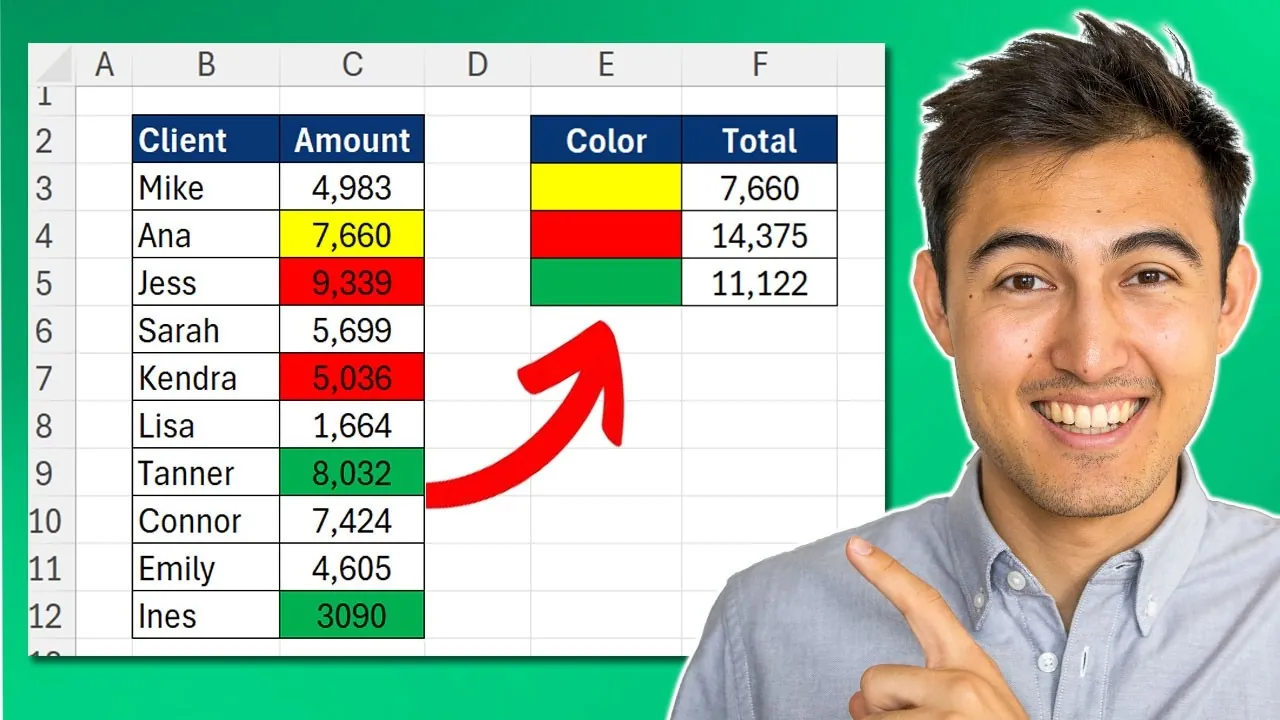
Have you ever stared at a colorful Excel spreadsheet, wondering how to quickly calculate totals or counts based on cell colors? It’s a common frustration for anyone managing large datasets. While Excel is a powerhouse for data analysis, it lacks a built-in feature to sum or count cells by color. But here’s the good news: with a few clever techniques, you can unlock this hidden capability. Whether you’re tracking project statuses, categorizing expenses, or analyzing trends, learning how to sum and count cells by color can transform your workflow. In this quick-start video guide, Kenji breaks down three practical methods to help you tackle this challenge—no more manual counting or guesswork.
By the end of this guide, you’ll discover how to use Excel’s filter and subtotal functions, create dynamic helper columns with the Name Manager, and even automate the process with custom VBA functions. Each method offers unique advantages, from simplicity to advanced automation, so you can choose the one that best fits your needs. Along the way, you’ll gain insights into how these techniques can save time and reduce errors, especially when working with complex datasets. Ready to see how these strategies can elevate your Excel skills? Let’s explore the possibilities and uncover the method that works for you. Sometimes, the smallest tweaks in your workflow can lead to the biggest improvements.
Sum and Count by Color
TL;DR Key Takeaways :
- Excel does not have a built-in feature to sum or count cells by color, but this can be achieved using three methods: Filtering with Subtotal, Name Manager with Helper Columns, or Custom VBA Functions.
- Method 1: Filtering with Subtotal is quick and easy, using Excel’s filter and `SUBTOTAL` function, but it only works for one color at a time and requires reapplying filters if colors change.
- Method 2: Name Manager and Helper Column uses the `GET.CELL` formula to extract color codes, allowing dynamic calculations with `SUMIF` or `COUNTIF`. It supports multi-color analysis but requires additional setup.
- Method 3: Custom VBA Functions allows for automated and efficient calculations for large datasets, but it requires VBA coding knowledge and saving the file as macro-enabled.
- Each method has specific advantages and limitations, making it important to choose the one that best fits your task’s complexity and your expertise level.
Method 1: Filtering with the Subtotal Function
This method uses Excel’s built-in filter feature in combination with the `SUBTOTAL` function to sum or count cells by color. It is straightforward and requires minimal setup, making it ideal for quick tasks.
- Start by applying a filter to your dataset. Highlight your data range, then navigate to Data > Filter.
- Use the filter dropdown menu to select the specific cell color you want to analyze.
- Apply the `SUBTOTAL` function to calculate the sum or count of the visible cells. Examples include:
- To sum filtered cells: `=SUBTOTAL(109, A1:A100)`
- To count filtered cells: `=SUBTOTAL(103, A1:A100)`
Advantages:
– Quick and easy to implement.
– No advanced setup or additional tools are required.
Drawbacks:
– Results are limited to one color at a time.
– If cell colors are modified, you must reapply the filter to update the results.
Method 2: Using the Name Manager and Helper Column
This method involves using the `GET.CELL` formula to extract color codes and a helper column to dynamically calculate sums or counts. While it requires more setup than the first method, it offers greater flexibility and automation.
- Open the Name Manager by going to Formulas > Name Manager. Create a named range using the `GET.CELL` formula. For example, enter `=GET.CELL(63, A1)` to retrieve the background color code of cell A1.
- Add a helper column to your dataset to display the color codes for each cell. For instance, if your data is in column A, use column B as the helper column to show the corresponding color codes.
- Use formulas such as `SUMIF` or `COUNTIF` to calculate sums or counts based on the color codes. Examples include:
- To sum values for a specific color: `=SUMIF(B1:B100, “6”, A1:A100)`
- To count cells with a specific color: `=COUNTIF(B1:B100, “6”)`
Advantages:
– Automatically updates calculations when data changes.
– Supports simultaneous analysis of multiple colors.
Drawbacks:
– Requires additional setup, including creating a helper column.
– Manual updates are needed if cell colors are changed.
Learn to SUM & COUNT Cells By Color in Excel

Advance your skills in Sum cells by color in Excel by reading more of our detailed content.
- 25 Excel Functions for financial modeling
- How to Create an Advanced Data Entry Forms in MS Excel
- How to Enhance Productivity with Microsoft Office
- What are AI agent swarms and how to they work?
Method 3: Creating Custom VBA Functions
For users comfortable with coding, creating custom VBA functions provides an automated and efficient way to sum or count cells by color. This method is particularly useful for handling large datasets or repetitive tasks.
- Enable the Developer tab in Excel, then open the VBA editor by selecting Developer > Visual Basic.
- Write custom VBA functions, such as `SumColor` or `CountColor`, to identify and process cell colors. These functions can dynamically calculate sums or counts based on the specified color.
- To ensure results update when cell colors change, create a macro to refresh calculations. For example, you can add a button linked to a macro that refreshes all formulas in your workbook.
- Save your workbook as a macro-enabled file (
.xlsm) to retain the VBA functionality.
Advantages:
– Fully automated, eliminating the need for filters or helper columns.
– Highly efficient for large or complex datasets.
Drawbacks:
– Requires basic knowledge of VBA and macros.
– Results may not update automatically unless a macro is used to refresh calculations.
Additional Considerations
If your analysis requires summing or counting cells based on font color instead of background color, you can adapt the VBA code or formulas accordingly. Each method has its own strengths and limitations, making it important to select the one that aligns with your specific needs:
- Filter and Subtotal: Best for quick, one-time tasks with minimal setup.
- Name Manager and Helper Column: Ideal for dynamic, multi-color analysis but requires more preparation.
- Custom VBA Functions: Perfect for automated, large-scale tasks but demands familiarity with coding.
By understanding the trade-offs of each approach, you can effectively sum and count cells by color in Excel, streamlining your data analysis process and enhancing productivity.
Media Credit: Kenji Explains
Disclosure: Some of our articles include affiliate links. If you buy something through one of these links, Geeky Gadgets may earn an affiliate commission. Learn about our Disclosure Policy.
