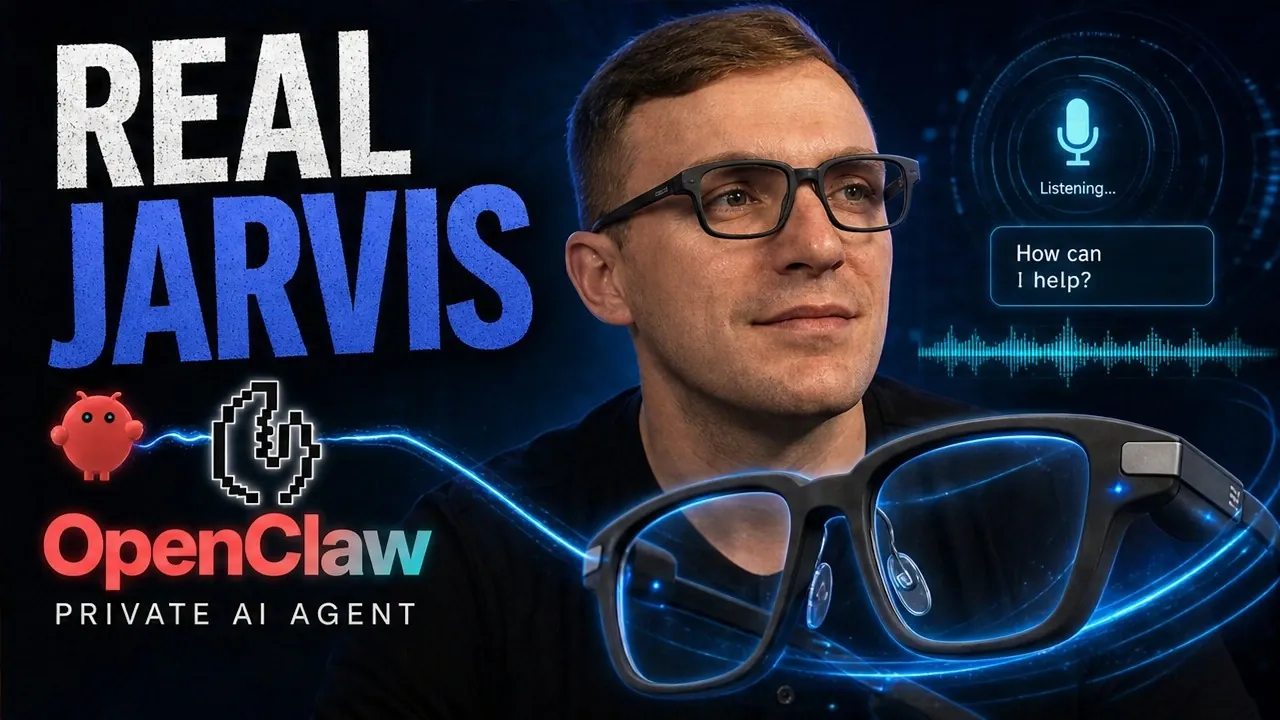
Running an AI assistant on Even Realities G2 smart glasses involves integrating specific frameworks and secure networking solutions to create a functional system. According to Tech with Spencer, this process combines OpenClaw, which manages AI sessions and communication with providers like OpenAI and OpenClaw, which adapts these capabilities for use with smart glasses. For example, OpenClaw handles tasks such as session management and device interaction, while OpenClaw ensures compatibility with the glasses’ hardware and interface.
Explore how to securely link your devices using TailScale, configure relay tokens for communication and set up voice commands with Sonics for hands-free operation. Gain insight into debugging methods to resolve common issues and learn about customization options to optimize the assistant’s performance for specific tasks. This guide provides a clear path to creating a tailored AI assistant that integrates seamlessly with your daily workflow.
Transforming Smart Glasses with AI
TL;DR Key Takeaways :
- Transform Even Realities G2 smart glasses into an AI assistant using tools like OpenClaw, OpenClaw and TailScale for enhanced productivity and seamless device integration.
- Install OpenClaw as the core system to manage AI sessions, plugins and secure communication with AI providers like OpenAI or Claude.
- Integrate OpenClaw to enable smart glasses compatibility, allowing access to AI assistant features and advanced functionalities.
- Set up a secure private network with TailScale to ensure encrypted communication and data protection across connected devices.
- Enable voice command functionality with Sonics for hands-free interaction and customize the system for optimal performance and usability.
1: Installing OpenClaw
OpenClaw is the backbone of your AI system, responsible for managing sessions, plugins and communication with your AI provider, such as OpenAI or Claude. To install and configure OpenClaw, follow these steps:
- Download OpenClaw on your computer using PowerShell or your preferred terminal.
- Generate API keys from your AI provider and link them to OpenClaw for secure authentication.
- Set up the OpenClaw gateway to manage device connections and ensure smooth operation.
After installation, verify that OpenClaw is functioning correctly by running basic tests to confirm its compatibility and responsiveness.
2: Integrating OpenClaw
OpenClaw extends OpenClaw’s functionality to your smart glasses, allowing them to interact with the AI system. Here’s how to integrate OpenClaw:
- Install the OpenClaw skill within OpenClaw to enable smart glasses compatibility.
- Configure relay tokens to establish secure communication between your devices.
- Test the connection to ensure your smart glasses are properly linked to the AI system.
This integration lays the groundwork for advanced features, allowing your smart glasses to access the AI assistant’s capabilities.

Become an expert in AI Agents with the help of our in-depth articles and helpful guides.
- How to Design and Implement AI Agents : A Complete Beginners Tutorial
- Anyone Can Easily Build a 24/7 Hermes AI Assistant from Scratch
- How the Open source Hermes AIOS Actually Learns from Your Workflows
- Stop Struggling with Spreadsheets : Microsoft’s AI Agent Mode is Here
- Hermes Agent vs OpenClaw : Hidden Differences That Matter
- ChatGPT 5.5 Instant Launches : Navigating Its Strengths and Weaknesses
- Was Your Data Exposed in the Massive New Cyberattack?
- Inside Hermes Agent V2.0: the Hidden Features You Missed
- How Deno’s New Firewall Stops AI Agents from Leaking Passwords
- Inside the Self-Improving AI System Unlocking a Free 1-Million-Token Context Window
3: Setting Up Secure Networking with TailScale
To ensure secure data transfer and maintain a stable connection, you need to create a private network using TailScale. Follow these steps:
- Install TailScale on your computer, smartphone and smart glasses.
- Configure TailScale to link all devices into a secure, private network.
- Integrate TailScale with OpenClaw and OpenClaw to enable encrypted communication.
This step ensures that your AI assistant operates securely across all connected devices, protecting your data from unauthorized access.
4: Connecting Your Devices
Once the core systems are in place, it’s time to connect your Even Realities G2 smart glasses to the AI assistant. Here’s how:
- Install the OpenClaw app on your smartphone to act as a bridge between devices.
- Configure the relay server settings to establish a stable connection between the glasses and the app.
- Test the connection to ensure seamless communication between your smart glasses and the AI system.
This setup allows your smart glasses to access the AI assistant’s features in real-time, enhancing their functionality.
5: Allowing Voice Integration with Sonics
Voice commands are a key feature of this system, allowing hands-free interaction with your AI assistant. To enable voice integration, use Sonics, a tool for speech-to-text processing:
- Install and configure Sonics on your computer to handle voice input.
- Generate and link API keys to connect Sonics with OpenClaw for seamless integration.
- Test the voice pipeline by speaking commands and verifying the responses on your smart glasses.
This integration ensures that your AI assistant can accurately process and respond to voice commands, making it more intuitive and user-friendly.
6: Debugging and Customization
To optimize your setup, take advantage of debugging tools and customization options available within the system:
- Enable debugging tools within OpenClaw to identify and resolve potential errors.
- Adjust OpenClaw settings to personalize the AI assistant’s responses and interface.
- Experiment with configurations to find the setup that best suits your needs and preferences.
This step allows you to fine-tune the system, making sure maximum efficiency and usability for your specific requirements.
7: Final Testing and Usage
With everything in place, it’s time to test your AI assistant to ensure it meets your expectations. Try the following tasks:
- Request calendar updates or weather forecasts to test its ability to retrieve real-time information.
- Draft an email or access cloud storage to evaluate its productivity features.
- Activate manual listening controls to manage when the assistant is actively listening for commands.
These tests confirm that your system is ready for everyday use, providing a seamless and efficient user experience.
What Your AI Assistant Can Do
Your AI assistant is now equipped to handle a wide range of tasks, enhancing both productivity and convenience. Key capabilities include:
- Accessing local applications and managing documents efficiently.
- Connecting to external services like email, cloud storage and scheduling tools.
- Controlling smart home devices and retrieving real-time information such as news or traffic updates.
This setup transforms your Even Realities G2 smart glasses into a powerful tool, allowing you to manage complex tasks with ease and precision.
Media Credit: Tech with Spencer
Disclosure: Some of our articles include affiliate links. If you buy something through one of these links, Geeky Gadgets may earn an affiliate commission. Learn about our Disclosure Policy.
