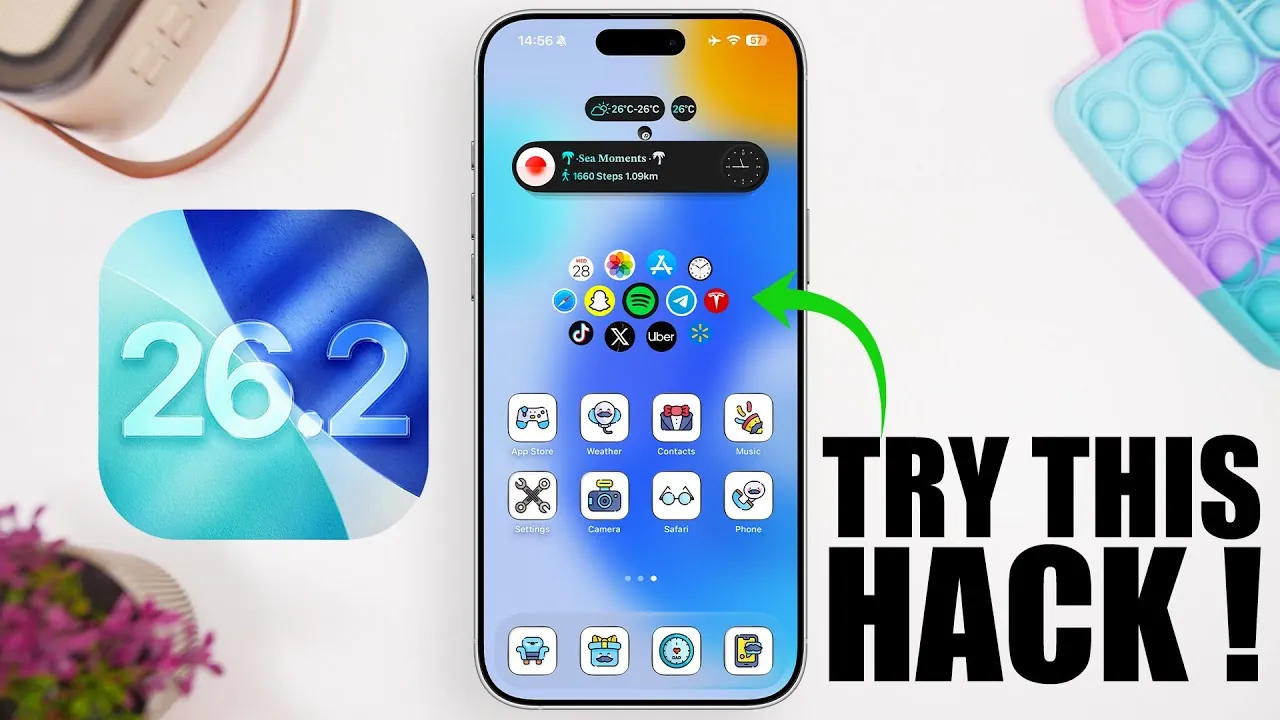
iOS 26.2 brings a host of features designed to improve efficiency, functionality, and personalization on your iPhone. Whether you’re aiming to streamline daily tasks, customize your device, or uncover hidden functionalities, these five hacks will help you maximize your iPhone’s potential. From precise reminders to innovative widget designs, these tips are crafted to enhance both usability and aesthetics, making sure a seamless experience tailored to your needs. The video below from iReviews gives us more details.
1. Fine-Tune Your Reminders and Alarms
Managing your schedule has never been more precise. With iOS 26.2, you can now manually input exact times for reminders and alarms using the keyboard, bypassing the default 5-minute increments. This feature is invaluable when you need precision, such as setting an alarm for 7:03 AM or scheduling a reminder for 2:47 PM. By offering this level of control, iOS 26.2 ensures your schedule aligns perfectly with your unique requirements. This enhanced functionality helps you stay on track without compromise, making time management more efficient and tailored to your lifestyle.
2. Simplify Screenshot Management
Taking and organizing screenshots is now a smoother process. iOS 26.2 introduces the option to disable the full-screen screenshot preview, which often interrupts your workflow. Instead, you can enable a quick swipe-to-save feature, allowing screenshots to be instantly stored in your photo library or shared directly. This is particularly useful when capturing multiple screenshots in quick succession or when you need to share information without unnecessary steps. By streamlining this process, you can save valuable time and maintain focus, making screenshot management more intuitive and less disruptive.
3. Personalize Your Home Screen with Custom Themes
Express your individuality by customizing your iPhone’s appearance. The “Maloco” app offers a wide selection of unique themes for your app icons, allowing you to create a cohesive and personalized home screen. Once you’ve selected a theme, you can easily apply it through your device’s profile settings. Reverting to the default layout is just as straightforward, giving you the flexibility to experiment with different styles. Custom themes not only enhance your device’s aesthetics but also make it feel uniquely yours, allowing you to showcase your personality while maintaining a polished and organized interface.
4. Elevate Widgets with Transparent Designs
Widgets are a cornerstone of quick access to information, and iOS 26.2 improves their functionality and design. The “Mojo” app allows you to create transparent widgets that seamlessly blend with your wallpaper, resulting in a clean and visually appealing home screen. These widgets can be customized for various purposes, such as displaying your calendar, tracking tasks, or even integrating with CarPlay. By combining functionality with sleek design, you can craft a home screen that is both practical and visually stunning. Transparent widgets not only enhance usability but also contribute to a more cohesive and modern aesthetic.
5. Keep Your Home Screen Minimal with Hidden Widgets
For those who prefer a clutter-free interface, the “Yget” app provides an innovative solution. This app enables you to create hidden widgets by overlaying them with blank spaces. You can then activate a swipe-to-reveal feature, keeping your home screen clean while still providing access to important information when needed. This approach is ideal for users who value simplicity and organization without sacrificing functionality. Hidden widgets allow you to maintain a minimalist aesthetic while making sure that essential tools and information are always within reach.
These five iPhone hacks for iOS 26.2 demonstrate how small adjustments can significantly enhance your device’s usability and personalization. By fine-tuning reminders and alarms, simplifying screenshot management, customizing themes, enhancing widgets, and using hidden widgets, you can optimize your iPhone to better suit your lifestyle. Explore these features today to unlock the full potential of your device and create a seamless, personalized experience.
Here are more detailed guides and articles that you may find helpful on iPhone customization.
- iPhone 16 Pro Customization: Stunning Home Screen
- Top iPhone 17 & iPhone 17 Pro Customization Tips
- Transform Your iPhone! The Ultimate iOS 18 Customization Guide
- iOS 26 Customization: How to Personalize Your iPhone
- How to Customize iPhone Lock Screen in iOS 26
Source & Image Credit: iReviews
Disclosure: Some of our articles include affiliate links. If you buy something through one of these links, Geeky Gadgets may earn an affiliate commission. Learn about our Disclosure Policy.
