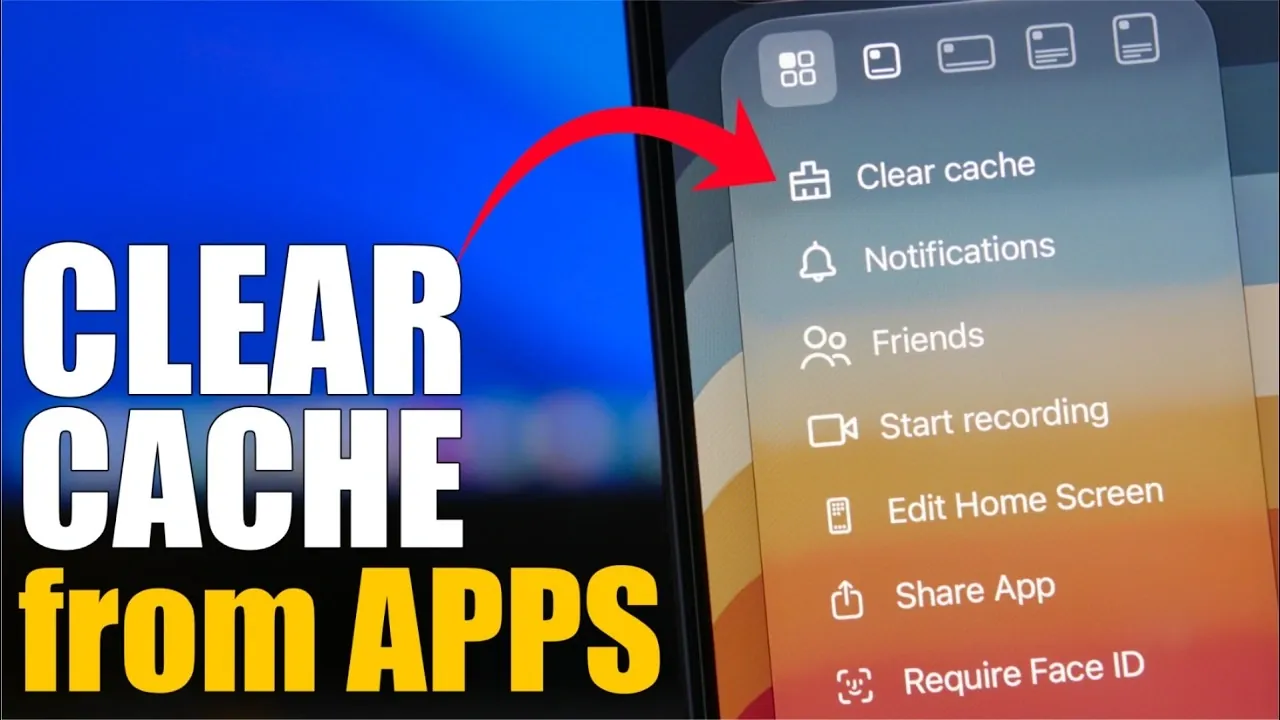
Managing cached data on your iPhone is a practical way to optimize storage and enhance performance. While cached files are designed to improve app functionality by speeding up processes, they can accumulate over time, consuming valuable space and potentially slowing down your device. The video below from iReviews provides more insights into the importance of clearing cache and provides detailed instructions for managing cached data across popular apps and browsers.

The Importance of Clearing Cache
Cached data refers to temporary files stored by apps and browsers to streamline user experiences, such as faster loading times. However, as these files accumulate, they can take up significant storage and impact your device’s speed. Regularly clearing cache offers several benefits:
- Free Up Storage: Removing unnecessary files creates more space for essential data like photos, videos and apps.
- Boost Performance: Eliminating outdated or excessive cached files helps apps and browsers run more efficiently.
- Streamline Data Management: Clearing cache allows you to maintain better control over your device’s storage and functionality.
Steps to Clear Cache in Popular Apps
Different apps manage cached data in unique ways. Below are step-by-step instructions for clearing cache in some of the most widely used apps.
Snapchat
Snapchat stores cached files to load snaps and stories more quickly. To clear this cache:
- Open Snapchat and navigate to your profile.
- Tap the settings icon and scroll to Privacy Controls.
- Select Clear Data and then tap Clear Cache.
This process can free up significant storage, especially if you frequently use Snapchat.
Spotify
Spotify caches songs, playlists and album art to enhance playback speed. To clear this cache:
- Open Spotify and go to Settings.
- Tap Storage and select Clear Cache.
If additional space is needed, consider removing offline downloads.
Reddit stores browsing data and local files for quicker access. To clear this cache:
- Open Reddit and access your profile.
- Go to Settings and select Advanced.
- Tap Clear Local History to delete cached files.
TikTok
TikTok caches videos and images to enable faster playback. To clear this cache:
- Open TikTok and navigate to Settings.
- Select Cache & Cellular and tap Free Up Space.
- Choose Clear Cache.
Alternatively, you can use 3D Touch on the TikTok app icon to clear the cache directly.
Clearing Cache in Browsers
Browsers like Chrome, Safari, and Firefox also store cached data, which can impact both storage and browsing speed. Here’s how to clear cache for these browsers:
Chrome
- Open Chrome and tap the menu icon (three dots).
- Navigate to History and select Clear Browsing Data.
- Check Cookies, Site Data, and Cached Images/Files, then confirm the action.
Safari
- Open your iPhone’s Settings and select Safari.
- Tap Clear History and Website Data.
- For more granular control, go to Advanced > Website Data to delete specific site data.
Firefox
- Open Firefox and access Settings.
- Go to Privacy and tap Clear Private Data.
- Select Cache and confirm the action.
Advantages of Regular Cache Clearing
Incorporating cache clearing into your routine offers several practical benefits:
- Optimized Storage: Free up space for essential files and applications by removing unnecessary cached data.
- Improved Device Performance: Apps and browsers operate more efficiently without the burden of excessive cached files.
- Customizable Data Management: Tailor the process to your needs by choosing specific apps or browsers to clear.
Maintaining a Faster, More Efficient iPhone
Clearing cached data is a straightforward yet impactful way to ensure your iPhone operates at peak performance. By following the outlined steps for popular apps and browsers, you can free up storage, enhance speed and maintain better control over your device. Making cache clearing a regular habit will help you enjoy a smoother, more responsive iPhone experience.
Source & Image Credit: iReviews
Disclosure: Some of our articles include affiliate links. If you buy something through one of these links, Geeky Gadgets may earn an affiliate commission. Learn about our Disclosure Policy.
